
How to Speed up Your Mac: Step-By-Step Guide In 2026
How to Speed a Slow Mac in 2026: 10 Quick Ways to Boost Performance
Has your Mac been lagging for some time, and only now, when it has almost crawled to a halt, have you started wondering, “Why is my Mac running slow? Even brand-new Macs can start dragging their feet. That kind of slowdown has countless causes. But you can turn things around with this step-by-step guide that shares the reasons for your computer bogging down. You’ll also learn 10 solutions on how to speed up a slow Mac, according to those causes!
Part 1: Why Is My Mac Running Slow?
If you’re thinking, “Why is my Mac running slow,” it could be because of the following reasons:
- Not enough RAM: Too many apps or tabs open, so your Mac uses slow temporary memory.
- CPU overloaded: One or more apps are using most of the processing power.
- Storage almost full: Less than 10–15% free space slows everything down.
- Weak graphics (GPU): Heavy tasks like gaming or video editing can strain integrated graphics.
- Too many startup apps: Programs open automatically and use resources right away.
- Background apps running: Cloud sync and other hidden processes drain performance.
- Outdated macOS: Older versions may have bugs or poor optimization.
- Email app overloaded: Large mailboxes or sync problems use high CPU.
- Messy desktop: Too many files on the desktop slow down the system.
- Too many browser tabs/extensions: Browsers use a lot of memory and CPU.
- Spotlight indexing: Rebuilding the search index uses CPU and disk.
- Time Machine backup: Backups running in the background slow things down.
- Photo syncing: iCloud or Google Photos syncing many images uses resources.
- Overheating: Mac slows itself down to cool off.
- Old hard drive (HDD): Traditional drives are much slower than SSDs.
- Failing hardware: A bad drive, RAM, or battery can cause major slowdowns.
Part 2: 10 Proven Ways to Speed up Your Mac
Here’s how to speed up an old Mac with 10 proven ways. But each method targets a different reason for slowing down your Mac. So, pick accordingly:
Fix 1: Restart Your Mac Regularly
Start with the most basic method to speed up your Mac, and that’s to restart it once a week. Rebooting the Mac clears RAM, closes all apps and background processes, and installs any pending updates. On Apple silicon Macs, it also runs system checks and resets important system settings, which helps it run smoothly.
Fix 2: Clear Caches and Junk Files Automatically
Junk files are unnecessary files that build up on your computer over time, such as cache, temporary files, and leftover data from deleted apps. They take up a lot of storage, which may slow down your Mac.
You can clear junk files manually, but it will take quite a lot of time. So, a better option is to use a Mac Junk File Cleaner, like Tenorshare Cleamio. It uses the MD5 algorithm to safely remove system junk, app leftovers, caches, hidden data, and browsing data. Here are the benefits this tool provides:
- Frees up storage and can recover 20 GB+ with one click.
- Speeds up Mac performance, reduces Finder lag, and protects your data.
- Quickly find and delete duplicates, similar photos, and large files.
- Batch rename multiple files and manage app updates.
- Completely uninstall unwanted Mac apps.
- Monitors Mac performance in real time.
Here’s how to speed up a slow Mac with the help of this tool:
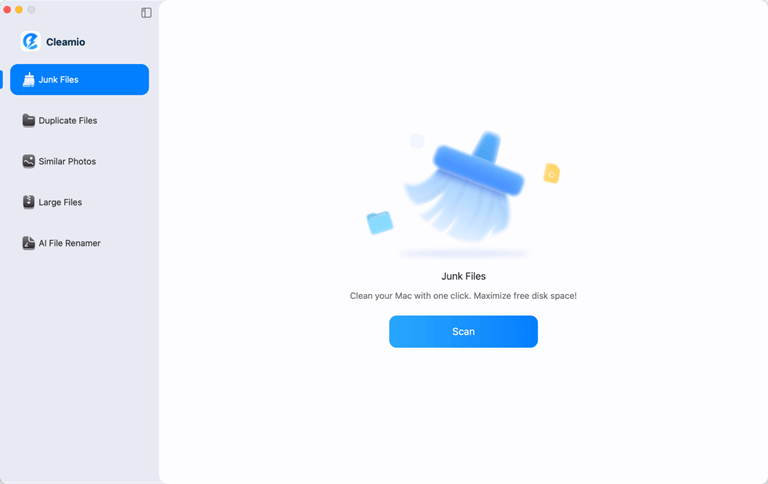
Step 1: Download and execute the Junk File Cleaner tool on your Mac. Then, select “Junk Files” on its main interface. Click “Scan” to find unnecessary files.
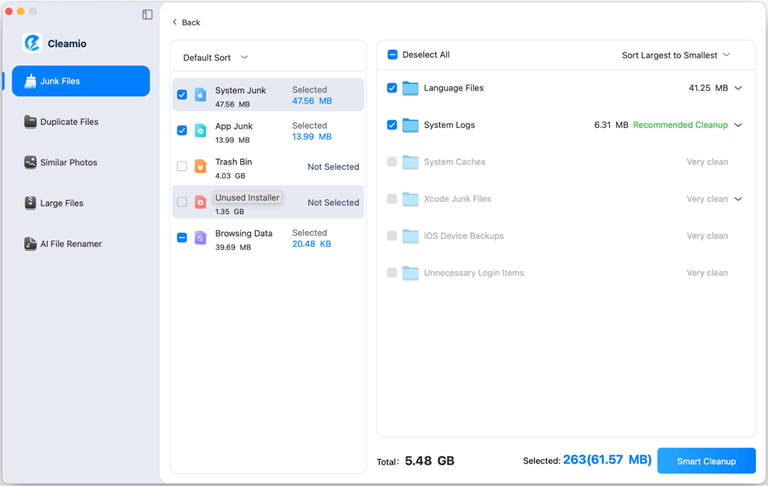
Step 2: After scanning, review the detected junk. Then, click “Smart Cleanup” to remove selected files.
Step 3: Wait for the cleanup to complete. Your Mac will now run faster and more smoothly.
Fix 3: Disable Unnecessary Startup Items
One reason the Mac startup can feel slow is that too many apps launch automatically in the background. You can disable unnecessary startup apps to speed up your Mac. Here’s how to improve Mac performance:
Step 1: Head to your “System Settings.” Then, tap “General.” Next, choose “Login Items & Extensions.”
Step 2: Move down. Check the list of startup apps. Toggle off to disable the unnecessary ones.
Fix 4: Free Up Mac Storage
If you’re wondering, “How to get my Mac to run faster,” you can delete large files you no longer need (like old videos or downloads). Another way to free up filled Mac storage is to empty the Trash and permanently remove deleted items. You can also uninstall apps you don’t use anymore to reclaim valuable storage. Here’s how to speed up old Mac:
- Find and delete large unused files: Head to “System Settings.” Then, tap “General.” Choose “Storage” to review large files, downloads, and old documents you no longer need, and remove them.
- Empty the Trash: Right-click the “Trash” icon in the “Dock.” Select “Empty Trash” to permanently remove deleted files.
- Uninstall unused apps: Open “Finder.” Next, pick “Applications.” Drag apps you don’t use to the “Trash,” then empty the Trash again.
Fix 5: Update macOS to the Latest Version
While Macs can automatically install the latest macOS updates, not all Macs can do that, which might be why your computer is slowing down. You can check for the latest macOS version in “About This Mac.” If it’s outdated, here’s how to improve Mac performance by updating it:
Step 1: Head to “System Settings.” Then, tap “General.” Next, select “Software Update.”
Step 2: If a new version is available for your Mac, hit “Update Now.” Follow on-screen prompts to install it.
Fix 6: Check Activity Monitor for high CPU/Memory Usage
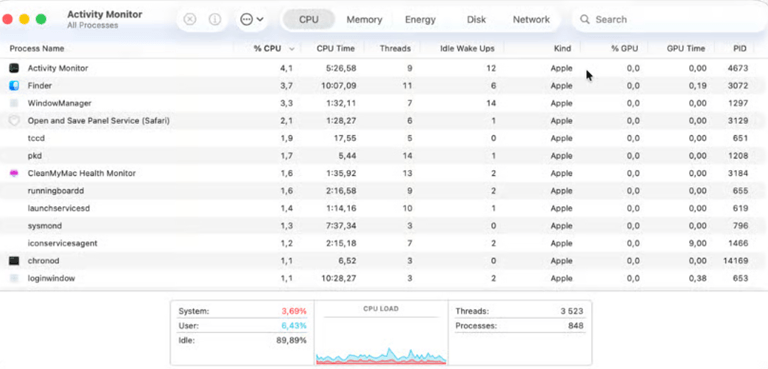
Some apps are more power-voracious than others and can slow your Mac down. To see what’s using your system resources, you can use “Activity Monitor” to check and quit unnecessary apps and processes. Here’s how to speed up old Mac:
Step 1: Open “Applications.” Then, choose “Utilities.” Open “Activity Monitor.” Then, check:
- In the “CPU” tab, see which apps are using the most processing power. You can select an app and click the “X” to close it.
- In the “Memory” tab, look at the “Memory Pressure” graph. Green is fine, but yellow or red means your RAM is running low.
- In the “Energy” tab, examine which app is draining the most battery. But only close apps you recognize. Don’t quit the processes that you know nothing about or what they do.

Fix 7: Remove Temporary RAM Files
Temporary RAM files are leftover data that your Mac keeps in memory to speed up processes. But sometimes this data can accumulate and bog down your computer, especially if you’re running heavy apps. But you can clear these files from memory to speed up your Mac. To do so:
Step 1: Open “Applications.” Then, choose “Utilities.” Execute “Terminal.”
Step 2: Type the following command to clear your RAM of temporary files. Hit “Return” afterward:
-
sudo purge
Step 3: You’ll be requested to enter the admin passcode. Input it. The memory space will be cleared.
Fix 8: Run the First Aid Feature
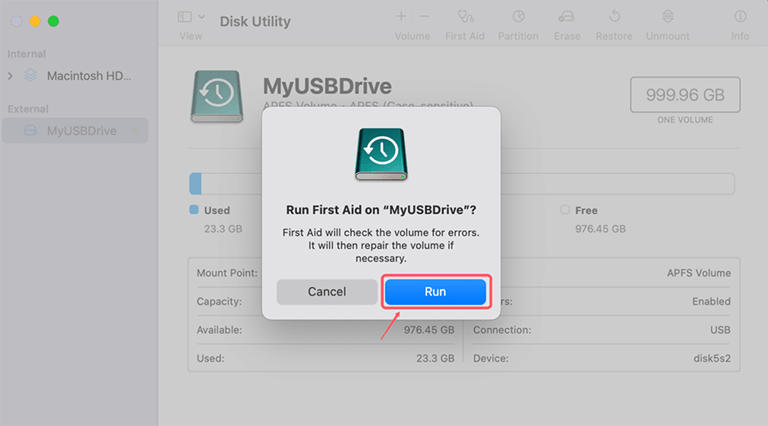
Your Mac drive might have some corruption or errors, which is why your computer is slowing down. But running “First Aid,” a built-in Mac feature, can examine your Mac’s drive for errors and repair them. This can improve performance, prevent crashes, and help your Mac run faster. Here’s how to improve Mac performance by running First Aid:
Step 1: Open “Applications.” Then, choose “Utilities.” Next, choose Disk Utility.”
Step 2: Choose the disk from the left menu that you believe might be slowing down your system.
Step 3: Tap “First Aid” in the menu above. Hit “Run.” Wait for the repair process to complete.
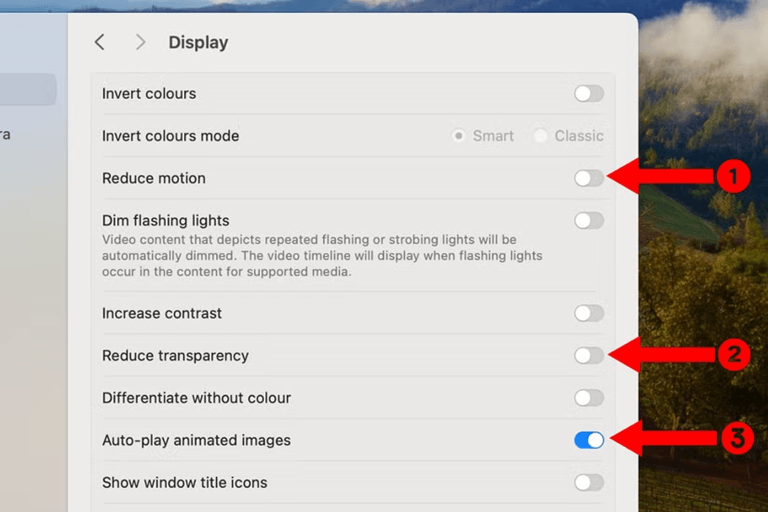
Fix 9: Reduce Visual Effects and Animations
Reducing visual effects and animations lightens the workload on your Mac’s CPU and GPU. This makes the system more responsive and can help apps and windows open faster. So, if you’re wondering, “How to get my Mac to run faster,” reduce the visual effects and animations. To do so:
Step 1: Head to “System Settings.” Then, choose “Accessibility.” Tap “Display.”
Step 2: Switch on “Reduce motion” and “Auto-play animation images” to limit animations. Next, enable “Reduce transparency” to lighten graphic effects.
Fix 10: Consider Hardware Upgrades For Old Macs
Even after all the solutions, if your Mac is still slower, and you’re stuck wondering, “How to get my Mac to run faster,” consider hardware upgrades. Your Mac might have older hardware, and with time, it can’t keep up with the modern software demands, which results in your computer slowing down. But as a solution, you can add more RAM or switch from an HDD to an SSD, which can significantly boost speed. More memory helps apps operate flawlessly, and an SSD makes booting and loading files much faster.
Conclusion
Hopefully, this guide has been able to answer your two queries, “Why is my Mac running slow,” and “How to speed up a slow Mac?” You can speed up a Mac by restarting regularly, managing startup apps, freeing up storage, updating macOS, monitoring resource usage, and removing temporary RAM files. Also, running First Aid, reducing visual effects, upgrading hardware, and clearing junk files and caches can improve your Mac’s performance.
But to save time in cleaning junk files manually, employ an automatic tool like Tenorshare Cleamio. It quickly removes unnecessary files, app leftovers, caches, similar photos, and duplicates, speeding up your Mac and improving its performance with minimal effort.
Popular on OTW Right Now!

About The Author

Gagan Bhangu
Founder of otechworld.com and managing editor. He is a tech geek, web-developer, and blogger. He holds a master's degree in computer applications and making money online since 2015.