
How to Improve Your App’s User Experience Before Launch: A Practical Checklist
An app’s initial launch is always a thrilling event – the team is happy and waiting, the product is finally functional, and the screens appear to be totally polished. However, many teams do misjudge how quickly users might become disinterested in YOUR product. If the initial few minutes of the encounter are confused, even powerful features won’t do much to help. That is why many teams work with professional UI/UX services long before launch to find any usability concerns and issues early and improve the product in advance.
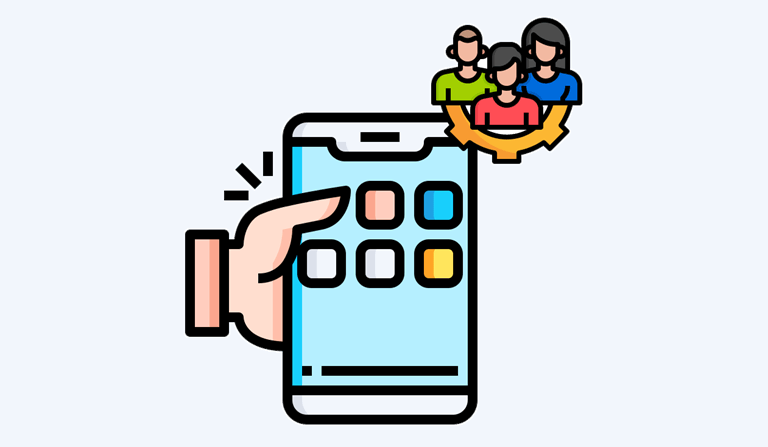
Resolving UX problems before launch is typically the simplest solution. Users must be able to trust the app’s activities, comprehend what it performs, and easily finish important tasks. Of course, clean code is important. However, users are rarely the first to observe your architecture. They quickly realise if the product is simple to use, reliable, worthwhile, and helpful.
Make the First Screen Clear
Most teams don’t realise how much pressure there is on the first screen. Customers typically make a snap decision about whether or not they comprehend the goods. Many of them go before delving further if the next course of action is unclear.
Don’t forget that highly marketing language sometimes makes things even worse. Why? Because, despite looking professional, a headline like “The future of smarter living” doesn’t describe the product at all! Users love simplicity. They want to understand what your product is really for. A more understandable approach, such as “Track your subscriptions and avoid hidden charges,” will provide users with an instant understanding and motivation to try your app.
People are rarely captivated by visuals only; instead of solving obscure messaging or ornamental layouts, users want to grasp the true value ASAP. Many customers will abandon a product before they have had a chance to thoroughly examine it if it requires them to think too much.
Keep Onboarding Short and Useful
Effective onboarding focuses more on assisting users in completing a single, significant task as soon as feasible than it does on describing the complete product. Users may stop using it if it seems excessively lengthy, requests too much information, or requires account creation too soon. The desire to educate everything up front is resisted by strong goods. Once users are comfortable with the app, they progressively add complexity. They don’t attempt to educate the entire product at once.
It’s better to seek approval at the right time as well. Asking for immediate location, camera, or notifications, for example, can be too pushy at times. If the user finds out the reason why the application is requesting the permission, then they are more likely to allow it.
It is quite surprising how much it stands out when it’s good and how much it stands out when it’s bad, because a good onboarding is like a hug, a bad onboarding is like a stack of papers.
Test Navigation with New Users
Familiarity is one of the major UX pitfalls. Teams start to see the navigation as clear after months of using the system, but for new users, it is not clear.
Have everyone in the room outside the team doing simple tasks in the app before you start. Have them look for account settings or change a preference and so on, or contact support.
And this is crucial: don’t assist folks too rapidly when they are being tested. The biggest UX problems are usually discovered when consumers are reluctant. Team members are familiar with where all the items should be, and seldom show up these problems in an internal review.
Make Every Action Obvious
Any important screen should subtly encourage users to do the next thing, rather than forcing them to think. Users should never have to ‘guess’ what a button does, or what will happen after the user taps it.
Often,n labels such as “Continue” are too general. Specific labels like “Save Profile”, “Start FreeTrial “i, al” or “Book Appointment” make users feel more confident.
This is especially important when performing fine movements. When deleting an account, making a payment, or terminating a membership, it should be clear and confirmed whether this is the case.
Getting rid of the hesitation is a large part of a lot of the UX development. The moment consumers start to reflect on their behavior,r the experience gets heavier. If there is a better understanding of what the users are trying to do, then they are more likely to complete an action.
Reduce Friction in Forms
On the product side, forms could seem simple, but they’re one of the fastest methods to aggravate people—especially when it comes to mobile devices. All fields need to be important since it’s not nice to type with a phone.
Thoroughly review all forms prior to launch. If there are fields that are not required, then remove them. Use the phone numbers, numbers, rs and email address keys. Provide clear and helpful error messages.
This kind of message, “Invalid input”, is not very helpful. A more helpful message will tell you exactly what the problem is, for instance, “Please use an @ symbol in your email address.”
There are some small tweaks in forms that have a big impact on conversion. Sometimes, it’s as simple as removing one unnecessary field that will boost completion rates more than an expensive redesign.
Check the App on Real Devices
They often look great in tools, but in reality, they are not quite as nice on the device. This may differ on different operating systems, different internet connection speeds,s and screen sizes. You can’t just test it on one modern mobile phone. Try the app on smaller screens, on older devices, and both light and dark modes (if available) should be utilized.
Look for buttons that are hard to reach, limited touch areas, overlapping elements, and cut-off text. Test the app’s performance on a slow internet connection too. At this stage, minor or significant problems usually arise: layouts are too tight, buttons are uncomfortable, writing is hard to read, functionality was fine during the design phase but not so pleasant in use, etc.
Improve Accessibility Before Release
It’s often thought of as a technical checklist, but it really does make a difference to the ease of use and comfort of the product for almost everyone.
The text ought to be readable. Buttons ought to be big enough to be tapped. Important information should not jump up and down in colour. Icons ought to be comprehensible, particularly if they don’t have labels. A field should be highlighted in red, but not an incorrect state. This should include a brief description of the problem.
The easy-to-use design will allow more people to benefit from the product and make it clear, reducing frustration.
Be Careful with Notifications
One way products can develop habits or start to bore users over time is through notifications. If they appear odd or too frequent, users may disable notifications or even remove the app. Before you start, decide the real value of each of the notifications. The purpose of an update/notice/reminder should be to help the user rather than just get them to reopen the app.
Getting authorised to notify at the right time is also very important. If the user knows about the benefits, he/she will be more likely to agree. It’s much better to have a message like “Get a reminder 5 minutes before your meeting” instead of “Allow access to notifications”, etc., as a generic permission request on the initial screen.
Match the Store Page with the Real Product
Indeed, the experience starts even before customers get it installed. All screenshots, descriptions, and features claimed in the App Store/Google Play website must match the actual product. Users’ trust rapidly declines if they download the program and discover anything different from what was advertised.
All primary features of the app should be prominently listed on the app store page. Screenshots ought to be up to date, understandable, and concentrated on practical advantages. An attractive store attracts the right customers and sets clear expectations.
Final Thoughts
If the product has just more features than its competitors, good start-ups are rare. The customers need something easy to use, reliable,e and evident from the beginning.
Teams should review the following screens before release, including: onboarding, navigation, forms, error states, real-device performance, accessibility, notifications, and store display. People’s decision to stay or go is frequently made in these areas.
A good user experience can’t solve the complexity of a product just because it has a sudden appearance. It actually makes that complexity seem feasible, not out of the question. The chances of long-term engagement in the app are much higher if the end user is aware of what they need to do and feels at ease.
Popular on OTW Right Now!


About The Author

Gagan Bhangu
Founder of otechworld.com and managing editor. He is a tech geek, web-developer, and blogger. He holds a master's degree in computer applications and making money online since 2015.