
How to Edit a PDF on Mac, Windows, and Mobile
Editing a PDF is easy until you switch devices.
A document that works perfectly on your Windows laptop may be harder to update on your phone. A PDF you annotate on a Mac might need additional tools before you can edit text or replace images. The features available often depend on both the device and the software you’re using.
The good news is that modern tools make it possible to edit PDF files almost anywhere. Whether you’re working on Windows, macOS, Android, or an iPhone, there are reliable ways to update documents, add comments, fill forms, and manage files without starting from scratch.
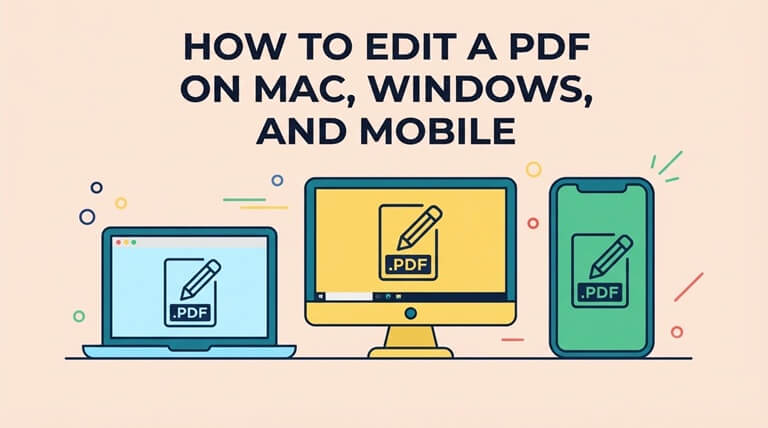
Why PDF Editing Is Different Across Devices
PDFs are designed to preserve formatting regardless of device, but editing capabilities vary significantly across platforms.
Desktop computers generally offer the most complete editing experience. Mobile devices prioritize convenience and portability. Meanwhile, built-in PDF applications often support viewing and annotation but not full content editing.
The result is that the same document may behave differently depending on where you’re working.
Understanding those differences helps you choose the right workflow and avoid frustration when moving between devices.
How to Edit a PDF on Windows
Windows offers the widest range of PDF editing options, from browser-based platforms to dedicated desktop software.
Using a Dedicated PDF Editor
For regular document work, a dedicated PDF editor is usually the best option.
These tools allow users to:
- Modify text
- Replace images
- Reorganize pages
- Add signatures
- Fill forms
Platforms like Lumin also provide browser-based editing, allowing users to work without installing additional software.
Editing Text and Images
Text editing is one of the most common PDF tasks.
Users often need to:
- Update contract language
- Correct errors
- Change dates
- Modify contact details
Most editing software allows users to click directly into editable text areas and make changes.
Images can also be inserted, resized, moved, or replaced as needed.
Adding Comments, Highlights, and Annotations
Annotations play an important role in collaboration.
Popular markup tools include:
- Highlights
- Sticky notes
- Text comments
- Drawing tools
- Callouts
These features help teams review proposals, contracts, and reports before final approval.
Saving and Exporting Your Changes
After editing, users can:
- Save the PDF
- Export to Word
- Share through cloud storage
- Send directly to collaborators
Always review the final document before sharing to ensure formatting remains intact.
How to Edit a PDF on Mac
Mac users have access to both built-in tools and third-party editing platforms.
Editing PDFs with Preview
Preview is included with macOS and is surprisingly useful for basic PDF work.
Users can:
- Add annotations
- Highlight text
- Insert signatures
- Rearrange pages
For simple document review tasks, Preview handles a lot without requiring extra software.
Modifying Text, Images, and Annotations
Preview works well for comments, highlights, signatures, and simple page changes. It is not the best choice for editing the actual content of a PDF.
If you need to rewrite text, replace images, or adjust layout, use a dedicated PDF editor instead.
Signing Documents Electronically
Signing PDFs is one area where Preview performs particularly well.
Users can:
- Create signatures using the trackpad
- Capture signatures using a camera
- Save signatures for future use
This makes contract approvals and form completion much easier.
Saving and Sharing Edited PDFs
Once changes are complete, documents can be:
- Saved locally
- Shared via email
- Uploaded to cloud storage
- Exported for collaboration
Cloud-based platforms simplify this process when multiple people need access to the same file.
How to Edit a PDF on Android
Android devices have become increasingly capable for document management.
Best Ways to Open and Edit PDFs
Many users start with a PDF reader or PDF viewer app. While these applications handle viewing well, editing features vary significantly.
Dedicated editing apps or browser-based platforms typically provide the most flexibility.
Adding Text, Notes, and Markups
Android users can easily:
- Add comments
- Highlight content
- Fill forms
- Insert notes
- Sign documents
These features are particularly useful when reviewing documents on the go.
Editing Existing PDF Content
Full content editing is more challenging on mobile devices.
Tasks such as:
- Modifying text
- Replacing images
- Restructuring layouts
are generally easier on desktop systems.
However, many modern PDF apps now support light editing directly from Android devices.
Saving Changes on Mobile Devices
Most editing apps automatically save changes locally or sync them through cloud storage.
This makes it easier to switch between devices without losing progress.
How to Edit a PDF on iPhone and iPad
Apple’s mobile devices offer several useful options for PDF management.
Using Built-In PDF Tools
The built-in Markup feature allows users to:
- Highlight text
- Draw annotations
- Add signatures
- Fill simple forms
These tools are useful for quick document review and approval.
Annotating and Filling Out Forms
Many business workflows involve form completion.
Users can fill:
- Applications
- Registration forms
- Internal paperwork
- Approval documents
directly from their iPhone or iPad.
Editing Text and Images with PDF Apps
For advanced editing, dedicated applications are usually required.
These apps allow users to:
- Edit text
- Add graphics
- Manage pages
- Handle more complex document changes
Browser-based tools also provide a convenient alternative for users who prefer not to install multiple apps.
Sharing and Exporting PDFs
Once editing is complete, files can be:
- Shared through email
- Uploaded to cloud storage
- Sent through collaboration platforms
- Exported in various formats
This flexibility is particularly valuable for remote teams.
Features to Look for in a PDF Editor Across All Platforms
Not every editing tool offers the same capabilities.
Text Editing Capabilities
A strong editor should allow users to:
- Modify text directly
- Maintain formatting
- Add new content
- Update existing information
Text editing remains one of the most important features users look for when they need to edit PDF documents.
Image Editing Tools
Image support should include:
- Insertion
- Resizing
- Cropping
- Replacement
This becomes especially important for reports, presentations, and marketing materials.
OCR and Scanned PDF Support
Scanned PDFs require OCR (Optical Character Recognition). OCR allows software to convert image-based text into editable content.
Without it, editing scanned documents becomes much more difficult.
Cloud Storage and File Synchronization
Cloud connectivity helps users:
- Access files anywhere
- Switch devices seamlessly
- Collaborate with others
- Reduce version confusion
This is one reason many professionals prefer an easy-to-use online PDF editor that works consistently across platforms.
Common Challenges When Editing PDFs on Different Devices
Despite major improvements in PDF software, challenges still exist.
Common issues include:
- Font inconsistencies
- Formatting changes
- Missing fonts
- Image quality loss
- Limited mobile editing capabilities
- Compatibility differences between apps
A document edited on one platform may occasionally display differently elsewhere. This is particularly true when custom fonts or complex layouts are involved.
Testing important documents before distribution helps prevent surprises.
Tips for Maintaining Formatting Across Mac, Windows, and Mobile
Consistency matters, especially for contracts, reports, and client-facing documents.
A few simple practices help preserve formatting:
- Use common fonts whenever possible
- Avoid excessive formatting changes
- Review documents after editing
- Keep image sizes reasonable
- Save backup copies before major revisions
- Use the same editing platform across devices when possible
Cloud-based solutions help minimize compatibility issues because users work within the same environment regardless of device.
Platforms like Lumin are particularly useful here because documents remain accessible across desktop and mobile workflows without requiring separate file versions.
Final Thoughts
The best way to edit PDF files depends largely on the device you’re using and the type of changes you need to make.
Windows users typically have the widest range of editing options. Mac users benefit from Preview for basic tasks and dedicated editors for more advanced work. Mobile devices offer great flexibility for reviewing, signing, annotating, and managing documents on the go.
Regardless of platform, the most effective workflow combines reliable editing features, cloud accessibility, and consistent formatting support. Choosing the right tools makes it much easier to manage documents efficiently, whether you’re working from a desktop computer, a laptop, or a smartphone.
Popular on OTW Right Now!



About The Author

Gagan Bhangu
Founder of otechworld.com and managing editor. He is a tech geek, web-developer, and blogger. He holds a master's degree in computer applications and making money online since 2015.