
The Safe Way: How to Delete Duplicate Photos on Mac Without Losing Precious Memories
If you’re staring at a photo library lined with thousands of photos, you’ll notice that duplicate photos quietly devour your Mac’s capacity. The problem is, “What if you delete the only copy of that special memory?” The anxiety is not to leave your head. You will feel devastated if you lose one such as a family photo, a snapshot of a trip, a photo of a work project, etc. The purpose is not just to remove duplicates. Keep all your unique memories safe while ensuring true duplication is removed. This guide shows you the safety-first way to organize your Mac photo library. If you’ve searched online for how to delete duplicate photos on Mac, you may have seen dangerous advice. This article provides a safe, practical, and proven approach.

The Non-Negotiable Pre-Cleanup Safety Checklist
Before you think about deleting duplicate photos on your Mac, you need solid safety measures. Mistakes can happen, and lost memories cannot be regained. Fully back up your photos with this checklist to ensure a safe and secure foundation before you start cleaning up.
Step Zero: Back Up Everything. (Yes, Really.)
Safety measures for iron walls are required before removal. Apple’s “Photos” app also has a “recently deleted items” folder, but the retention period is only 30 days. Without proper backup, error removal can be a permanent loss.
Simple two-tier safety measures:
1. Full System Backup
Verify that your Mac has the latest Time Machine backups. Protects your system even if problems occur during cleanup.
2. Photo Library Backup (The Practical Layer)
For photo app users:
- Open Finder and go to the picture folder.
- Find Photos Library. photoslibrary.
- Copy to external drive or cloud storage.
For folder management photos:
- Copy all image folders to another drive.
- Keep the folder structure intact to avoid confusion.
Importance: If you have a backup, you can restore all the photos even if there is a wrong operation. Think of it as insurance to protect your memories on how to delete duplicate photos in photos on a Mac.
Method 1: The Cautious Approach Within Apple Photos
In case you simply want to work with the Apple ecosystem, the photo app is a cautious approach to deleting unnecessary photos. This is a way of deleting duplicate photos on Mac, and you are able to look at all the photos before they are deleted, and hence you have control over the photos. It is time-consuming, yet you can always be sure that you are deleting duplicate photos without losing your precious memories.
Using the Photos App: Manual Hunting with Training Wheels
The question posed by many users is: How do you delete duplicate photos on Mac safely using the Photos application? The Photos app by Apple is something one will feel at ease with, thus a good place to start. Photos do not have the option of duplicates being removed automatically in one click, but careful reading can be carried out by hand. This technique of deleting similar photos on mac photos app is prioritized on control and caution; however, it is time-consuming and needs attention.
Step-by-Step Guided Search (Not a One-Click Solution)
Step 1: Launch the Photos app from the Applications folder or Spotlight. Make sure your photo library fully loads before continuing.
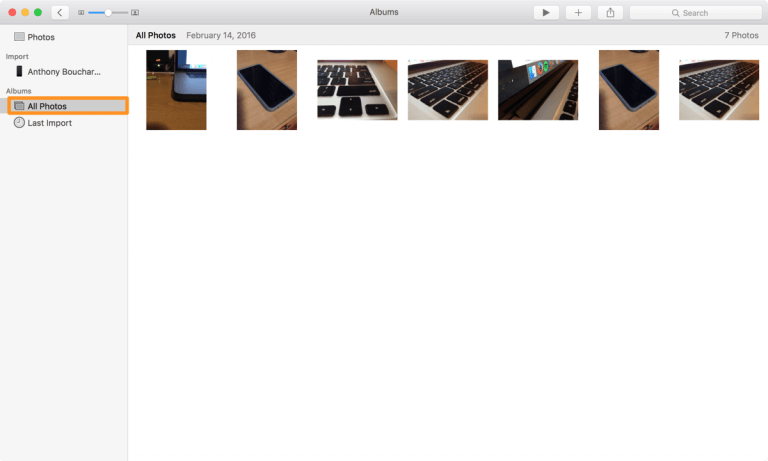
Step 2: Click the Search bar in the top-right corner. Search by date, location, or person. Duplicate photos often appear together because they were captured or imported at the same time. 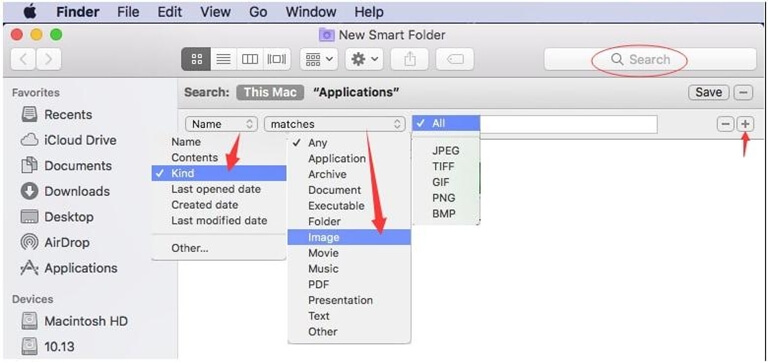
Step 3: Switch to All Photos, then sort by Date or Name. This arrangement groups similar thumbnails close together, making duplicates easier to spot visually.
Step 4: Select a photo and press the Spacebar. This opens a larger preview without fully opening the image. Compare suspected duplicates one by one to confirm they are truly identical.
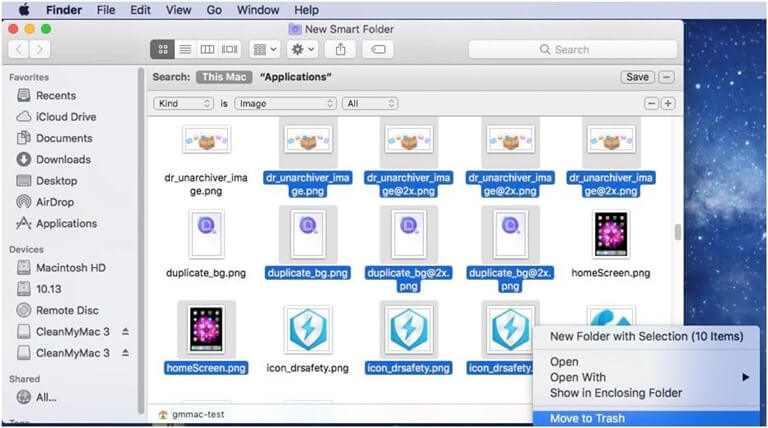
Step 5: Once you confirm a duplicate, select only that photo and press Delete. Approve the action. Repeat this process slowly to avoid mistakes.
The Honest Verdict
Pros:
- Uses Apple’s built-in tools.
- No third-party software needed.
- Complete authority over all deletions.
Cons:
- Very slow in the case of big libraries.
- Easy to miss duplicates.
- Needs to be attended to and handled manually.
This method works best for small collections. If your library contains thousands of photos, ask yourself honestly: Do you really have 40 hours to do this safely?
Method 2: The Safe & Automated Solution – Why Dedicated Tools Exist
One can also search for duplicates by hand in the photo application, yet it is quite cumbersome and exhausting when working with big libraries. There are so many users of Mac who seek applications to remove duplicate photos on Mac. Specialized applications can be used to save time, keep full control, and be sure that duplicates are checked and deleted safely without the risk of losing memories.
Beyond Manual Labor: Using a Dedicated Duplicate Finder
Manual check is secure and time-consuming. One usually searches for applications to delete duplicate photos on Mac; however, not all apps are this considerate. A lot of applications are not concerned with safety.
Introducing the Safety-First Tool: Tenorshare Cleamio
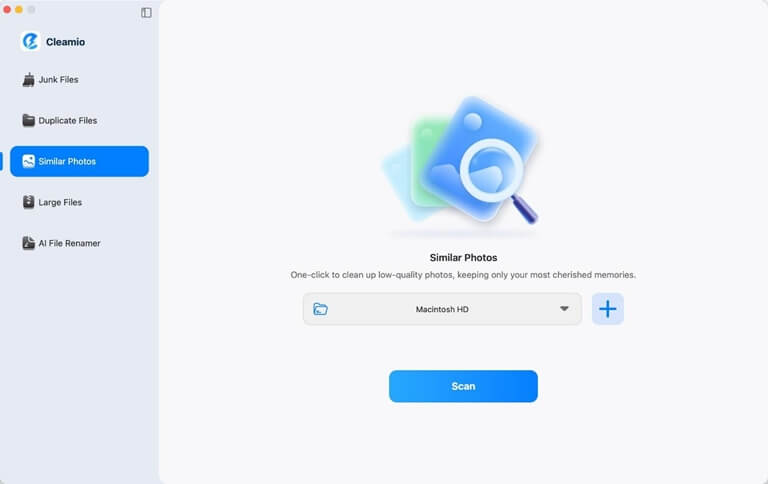
Tenorshare Cleamio works as a photo safety inspector, not a simple cleaner. Its primary purpose is to locate duplicates of photos and, thereafter, give the whole control back to you. It does not destroy anything unless you expressly give the go-ahead. In this design, the fear of unwanted loss, which is the greatest worry of most Mac users, is directly related to it.
The Critical Safety Workflow That Matters
Scan & Present (No Immediate Deletion)
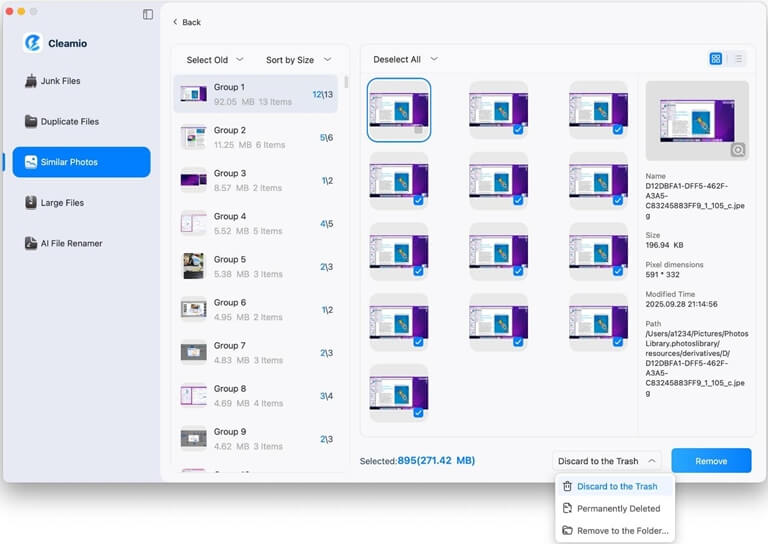
Cleamio analyses your photo library and identifies duplicate and similar photos. It merely shows the results in distinct groups or lists. Nothing is eliminated at this point.
Side-by-Side Preview (The Key Feature)
For each duplicate group, Cleamio shows photos side by side in full size. You can zoom in, inspect details, check cropping, compare sharpness, and judge image quality with confidence.
Smart Selection (Suggested, Not Forced)
Cleamio is able to recommend the most appropriate copy depending on clarity, resolution, and exposure. This suggestion can be accepted or altered. You can always make the decision.
Your Final Approval
You use the check boxes to select the pictures that you wish to remove. Nothing comes until you press Remove. This measure eliminates unwanted deletion.
Built-In Safety Net
Cleamio has the ability to copy files into a review folder instead of deleting them permanently. The additional layer will allow you time to check the photos twice and reconstruct them.
Why This Solves the Core Fear
This workflow eliminates apprehension. You are observant before you strike. You control every step. This is the reason as to why Cleamio can be described as the best app to use to delete duplicate photos on Mac, where the need to be safe supersedes the need to be fast.
Visual Tip:
Add a picture of the side-by-side preview of Cleamio to reassure the customers. This is the ideal app to use to delete duplicate photos on the Mac, as far as the majority of users are concerned, since it is safe, efficient, and controllable.
The “Best Way” Decision Guide & Final Recommendation
It might be hard to find the option to select the method of deleting duplicate photos on Mac. Whether you want to work with your hand or you want to work with a special tool with verification possibilities and efficiency, this guide will assist you in making the safest and most practical choice.
Step 1: Decide Your Approach
| Condition | Recommended Method |
| Less than 100 suspected duplicates | Manual Photos App method |
| Hundreds or thousands of duplicates | A dedicated tool like Cleamio |
Step 2: Follow the Most Practical Safe Method
To the majority of Mac users, specific tools containing preview and approvals workflows are the safest and most pragmatically feasible. Eliminate human errors, minimize manual checks, and scrutinize all the photos prior to deletion.
Step 3: Take Action
- Ready to organize your library safely.
- Download Cleamio, scan the library for free, preview duplicate photos side by side, and delete only what you need.
This is the optimal step in deleting duplicate photos on Mac for all people who appreciate memories and tranquility.
FAQ
Q1: How do you delete duplicate photos on a Mac without using any third-party software?
The Photo app can be used manually. Date search, location search, name search, sort by date, sort by name, and compare duplicates by quick look. Then delete one by one. It is safe, and it is time-consuming in big libraries.
Q2: Is there a way to delete duplicate photos on the Mac Photos app automatically?
No, the standard “photo” app does not automatically detect duplicates. Confirmation has to be done manually. Or detect automatically using specific applications such as Cleamio.
Q3: Can I preview photos before deleting them with these tools?
Yes. Be sure to use a tool that can be arranged and previewed in full size before deletion. An example is that in Cleamio, you have a chance to thoroughly check all duplicate photos before removing them.
Conclusion
Organizing your Mac’s photo library does not have to involve stress or risk. To know how to delete duplicate photos on Mac and not to lose your valuable memories, follow definite safety-critical steps. This is fine when deleting is done manually in the photo app when working with small collections, but as the library increases, it becomes slower and can make mistakes. Specialized applications such as Cleamio offer a safe, managed, and effective solution where preview and final approval are parallel and deleted beforehand. Regardless of your dozens of photos or thousands of photos, you can save all your special photos by prioritizing and ensuring that you verify backups. Begin the process and do not worry to free up the free space in your Mac.
Popular on OTW Right Now!




About The Author

Gagan Bhangu
Founder of otechworld.com and managing editor. He is a tech geek, web-developer, and blogger. He holds a master's degree in computer applications and making money online since 2015.