
Download Classic WordPad for Windows 11
Do you want to download the classic WordPad for Windows 11 to bring back the simplicity of the iconic text editor? If yes, then you’re on the right page. Here is how to download and use WordPad for Windows 11.
In Windows 11, WordPad is missing. This easy-to-use text editor that’s been part of Windows since the ’90s is now gone.

Microsoft has officially deprecated WordPad in Windows 11, starting with the 23H2 update in September 2023. To a vast number of users, this may not matter much-we have Microsoft Word, Notepad, and even online editors such as Google Docs.
However, the change was frustrating to millions of regular users who enjoyed the simplicity and speed of WordPad.
So, what can you do if you still want WordPad on your Windows 11 system?
Good news: It is possible to download and use Classic WordPad on Windows 11 in a couple of steps.
What Makes Classic WordPad So Great?

Despite being a basic editor, WordPad offered just the right amount of features for quick document writing. Here’s why people loved it:
- Simple, no distractions UI.
- Quick to open and use.
- Supports RTF, DOC, DOCX, ODT, and TXT files.
- Offers basic formatting like bold, italics, lists, and images.
- No need for a Microsoft 365 subscription.
- Runs smoothly even on low-end systems.
For many users, especially seniors, students, or casual writers, WordPad was the perfect editor for writing letters, school notes, reports, or even journals.
Why Did Microsoft Remove WordPad from Windows 11?
In recent years, Microsoft has been cleaning up Windows by eliminating the more old fashioned features and programs that are not much used or updated. Although WordPad was handy to many, it had not been significantly updated over many years.
Here’s Microsoft’s official stance:
“WordPad is no longer being updated and will be removed in a future release of Windows.”
Instead, Microsoft encourages users to use Notepad for plain text or Word for rich text editing.
The problem is, however, that Notepad is too basic and Word is too complicated (and even paid). The sweet spot was WordPad, a free, lightweight, rich text editor that opened up in a second and allowed simple formatting without any fuss.
Download WordPad for Windows 11
Download the WordPad package or installation file. Note that this package is built of genuine files that are not manipulated or tampered with.
It will restore the editor to your Start menu, and it can even make a shortcut on your desktop in case you desire that. This is a package compatible with Windows 11, and it includes both 32-bit and 64-bit files.
The WordPad application will continue to support its two traditional commands, e.g., you can start it either as write.exe or wordpad.exe in the Run dialog or when searching in the taskbar.
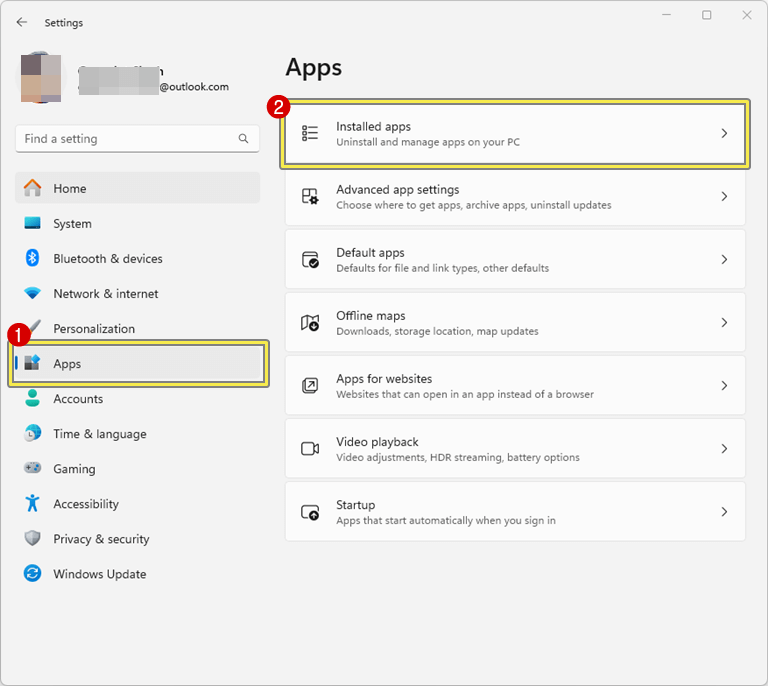
It will also use the same interface language as your operating system because it is accompanied by MUI resources. Also, it has an uninstaller; hence, you can uninstall this WordPad app under Settings » Apps » Installed apps.
It contains almost a complete set of MUI files, so it will be in your native language right out of the box.
The supported list of locales is:
ar-sa, bg-bg, cs-cz, da-dk, de-de, el-gr, en-gb, en-us, es-es, es-mx, et-ee, fi-fi, fr-ca, fr-fr, he-il, hr-hr, hu-hu, it-it, ja-jp, ko-kr, lt-lt, lv-lv, nb-no, nl-nl, pl-pl, pt-br, pt-pt, ro-ro, ru-ru, sk-sk, sl-si, sr-latn-rs, sv-se, th-th, tr-tr, uk-ua, zh-cn, zh-hk, zh-tw.
It does not install all languages; rather, you need to check which language you are using, and it only extracts the necessary files to save your disk space.
Download Classic WordPad for Windows 11 32-bit and 64-bit
The download button is given below.
After downloading, you need to install WordPad on your Windows 11 computer. Read the installation guide.
How to Install WordPad in Windows 11
- After downloading the zip file, right-click on the zip file and click on the Extract all option from the context menu.

- You’ll see the pop-up window to extract the installation file and select the destination. Just click on the Extract button to proceed.

- Now open the wordpad folder and you’ll see the .exe file in the folder.
- Double-click on the file and click on the Yes button from the User Account Control pop-up warning.
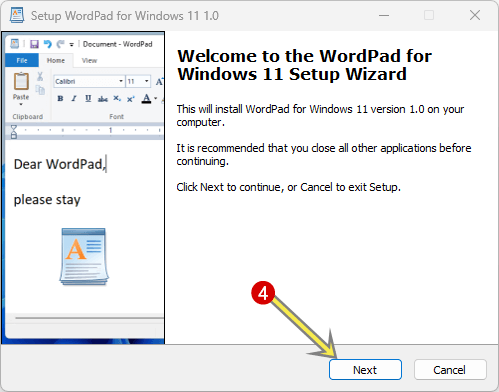
- After that, the installation setup pop-up window will open.

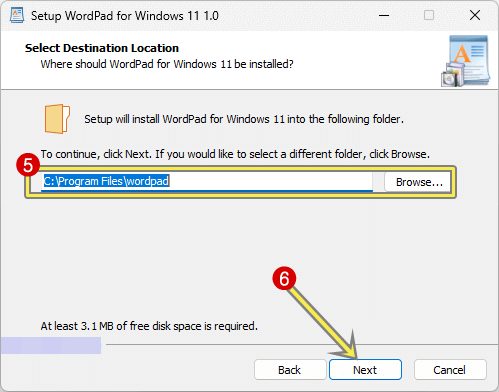
- Select the destination folder where you want to install the wordpad files. By default, WordPad will be installed in Program files\wordpad.
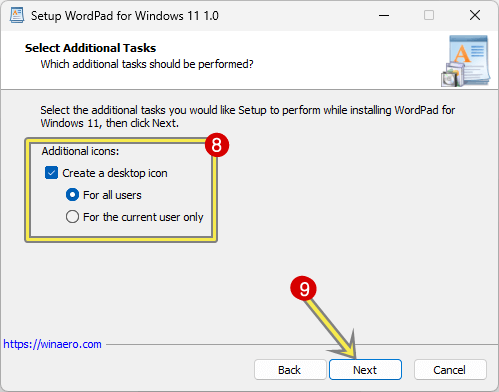
Click on the Next button to continue. - On the next window, you can choose whether you want to create the desktop shortcut or not. Select or deselect the option and click on the Next button.
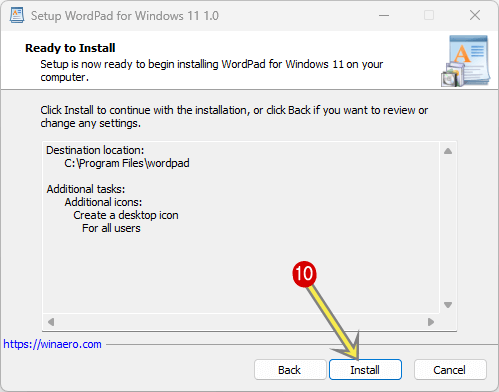
- On the next window, click on the Install button to install WordPad.
- After that, WordPad will be installed on your computer. Click on the Finish button.
- That’s all.


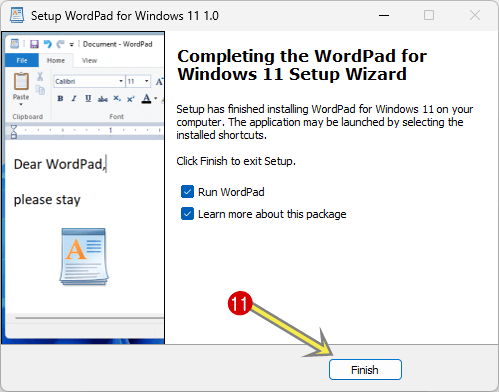
You can open it from a desktop shortcut, start menu, or using the run command (wordpad.exe and write.exe).
How to Uninstall WordPad in Windows 11
- Open the Settings app by pressing the Windows key + I keyboard shortcut.
- After that, click on the Apps option from the left pane and open the Installed Apps option from the right side.

- Now you’ll see the list of all installed apps on your computer. Find the “WordPad for Windows 11” app and click on the three dots next to the app name.
- Select the Uninstall option.

- Confirm the uninstallation by selecting the Uninstall button again.

- That’s it.


Frequently Asked Questions
1. Is It Safe to Use Classic WordPad on Windows 11?
Yes, if you’re getting it from a clean, official source, there is no harm in using Classic WordPad. Here at otechworld, we provide genuine files that haven’t been tampered with. Note that WordPad won’t get security updates. So, avoid opening suspicious files or documents from unknown sources using WordPad.
2. Will Microsoft bring WordPad back?
No, Microsoft has actually announced that WordPad is now deprecated and will be completely removed in the next builds.
3. Can I still use Notepad as a WordPad replacement?
Notepad is good for plain text files (.txt), but when it comes to formatting, such as bold, bullets, or images, it doesn’t work. If only basic notes are enough, fine. However, when using rich text, WordPad is more suitable.
4. Is Classic WordPad compatible with modern DOCX files?
Yes, to an extent. WordPad can open simple .docx files created by Microsoft Word. However, complex formatting (tables, footnotes, styles) might not render properly.
Final Words
WordPad is not an advanced program, but it remains quite charming with its simplicity. In Windows, WordPad was a very basic but effective program to make simple documents. It filled an important niche for users who didn’t need the power of Word but wanted more than plain text.
If you miss it, now you know how to bring it back to Windows 11.
Popular on OTW Right Now!


About The Author

Gagan Bhangu
Founder of otechworld.com and managing editor. He is a tech geek, web-developer, and blogger. He holds a master's degree in computer applications and making money online since 2015.
YOU ARE A HERO,TO MANY OF US THAT USE AND ENJOY WORD PAD.THANK YOU SO VERY MUCH !!! . I JUST DID A WINDOWS UPDATE AND SADLY WORD PAD WAS GONE FROM MY WINDOWS 11 COMPUTER , BUT THANKS TO YOU I HAVE IT BACK.