
Docking Station Not Detecting Your Second Monitor? What Breaks
You plug a second monitor into your docking station and get nothing. Or it lights up for a few seconds, flickers, and drops out. The obvious conclusion is that the dock is dead.
Sometimes it is. Other times the dock is doing its job, and something upstream or downstream isn’t. Detection is a chain of small handshakes, and one weak link looks exactly like a broken dock. There’s a longer not-detecting-monitor guide if you want every case. This is the short one.
FIRST, SORT YOUR SYMPTOM
It doesn’t appear. Windows shows a single display. macOS displays nothing new. The handshake failed before the connection was established.
It appears and then disappears. It is seen in the settings, then goes blank or flickers. The link appeared but couldn’t be maintained. The usual causes are bandwidth, Display Stream Compression (DSC), HDR and one particular rule relating to Macs (see below).
WHAT “NOT DETECTED” MEANS
Before you see an image when a monitor is connected, two things take place. The monitor sends itself a small block of data known as EDID, giving its name as well as the resolutions and refresh rates it supports. At the same time, the GPU is informed that something has just been plugged in, i.e. it receives the hot-plug signal.
The dock is just one handshake away from your laptop and has a separate one for each monitor; if any of them fails, the laptop regards the port as being empty and generally gives no error message indicating which one it is.
WHAT THE FAILURE DATA SHOWS
Across roughly 5,000 tracked deployments, failure rates ran from about 6% on CalDigit to about 18% on Dell — brand-level, not split by protocol or display count. They’re directional, and they exclude wrong cables, wrong ports and driver issues fixed by an update.
The figures given only include docks that actually failed and therefore cannot show how many times the fault lies with the dock being ‘not detected’; that is why the isolation steps listed below are carried out first.
WHERE IT USUALLY GOES WRONG
Regarding the cables, it’s possible for one that is used to charge your phone to completely lack the video channels. A cheap HDMI or DisplayPort cable may work fine at 1080p but fail when used at 4K or with a high refresh rate. Don’t forget about the laptop cable that comes with the dock; if it comes loose and you replace it with one that only supplies power, the video signal will simply stop working.
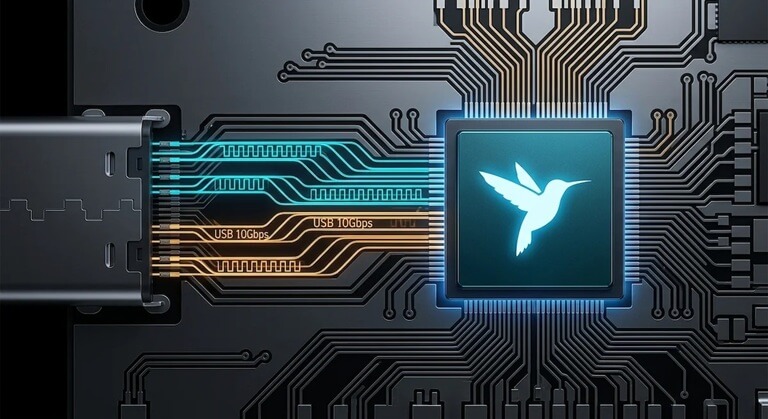
The USB-C port can’t output video in all cases; some are used only for data and charging. With others, one video connection is shared among all the screens connected, and DisplayPort Alt Mode can use all four high-speed lanes or share two with the USB data. Two of the lanes carry only half the video bandwidth, which is the reason why a second high-resolution screen usually can’t be supported. DSC has to be used to compress the image so that it will fit, and for this to work both the laptop and the dock must support it. For example, the specification sheet for Dell’s WD25 lists two QHD screens or one 4K60 without DSC, and up to four WQHD screens or two 5K60 with DSC.
The GPU driver – Windows Update has the capability of replacing your manufacturer’s GPU driver with a generic Microsoft driver, and such a generic driver may not display all the modes that the dock provides.
The Macintosh Base models with M1 and M2 chips natively support one external display. Those with M3 chips support two, but only when the lid is closed; if you open the lid then you’re down to one, which is just the same as the ‘lights up, then drops’ scenario. Base models with M4 chips can support two displays when the lid is open, and the Pro and Max chips can support two or more. A dock won’t add a display unless the chip supports it and the dock uses DisplayLink software output. Also, macOS won’t extend an MST chain, so if you use an MST-hub dock to get two screens on a PC the screens will mirror on a Mac. Docks that send a separate video stream to each output aren’t affected by this issue.
KNOW WHICH KIND OF DOCK YOU OWN
With DisplayPort Alt Mode, USB-C docks send the image directly from the laptop’s GPU, which places the greatest demand on the port and the cable. Although Thunderbolt docks include DisplayPort within the Thunderbolt connection rather than using the USB 3 lanes, reliability still depends on the chip and the firmware. Docks using DisplayLink compress the image and transmit it over USB by means of a driver on the laptop. This is the reason why they function on ports that have no video output, and also the reason why an operating system update can cause them to stop working.
When using a Mac with DisplayLink, you should check Privacy & Security > Screen Recording prior to reinstallation since DisplayLink has always required that permission, although macOS 15 now displays a monthly re-approval prompt and Plugable states that the DisplayLink device will not work if the permission lapses. On Windows, you should first reinstall the DisplayLink driver.
FIX IT IN THIS ORDER
Cheapest first. Change one thing at a time, or you won’t know what worked.
- Plug the monitor directly into the laptop. If it works, the monitor and cable are fine. The problem is probably with the dock. If it doesn’t work, the dock is not the issue.
- Cycle the power by first unplugging both the dock’s power adapter and the laptop cable, then waiting for sixty seconds before plugging the dock’s power adapter in before connecting the laptop.
- Set the monitor input manually rather than using Auto and look in the monitor’s menu for a DisplayPort option or an MST option. The default settings will depend on the model.
- Replace the video cable with one that you know is working; if the cable for the dock comes loose, replace that as well. Then try using another laptop port, specifically one that has a Thunderbolt or DisplayPort symbol on it, and refer to your laptop’s specifications to find out which ports are used for video.
- Update the firmware of the dock while the dock is connected to a host.
- For Windows, press Win + P and then select Extend. If no change occurs, it means the display is not being detected at all. Press Win + Ctrl + Shift + B, as Microsoft says is the shortcut for waking a blank or black screen. Instead of having Windows Update choose it, install the GPU driver from your laptop manufacturer or from NVIDIA, AMD or Intel. With a laptop that has hybrid graphics, make sure to update both the integrated and the discrete drivers since the dock’s video can go through either one.
- Mac: check for an update to macOS and, if the dock is using DisplayLink, make sure that the Screen Recording permission has been granted above.
- If the screen comes on and then goes blank, switch to 60Hz and turn off HDR (on Windows: Settings > System > Display; on Mac: System Settings > Displays). The use of HDR increases the bandwidth that the link has to carry. Those who have a Dell WD19S will recall that it had a known problem with intermittent blanking which was related to DSC and was resolved in firmware version 01.00.36 or later.
- If the problem only occurs after the device has slept, then remove the dock, wait for sixty seconds, reconnect it, and try it again.
WHEN IT REALLY IS THE DOCK
If the monitor still doesn’t work when using the dock, even though it functions properly when connected directly to the laptop with two known-good cables, two different ports, the latest dock firmware and after reinstalling the driver, then it will also fail on a second laptop. The same applies whether the problem has been there from the very first day or whether you’re switching the power on and off every morning.
Before purchasing the replacement, make sure that your laptop’s port is capable of transmitting video and that your graphics chip supports the number of displays you plan to use. Next, refer to the dock’s display specifications for your exact resolution and refresh rate, both with DSC and without it. For example, a dock such as the Dell WD25 requires DSC to function if you want to use more than two QHD screens or one 4K60 screen; without DSC, that becomes your limit.
Popular on OTW Right Now!
-
 The Hidden Dangers of Outdated Technology: Why Your Legacy IT is a Liability
-
Flutter vs Native: Why Staff Augmentation Teams Choose Cross-Platform for Faster Product Delivery
-
 The Role of Data Science in Shaping the Future of Technology and Innovation
-
 IPTV Subscription and UK IPTV: A Practical Guide to Internet Television



About The Author

Gagan Bhangu
Founder of otechworld.com and managing editor. He is a tech geek, web-developer, and blogger. He holds a master's degree in computer applications and making money online since 2015.