
What to Do When You Accidentally Delete Important Files: A Practical Recovery Guide
It can be a right pain to accidentally delete an important document, photo, video or work file (you know the kind) and have no recent backup. The good news is that deleted files aren’t always permanently deleted. Depending on your storage device, your file system, and what you do after you’ve deleted the file, you may still be able to recover some of the information.
Windows has a few ways of recovering files that have gone missing. These include the Recycle Bin, cloud backups, and various recovery tools. Knowing which of these to try and which to avoid can be the difference between getting your files back and not.
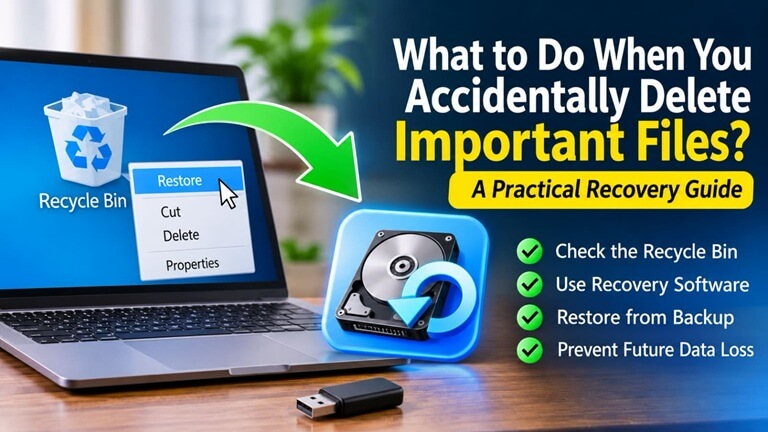
1. Check the Recycle Bin First
The first port of call after you’ve accidentally deleted a file is the Windows Recycle Bin. If you delete a file from a local drive, Windows will typically just move it to the Recycle Bin rather than delete it immediately.
Open the Recycle Bin on your desktop and look for the file/folder you’re missing. You can sort the items by date deleted or use the search bar. Once you’ve found the file you’re looking for, right click it and choose Restore. Windows will generally restore it to where it originally was.
But if you’d deleted the files using Shift+Delete, removed them from external storage or emptied the Recycle Bin then you may well need to try a different recovery approach.
2. Check Cloud Storage and Existing Backups
Sometimes a file you can’t find on your machine will still be in your cloud account. If you’re using OneDrive, sign into the website and check the Recycle Bin. If you can see the file there then select it and click Restore.
For personal OneDrive accounts, deleted files will remain in the online Recycle Bin for up to 30 days. For work and school accounts, the retention period may be as long as 93 days (depending on your organization’s settings).
You should also check any external hard drives, any USB backup devices and any other cloud services where you may have saved another copy. Restoring from a backup is generally the safer and easier option than trying to recover the deleted data directly from the storage device.
3. Stop Using the Affected Storage Device
After having lost data the most important thing to do is to use the drive that had the data as little as possible. When you delete a file the space that it was using can be overwritten by new data. If new files are written to that space, then some or all of the original deleted file could be completely lost.
Don’t go around downloading apps, installing recovery software, copying large files or saving any new documents to the drive in question. If at all possible, use a different storage device for your recovery work.
This is particularly important if you’ve got a lot of photos, business documents and the like that you can’t just replace.
4. Use Windows File Recovery
If you can’t find your files in the Recycle Bin or in your backups, then Windows users can try Microsoft’s Windows File Recovery tool.
This is a free command-line app available from the Microsoft Store. It’s capable of recovering deleted files from local storage (so internal drives, external drives and USB sticks etc).
Once you install the app, open Windows File Recovery and follow the instructions. A basic command looks like this:
winfr source-drive: destination-drive: /regular
For example, if you want to recover files from the C: drive to an external E: drive you can use this command:
winfr C: E: /regular
The source and destination drives have to be different. Microsoft does have an Extensive recovery mode, which is for situations such as older deletions or formatted drives. The correct mode to use will depend on your file system and how the data was lost.
Read the official Microsoft Windows File Recovery guide before using the utility, as its commands and recovery options require attention.
5. When Should You Consider Third-Party Recovery Software?
Third-party data recovery apps tend to have very user-friendly interfaces with scanning tools, file previews, and support for a range of different storage devices. They can be very useful if you don’t want to be using command-line tools.
However, not all recovery apps are created equal. Before you go and pick one, make sure you check what file systems it supports, whether it’s compatible with your OS, what its recovery limitations are, how much it costs, and what its privacy policy is.
It’s also vital to know what these apps are capable of and what they aren’t. A successful scan doesn’t mean that every file you’ve deleted is going to be recoverable. The condition of your storage device and whether or not the data has been overwritten is all very significant.
For a more detailed explanation of recovery methods, supported file types, and software selection, see this guide to data recovery software and how to choose the right tool.
6. Understand When Professional Recovery Is Necessary
Software recovery is not always the answer. If your drive is making all sorts of clicking noises, keeps on disconnecting or is physically damaged in some way then running any sort of scan on it could actually make it worse.
In those circumstances, you’d probably be better off contacting a professional data recovery service. They have the specialist kit and the appropriate environment to work in. Before you go any further, get a feel for their diagnostic process, their pricing, their data privacy policy and whether they can recover your data without doing any further damage.
If you’ve got important business or personal files, don’t go trying out loads of recovery apps if your storage device is physically damaged.
7. Prevent Future Data Loss
Recovering deleted files can take a long time and it doesn’t always work. Having a regular backup routine is by far the more reliable way of ensuring your important information is safe.
Keep extra copies of your important files on an external drive or a reputable cloud service. The 3-2-1 rule is useful in this respect: three copies of your data, two different types of storage and one copy stored in a separate location.
Windows users can also have a look at the built-in backup and recovery options as described in Microsoft’s Backup and Recovery guide.
Final Thoughts
Accidentally deleting important files doesn’t necessarily mean they’re permanently lost. Check the Recycle Bin first and any cloud backups. If that doesn’t work then a recovery tool may be your best bet. Crucially, don’t save any new data to the drive you’re trying to recover files from.
Recovery software can help of course, but regular backups remain one of the best ways of protecting your data. With a bit of preparation, you can certainly avoid a small mistake becoming a case of permanent data loss.
For more practical tech guides, software tips, and digital learning resources, you can also check out OTechHub. They cover AI, cybersecurity, web hosting, and software, amongst other things.
Popular on OTW Right Now!




About The Author

Gagan Bhangu
Founder of otechworld.com and managing editor. He is a tech geek, web-developer, and blogger. He holds a master's degree in computer applications and making money online since 2015.