
Video Calling Someone in Another Country on a Budget Android Phone: What Actually Goes Wrong
The call goes through, and you can see them, and they can see you, but after thirty seconds your video changes to a slideshow while theirs remains smooth. You blame your phone and the app as well, then switch to a different app, and the same thing happens again.
In most cases, it is not the app and rarely the phone as well. Mobile data connections for cross-border video calls fail for a small number of reasons, four of which have settings that you can alter today.
Your upload speed is the bottleneck, not your download
This is the most useful point to grasp, and very few people bring it up.
All the speed tests you’ve ever done showed the download figure since that is important for video, music, and browsing — it’s about data being sent to you. With a video call, it’s different since you are also acting as a broadcaster, and your camera feed has to be sent continuously for the whole call.
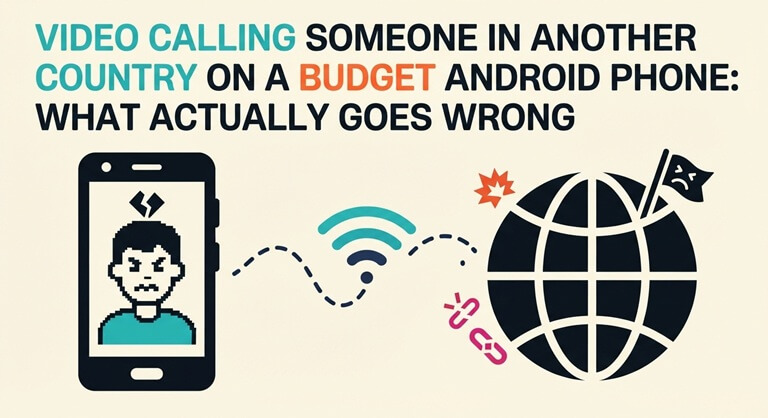
On most mobile data plans, the upload speed is much weaker than the download speed and decreases more quickly when the signal drops. That is why the situation described above is so common: the video appears all right to you since your download connection is good, while it looks terrible to them because your upload has failed. Both of you then think that the other person has a poor connection.
What to actually do:
- Run a speed test and read the upload figure. If it is under roughly one megabit, expect a rough call regardless of which app you use.
- Signal strength matters more than the bars suggest. Moving next to a window, or stepping outside, often does more than any in-app setting.
- Standing still beats walking. Handover between cells mid-call is a common cause of the freeze-then-recover pattern.
- If your app has a lower-quality or audio-only mode, use it early, not after ten minutes of frustration. Audio that works beats video that doesn’t.
Data Saver: the setting that fixes your bill and breaks your calls
Data Saver is the appropriate option if you’re on a metered plan. According to the documentation from Google, Data Saver is described as follows: “Most apps and services will be able to use background data only through Wi-Fi, while currently active apps and services can use mobile data.”
Turn it on at Settings » Network & internet » Data Saver.
The point that people overlook is why some users claim that Data Saver “breaks” their calling apps. When Data Saver is active, any app that is not in the foreground has mobile background data turned off—precisely what an incoming call notification needs in order to get through to you. You don’t miss the call because the app is faulty. You miss it because you instructed the system to starve it.
The fix is in the same screen. Under Settings » Network & internet » Data Saver » Unrestricted data, switch on the one or two apps that genuinely need to reach you at any time. Everything else stays restricted. That is the combination most people actually want: a tight data budget with a hole cut in it for the thing you are waiting on.
Worth pairing with a hard limit: in Settings » Network & internet » SIMs » Data warning & limit, set a warning and a cap so a long call cannot quietly eat a week’s balance.
Battery optimization is why your call died when you opened WhatsApp
Aggressive power management on budget and mid-range Android phones is another common cause of calls being dropped, and this effect is more noticeable on manufacturer skins than on stock Android.
The symptom is specific in that the calls work perfectly when the app is on screen, but as soon as you switch to another app or your screen turns off, they either drop or go silent—that is the system determining that the backgrounded app has a battery issue and therefore suspending it.
Check under Settings » Apps » [the app] » Battery, and set it to unrestricted for the app you actually make calls on. Do it for one or two apps, not for everything — the setting exists for a reason, and unrestricting your whole app list will cost you real battery life.
When you don’t share a language
This aspect isn’t dealt with in the settings menu and is generally what ends the conversation when making a cross-border call.
Several platforms now run translation during the call rather than making you paste text into another app. Chamet, for instance, pairs adults 18 and over for one-to-one video with live translation running underneath, and its user base sits largely across South Asia, Southeast Asia, the Gulf and Latin America — which is to say, mostly on the same kind of network and the same kind of handset this article is about.
Whatever you use, translated conversation behaves differently from same-language conversation, and knowing that in advance prevents most of the frustration:
- Speak in short sentences with one idea each. Long sentences with several clauses are where machine translation loses the thread, and where you lose the other person.
- Expect a lag before they react, and do not fill it. The most common failure is both people assuming they were not understood, repeating themselves at the same moment, and talking over each other from then on.
- Avoid idioms, slang, and jokes that depend on wordplay. They translate into nonsense, and the other person will politely pretend to follow.
- Confirm the important things twice, in different words. Numbers, times, and names are where translation errors do actual damage.
- Do not talk over each other. Overlapping speech defeats almost every translation system, and unlike a same-language call, there is no way to recover the lost half.
None of this makes you fluent, and none of it replaces learning the language if you are going to keep talking to the same people. It gets a first conversation to work, which is usually all you need it to do.
The safety part, kept short.
Two things are worth setting before you talk to anyone you do not already know.
First, permissions. Google’s page on changing app permissions lists the options: “Allow only while using the app”, “Ask every time” and “Don’t allow”. Set camera and microphone to the first of those for anything social, and use Settings » Security & Privacy » Privacy » Permission manager to check what else is holding those permissions. Revoke anything a calling app has no business needing — contacts and precise location are common asks with no bearing on placing a call.
Second, and more important than any setting: anything you show on a video call can be recorded. No Android setting prevents it, and no app can. So the useful question is not whether a platform is secure enough — it is whether you would be fine if this particular call were recorded. If the answer is no, no setting on this list helps you.
Beyond that, the basics: use a platform that states its age policy plainly rather than implying it, check that reporting and blocking work without leaving the call, and sit with a plain wall behind you.
The five-minute checklist
- Test your upload speed, not just download.
- Turn on Data Saver, then add your calling app to Unrestricted data.
- Set a data warning and limit on your SIM.
- Set battery to unrestricted for the one app you call on.
- Set camera and mic to “Allow only while using the app.”
- If there is a language gap: short sentences, no idioms, confirm numbers twice.
- Assume it is being recorded.
Six of those are settings. The last one is the one that actually protects you, and it costs nothing.
Popular on OTW Right Now!



About The Author

Gagan Bhangu
Founder of otechworld.com and managing editor. He is a tech geek, web-developer, and blogger. He holds a master's degree in computer applications and making money online since 2015.