
How to Prepare Your PC for Gaming Using Smart Game Booster?
Before starting a gaming session, I usually spend a few minutes checking my PC. I close unnecessary apps, check for updates, and make sure nothing is using too many system resources. Even after doing that, I still noticed FPS drops and slowdowns in some games. That made me look for a simpler way to prepare my computer before gaming. I came across Smart Game Booster and decided to test it to get my PC ready without changing many settings manually.
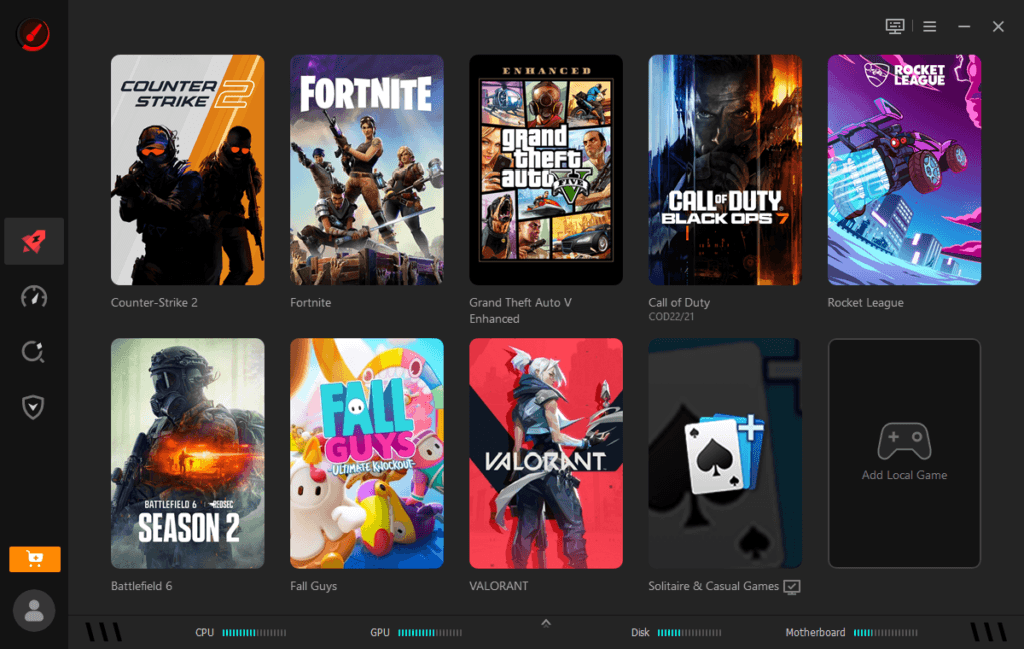
I have used it for several games and discovered it can be much easier to prepare. It isn’t a high-end gaming machine for every PC, but it can help with common problems that affect PC performance. This is how I applied it and what I observed.
Why Preparing Your PC Matters Before Gaming?
When I first started testing game optimization tools, I realized that gaming performance is affected by more than just hardware.
- Many programs run in the background even when not in use. Browser tabs, startup programs, update services, and other activities might consume CPU and memory, reducing the resources available for games.
- Outdated drivers can also cause issues. The graphics driver may not be up to date so that a game may run poorly.
- Smart Game Booster emphasizes these aspects, aiming to minimize background activity, control system resources, and verify critical PC settings before the game is played.
My First Experience With Smart Game Booster
My initial impression of the software was its simplicity. There was no need to navigate through the various Windows menus to find a game to launch, nor to exit all programs before launching a game.
Once I launched the application, it scanned my PC and displayed the regions that could be optimized. The interface was user-friendly and very easy to understand, which I believe is beneficial for people who aren’t used to advanced PC settings.
Primarily, I wanted to test it before playing online games, as this is usually where FPS drops and connection issues occur.
Features I Found Helpful
Here are the features I found quite helpful.
Background Process Management
I typically had a few apps running in the background before I started a game, and I didn’t realize how much of my system resources they were using. The Smart Game Booster cut some of that extra activity.
I feel my PC wasn’t as cluttered after using boost mode, especially when I had other programs active before playing a game.
FPS Optimization
The primary motivation I used this software for was to enhance gaming performance. I didn’t see significant FPS boosts in all the games, but I did notice smoother gameplay in some situations. The main difference was the decline in small frames over a longer period.
Reliability would’ve been more helpful to me than high FPS on a display.
Driver Updates
Ensure graphics drivers are up to date, especially if you have new games. I was impressed by the driver update feature because I didn’t have to look for updates. It was easier to see if my system had the most up-to-date drivers for the graphics cards.
PC Cleanup Tools
The PC optimization part was another useful part. There are tools in the software that can help eliminate unnecessary files, control startup items, and minimize additional system load. These capabilities are not just for gaming, but will also contribute to the computer’s overall performance and efficiency.
Network Optimization
I also tried out the network-related options as online games require not only a good connection but also good PC performance. I didn’t see any significant improvements with a slow internet connection, but there was a slight improvement in some multiplayer sessions when using the network optimization option.
This feature was more prominent in online games than offline games.
Easy Controls for Beginners
The simplicity of the design was a feature I liked.
The main features were easy to use without needing technical knowledge. Most actions involved just a few clicks, so it was simpler for anyone who wants an easy way to get their PC ready before playing.
What Could Be Improved?
- Results depend on your PC hardware and current system condition
- It cannot solve problems caused by weak hardware
- Some features require a paid version
- Users with powerful gaming PCs may notice smaller changes
How I Prepared My PC Using Smart Game Booster?
The setup process was simple. These are the steps I followed before gaming.
Install and open Smart Game Booster.
I downloaded Game Booster, installed it on my Windows PC, and started it. It scanned my computer and displayed its status.
Select the game I want to play.
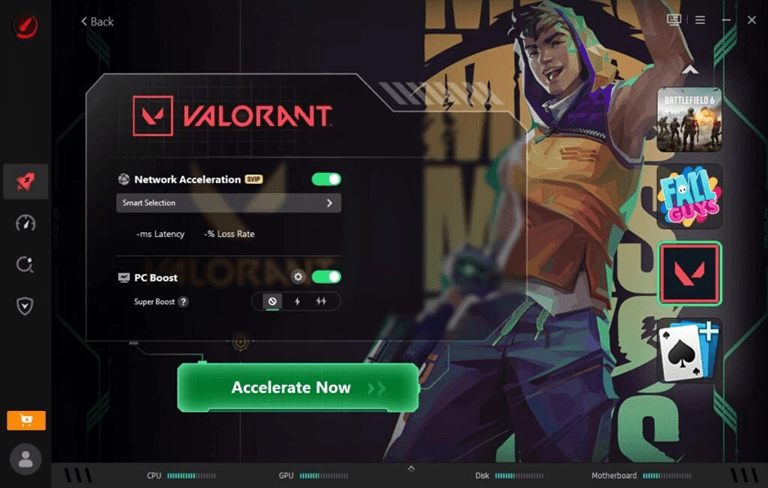
I then chose the game from the list of game options. The software identified my installed games and created the recommended optimization options.
Start the boost process.
I pressed Boost and let the software take care of all background tasks, free up hardware, and set up my computer before starting the game.
Launch the game and check performance.e
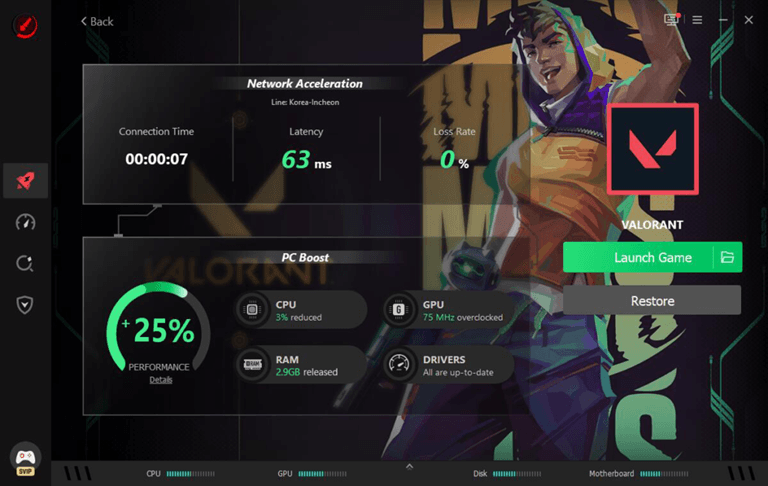
Once optimization was complete, I began playing and compared it to my regular setup. I tested FPS stability, loading times, and the game’s smoothness.
Final Thoughts
After testing Smart Game Booster, I think it is a great FPS booster for gamers who want a faster way to get their PC ready before playing. If you are experiencing FPS issues due to background applications, outdated drivers, or a full system, try Smart Game Booster. I’ve found it easier to prepare my PC with it, and it’s helped create a smoother gaming setup before I get into my favorite games.
Popular on OTW Right Now!

About The Author

Christie
I am a content writer with a passion for creating informative, engaging, and easy-to-understand content. I enjoy researching a wide range of topics and sharing insights that help readers learn, make informed decisions, and stay updated on subjects that matter to them.