
How to Convert Audio to Transcript Free and Fast Online
Converting audio to transcripts remains a common need for many people. Meeting recordings, podcasts, interviews, and online course audio often contain valuable information that is difficult to search for or reuse. Manual listening takes considerable time, and basic speech recognition tools frequently produce blocks of text that lack proper punctuation and structure, leaving users with substantial editing work afterward.
This article examines four practical free online methods that help you convert audio into usable text quickly. Each approach works directly in the browser and serves different needs. You can select the option that best matches the type of recording you handle most often and the level of convenience or privacy you require in daily work.
Matching the Right Tool to Your Audio
Recordings differ in length, number of speakers, and source. A short voice note needs different features from a long meeting or online video. When choosing the right audio transcription tool, consider link support, speaker labels, export formats, and whether you want to avoid creating a new account.
Quick Comparison of Free Online Options
| Tool | Best For | Input Method | Account Required | Free Access | Key Strength |
| Hoocs.ai | Longer files and online videos | Local files or public links | Yes | 300 free minutes | AI summaries and structured output |
| Browser Whisper Tools | Privacy-focused, quick jobs | Local file upload | No | Generally free | No signup needed |
| File Transcribe | Short to medium files | Local file upload | Optional | Daily free credits | Speaker labels and simple export |
| Google Docs Voice Typing | Real-time notes and short dictation | Microphone or system audio | Google account | Fully free | Built-in and simple |
Use Hoocs.ai for Fast Link and File Transcription
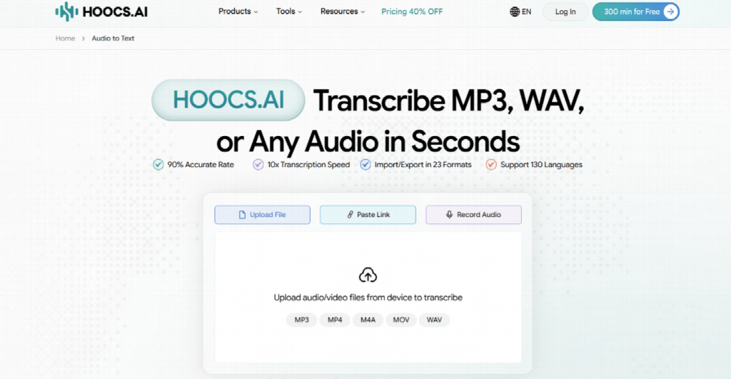
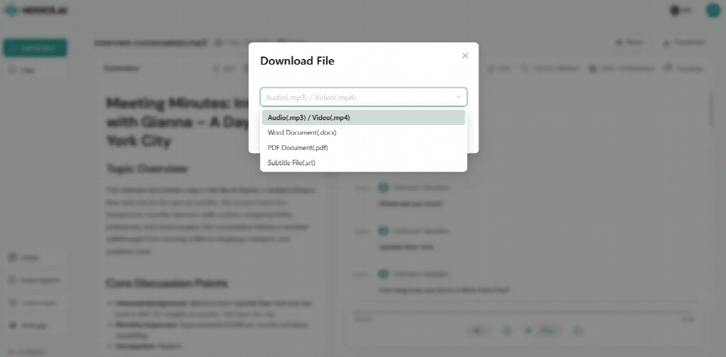
Hoocs.ai is a browser-based AI tool designed to convert audio and video files into editable text. It supports 23 common formats, including MP3, MP4, WAV, and M4A. Users can either upload a local file or paste a public link from sites like YouTube. The platform automatically produces a transcript with timestamps and can generate AI summaries that extract key points, reducing the need to read through long passages of raw text.
This combination of direct link support and structured output removes the usual friction of downloading large files and then manually scanning lengthy transcripts. Content creators, researchers, and professionals who regularly process interviews or meeting recordings gain the most from the time savings. The free plan provides 300 minutes of transcription, making it suitable for moderate ongoing use.
Key Features
- Delivers results 10× faster than traditional real-time methods
- Supports transcription across more than 130 languages
- Accepts both local audio files and public video links
- Creates AI summaries and visual mind maps automatically
- Provides 300 free transcription minutes for registered users
Limitations
- The platform currently does not support human transcription
- Requires a stable internet connection for full functionality
How to Get Audio Transcript with Hoocs.ai
The process is straightforward and can be completed entirely in the browser. You can transcribe your audio to a transcript within a few minutes after uploading a file or pasting a link.
- Open the Hoocs.ai website in your preferred browser and create a free account if needed.
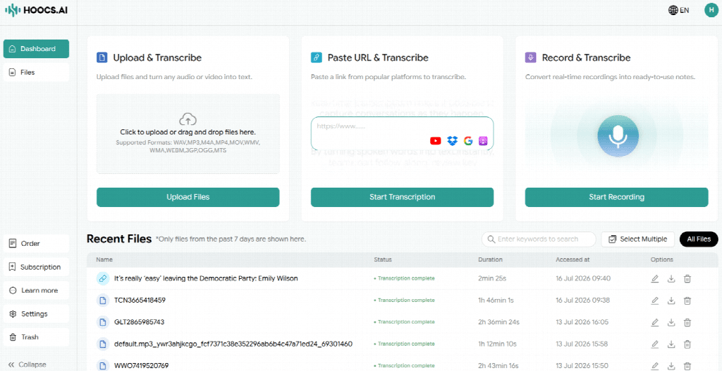
- Upload a local audio file or paste a public link from YouTube or other platforms.

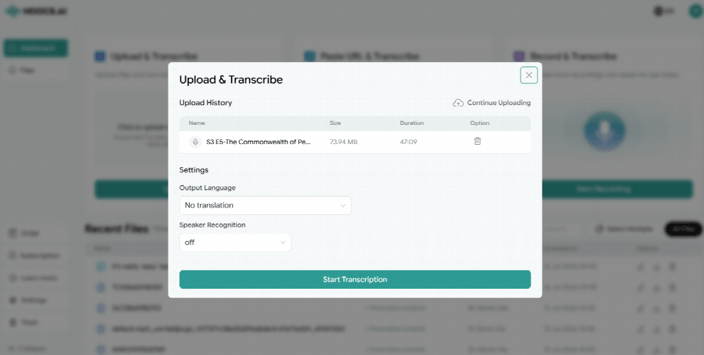
- Select the main language of the recording, toggle the Speaker Recognition if needed, and start the transcription process.

- Review the generated text carefully inside the dual-track editor.
- Make any necessary corrections and export the transcript in your preferred file format.

Use Browser Whisper Tools with No Account Needed
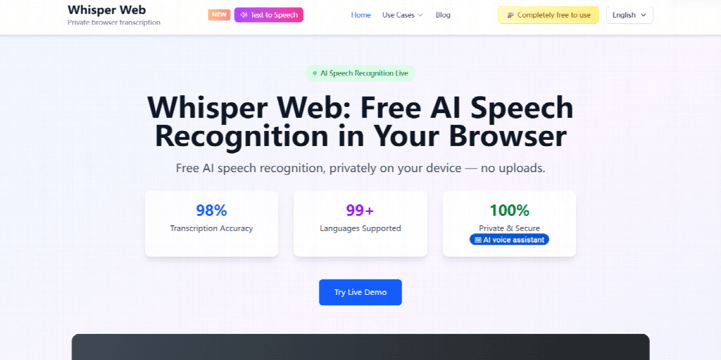
Many of the web-based tools that use the Whisper speech recognition model are now available that run in the browser without the need to sign up for an account. In many such instances, the audio is treated on-site or just temporarily stored, which makes such choices convenient for those who would prefer to retain their recordings personally. These tools are easy and convenient to use and can be used to convert an audio file to text without signing up for an account.
The biggest practical benefit of these interfaces is the lack of registration and the relatively clean interfaces. For those needing occasional transcription of clear single-speaker recordings, these are a good option. Final accuracy and processing time will vary depending on what is done and the original audio source.
How to Use a Free Whisper Web Tool
The tools have been created to be easily used by first-time users. It’s possible to get a transcription without making an account or supplying personal details.
- Visit a free Whisper-based transcription website that does not require registration.
- Upload the audio file you wish to convert into text.
- Select the language or enable automatic language detection if available.
- Begin the transcription process and wait for it to finish.
- Copy the resulting text or download it as a file for later use.
Use File Transcribe for Simple Daily Free Use
File Transcribe is an online tool that allows users to upload an audio or video file and then gets a transcript with speaker labels and timestamps. Has a limited number of free audio-to-text transcriptions a day, which is fine for those who need to transcribe short-to medium-length recordings on a regular basis, but not daily.
The interface remains simple and focuses on providing a tidy, legible text output which can be viewed and downloaded. For users who aren’t interested in the extra advanced features like automatic summaries or mind maps, this can be quite simple and effective. Once the daily free allowance is reached, then they will have to wait for the next day or subscribe to a paid transcription service.
How to Transcribe with File Transcribe
The workflow is intentionally kept short so users can get text without unnecessary steps. It works best when you already have the audio file ready on your device.
- Open the File Transcribe website in your browser.
- Upload the audio or video file from your computer or phone.
- Allow the system time to complete the transcription process.
- Review the generated text and make any needed corrections.
- Copy the final result or download it for future reference.
Use Google Docs Voice Typing for Quick Notes
Google Docs has built-in voice typing, which can transcribe your voice into words while you’re typing. This tool is included in a normal Google document and will support many languages. It is totally free and doesn’t need any additional software or browser extensions, and can be used by anyone with a Google account. Its simplicity and the fact that many people already have it,iareits main aadvantages
This technique is most effective for short voice notes or when dictating in a quiet setting. But it doesn’t add speaker labels or timestamps, nor can you close the browser tab while the process is running. Whereas background noise can make it harder to transcribe longer recordings or files, it may not be a major issue with dedicated transcription software. It is often convenient enough for use for personal notes by those who need them for everyday use.
How to Use Google Docs Voice Typing for Audio Transcription
The feature is already included in Google Docs, so there’s no need to download anything or go to a different website. The following steps make several assumptions: You already have a Google account.
- Open Google Docs and create a new blank document.
- Go to the Tools menu and select Voice typing.
- Choose the appropriate language from the available list.
- Click the microphone icon and begin speaking or playing audio near your computer.
- Edit the transcribed text directly inside the Google document when finished.
Choosing the Best Free Method for You
Select the appropriate audio-to-transcription software that is simple for your requirements. For users who frequently use online video links and appreciate AI-generated summaries, Hoocs.ai is likely to provide the optimal results. For those who do not wish to register an account, it is advisable to begin using Whisper software that works through the Web, which provides greater privacy.
File Transcribe is good for occasional short and medium files requiring simple speaker labeling. If higher levels of functionality are not needed, Google Docs Voice Typing is the easiest. The most common mistake people make is trying to apply a tool to a type of audio they don’t work with the most, and to a preference for accounts/daily limit. Matching the tool to the type of audio that you typically work with the most and to your preference for accounts/daily limit will typically yield a faster and more usable result.
Popular on OTW Right Now!



About The Author

Gagan Bhangu
Founder of otechworld.com and managing editor. He is a tech geek, web-developer, and blogger. He holds a master's degree in computer applications and making money online since 2015.