
How to Download and Set Up Telegram Safely on Windows and Android
Telegram is widely used for personal messaging, group communication, file sharing, community updates, and cross-device conversations. One reason many users choose it is that it works across different platforms, including Android phones, Windows PCs, tablets, and web browsers.
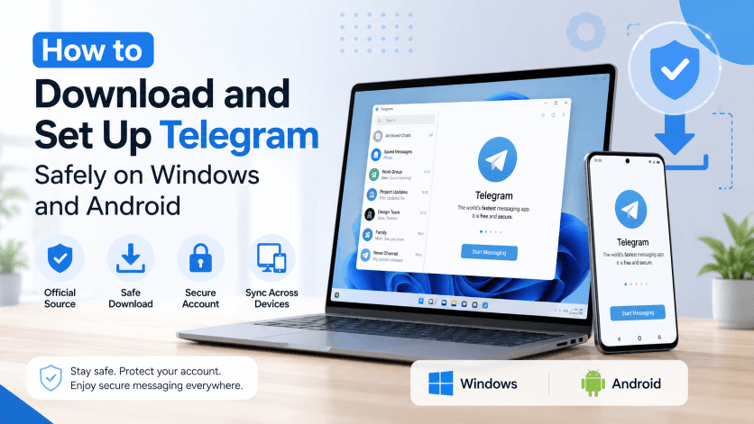
However, downloading and setting up any messaging app should be done carefully. A fake download page, modified installer, misleading advertisement, or unofficial APK file can create privacy and security risks. Since messaging apps often contain personal conversations, contact details, media files, and login sessions, users should pay attention to where they download the app and how they configure the account after installation.
This guide explains practical steps for downloading and setting up Telegram safely on Windows and Android.
Why Safe Downloading Matters
Many users search for an app name, click the first download button they see, and install the file immediately. This habit can be risky. Search results and download pages may contain advertisements, mirror websites, or third-party pages that look similar to official sources.
A messaging app is not the same as a simple offline utility. It connects to an account, stores login sessions, receives verification codes, and may sync messages across devices. If a user installs an unsafe or modified version, there is a higher chance of privacy issues, unwanted ads, login problems, or account security warnings.
Before installing Telegram, users should always check the source of the download. Chinese-speaking users who need a basic setup reference may also review a structured telegram 下载 guide to understand the general download and installation process before proceeding.
Downloading Telegram on Windows
If you use Windows, it’s best to steer clear of random software download sites and unwanted installation packages. The installation process should be straightforward: Download the right version of Windows, execute the installer, log in with a cell number, and confirm the login request.
Before installing Telegram Desktop, check these points:
- The file name should look like a normal Telegram Desktop installer.
- The website should not force users to install extra browser extensions or unrelated software.
- The page should not show too many aggressive download buttons.
- The installer should not ask for unnecessary permissions outside the normal installation process.
Download the installer and then open it up and follow the instructions for setup. Most users of Windows can use the default installation settings. After launching the desktop version, Telegram will prompt users to log in, typically using a QR code from the mobile app or through a phone number.
In case you are already using Telegram on your phone, scanning the QR code is most likely quicker. You might be required to verify your cell phone number initially if you’re establishing a new account.
Installing Telegram on Android
APK files need to be used with care by Android users. Other sites provide a modified version of popular apps or repackaged APKs. These versions can be unsafe and might lead to login difficulties, update issues, or privacy concerns.
People who use Telegram should opt for the installation from a reliable App Store. If you have to install it manually, ensure that it is from a good source and avoid installing versions that offer unofficial premium features, hidden tools, or modified privacy functions.
Once installed, launch the application and type in your cell phone number. The verification code can be sent to you via SMS, call, or as a message within another Telegram account. Remember that if you ask for the code too often in a short time, you may have to wait before re-asking for the code.
Common Verification Code Issues
One of the most usual set-up issues is when you’re not getting the verification code. It’s not always the case that the app is broken. This can occur due to several factors, such as network delays, carrier limitations, setting the wrong country code, or multiple attempts.
If the verification code does not arrive, try these steps:
- Confirm that the phone number and country code are correct.
- Check whether the phone can receive normal SMS messages.
- Avoid requesting too many codes within a short time.
- Check if the code was sent to another active Telegram session.
- Use a stable network connection.
Users should not share verification codes with others as well. You can access the account using Telegram codes. If someone else obtains the code, their account(s) could be logged in by them.
Basic Privacy Settings After Installation
Once Telegram is installed and the account is registered, the users should go through the privacy settings. This is something that many people do not do, but it’s vital to the safety of your account.
Go to the settings area and verify the phone number visibility, profile picture visibility, last seen, group invitation, calls, and forwarded messages settings. These settings can be used to control who can access information and whom a user can reach out to.
Two-step verification is recommended for users to provide additional security for their accounts. This will give an additional password to the account. The extra password can also be used to thwart unauthorized access, even if a person receives a login code.
Managing Telegram Across Devices
People who work on their mobile phone and computer can log in to more than one device with Telegram. For instance, if you’re replying to a message on Windows and receive a message on Android, you’ll see it.
But the use of multiple devices implies that users need to monitor active sessions regularly. To prevent the computer from remembering your login, delete this session from your computer configuration.
It is a good practice to periodically check the open sessions and sign out from devices that are not used. It is particularly helpful if you frequently change PCs, reinstall OSes, or communicate using Telegram for work.
Avoiding Fake Download Pages
Often, fake download pages will feature similar app names, stolen logos, or misleading buttons. On some pages, a big “Download” button will be featured at the top, and the actual link for download will be buried lower on the page. Some others may send the users unrelated software.
To reduce risk, avoid pages that:
- Require unrelated browser extensions before download.
- Offer “cracked,” “premium unlocked,” or “modified” versions.
- Use too many pop-ups and redirects.
- Ask for personal information before providing the installer.
- Provide unclear file names or suspicious compressed files.
Users should also be aware of the ads from which they download. Even if the site looks official, a sponsored result should be considered as just that, sponsored, so it’s essential to verify the domain and content of the page before clicking on it.
Keeping the App Updated
In addition to the installation process, it is also important to keep Telegram updated. Changes can be bug fixes, fixes for compatibility, and security changes. The typical app store update on Android is straightforward. Users can update using the desktop app or install the latest version as necessary on Windows.
Don’t use older versions for an extended time, particularly when it’s for a critical communication. They might not be compatible with older versions, or the security improvements might be missing.
Final Thoughts
One of the advantages of using Telegram is that it can be accessed from mobile and desktop devices, but users must not take this installation process lightly. You should always use a trusted source when downloading games, steer clear of altered versions of the installers, verify the verification process, and review privacy settings after logging in to play a game.
The principal concern for Windows users is to prevent getting fooled by rogue software download websites and unwanted bundled software installers. Android users should be particularly careful about receiving unsafe APK files and unofficial versions of programs.
With a careful setup process, users can minimize frequent installation issues, enabling them to operate Telegram more securely on their devices.
Popular on OTW Right Now!




About The Author

Gagan Bhangu
Founder of otechworld.com and managing editor. He is a tech geek, web-developer, and blogger. He holds a master's degree in computer applications and making money online since 2015.