
What Happens When You Clear Site Data During Online Slot Play?

A frozen loading screen does not always require a complete browser cleanup. Reloading the page, clearing its cache, and deleting its stored data are separate actions. Each refreshes or removes a different part of the browser’s local copy. Starting with the broadest option may sign you out of websites, erase remembered preferences, and make it harder to identify the original fault. Begin with a normal reload, test the page, and remove more local data only if the same symptom returns.
Websites can keep several types of information on a device. MDN’s browser-storage documentation distinguishes cookies, saved website data, browser databases, and cached page resources. Cookies can preserve a session between page loads, while cached files let the browser reuse material it has already downloaded. Clearing site data may remove considerably more than old images. The option selected in the browser determines what disappears.
Reset the Smallest Layer First
An online slot session requires the browser to maintain an interactive game view rather than display a fixed page. Cached images, sound files, and scripts may be reused, while cookies or other local storage preserve the page’s current state. An outdated file can leave a loading animation looping or draw a control incorrectly, even when the connection remains active. Before clearing anything while playing online slots for real money, allow any visible spin or screen transition to finish, then close and reopen the affected page. A normal reload requests the page again without deliberately deleting stored information.
In most cases, a hard refresh will get the browser to fetch newer resources, but will not keep cookies. A larger reset is when you delete all data for the site. It will terminate the local sign-in session, wipe out stored page selections, and force the browser to re-download site files. Of course, it won’t remove data from the website’s account records. Sign back in after an interrupted page and review the activity that has been recorded before repeating an action.
The main uses of a hard refresh are if the layout looks old, the image does not update, or if a control is missing its location. It normally skips much of the current cache for that visit, and its shortcut may differ depending on the browser. Will not clear cache. Deleting cleared files will delete saved files and cause them to be downloaded again later. Clearing the cached files for the particular website being visited proves to be a more specific test than clearing all cookies and preferences, if the page loads once and not the next time. If the controls are still reacting to events, but the image isn’t, then it’s even more likely to be pointing towards cached resources.
Match the Reset to the Symptom
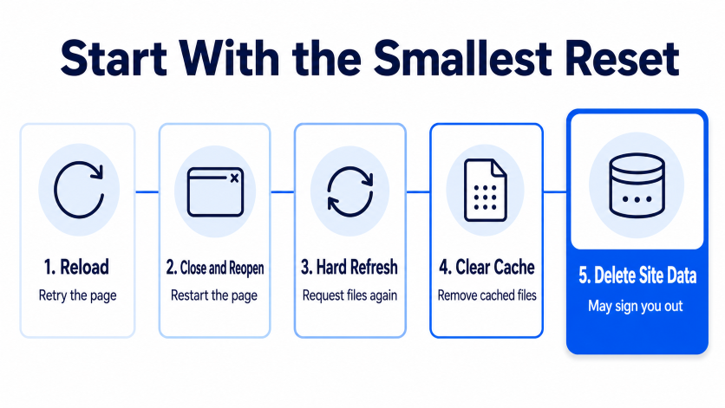
Each step changes a wider part of the browsing session:
- Reload the page. Use this for a brief stall, incomplete drawing, or one-off response failure. The browser does not deliberately delete stored data.
- Close and reopen the tab. This overwrites the current page number, and may remove temporary information related to that tab.
- Use a hard refresh. This asks for new content in the form of scripts, style sheets and pictures without deleting widely user login data or browser history.
- Clear cached files for the affected site. Choose this when the same page repeatedly loads an outdated or damaged local resource. Check the option’s wording before confirming because browser labels differ.
- Delete that site’s cookies and stored data. After the narrower resets have proved unsuccessful use this. The following visit may need to re-enter a new sign-in, and may forget previously remembered display, language and other options you may have selected.
Only delete the entire browser for problems with multiple unrelated sites. Clearing everything after a problem on one page makes sign-ins on other pages redundant, and it eliminates any information that might distinguish a problem that’s unique to that page from one that’s unique to the browser.
What Site Data Removal Changes
Removing the local browser data eradicates copies, preferences and identifiers stored locally. Does not delete information from an online account. The next page load may be still not look familiar, since the browser won’t be able to find the cookie or saved entry that was used to attach it to the previous session. Settings are reset to default, notices are restored and page resources need to be downloaded once again.
Chrome allows data to be removed for one website rather than every site in the browser. Lifewire’s instructions for clearing Chrome cookies and cache describe both website-specific removal and broader browsing-data controls. The article also mentions that deleting cookies and related data may log the user out. Some browsers use different menu names; check the listed data types and make sure the items you delete are associated with the site you are removing.
When Stored Data Is Not the Cause
If there is no change on the web page, try to see if it is following the page, browser profile, or connection. Open another interactive website, turn off extensions, and verify the browser is up to date. If the fault is in just one profile, it could be due to an extension or a broken setting. If a fault occurs on just one connection, then the fault might be in the filtering, or the route might be unstable. If multiple browsers crash on the same page the odds of any additional local deletion are not high.
Once it is determined what is the smallest reset that works, STOP. A reload will replace the current page instance, a hard refresh will cause the reuse of the resources, and deleting the site data will delete local identifiers and preferences before visiting again.
Popular on OTW Right Now!
-
 Never Miss a Potential Case: Why Law Firms Are Switching to Virtual Receptionists in 2026
-
 Operational Excellence in Community Living: The Architecture of Modern Condo Management
-
 Ordenco on Why Tech Founders Underestimate Regulatory Risk Until It’s Too Late
-
 Keep your Sports Gadgets Safe by Enabling Privacy




About The Author

Gagan Bhangu
Founder of otechworld.com and managing editor. He is a tech geek, web-developer, and blogger. He holds a master's degree in computer applications and making money online since 2015.