
How to Generate an Accurate BOM from CAD
A bad Bill of Materials doesn’t announce itself early. It shows up weeks later, as the wrong bracket getting ordered, a missing fastener holding up an assembly line, or a purchasing team scrambling to figure out which revision of a part is actually correct. For something so central to getting a product built, the BOM is often treated as an afterthought, bolted on at the end of the design process instead of generated as a natural byproduct of it.
What Is a Bill of Materials, Really?
A Bill of Materials is a precise listing of all parts, components, and sub-assemblies that make up a product, including their quantities, part numbers, and sometimes materials and supplier information. It’s the one document that links the engineering intent to the actual procurement and manufacturing, the link between “this is what we designed” and “this is what we need to buy and build.
Most products actually use two related but distinct types of BOM. An engineering BOM (EBOM) reflects how a product is designed, organized around the CAD assembly structure. A manufacturing BOM (MBOM) reflects how a product is actually built, which may group or sequence parts differently based on the assembly process on the floor. Keeping these aligned and accurate is where a lot of BOM problems actually start.
Why BOM Accuracy Is Harder Than It Sounds
In theory, a BOM should mirror the parts in a CAD assembly. In practice, BOM errors are one of the most common, and most expensive, mistakes in product development. A few recurring causes show up again and again:
- Manual data entry — A BOM will be created by hand, and part numbers and quantities will be entered into a spreadsheet, meaning there is always a risk of a typo or an incorrect row being skipped.
- Disconnected part data — When the part number, material, or other part data is not connected to the CAD model itself, then updating the model does not update the BOM, and the BOM and the model simply t of sync.
- Inconsistent part numbering — With no uniform part numbering system, it’s possible to get duplicate part numbers in the same part or even two different parts that have the same number.
- Manually modeled “standard” parts — A bolt or bearing modeled from scratch instead of pulled from an accurate, real-world component often lacks the correct specifications needed for procurement, even if it looks right in the assembly.
How CAD-Generated BOMs Actually Work
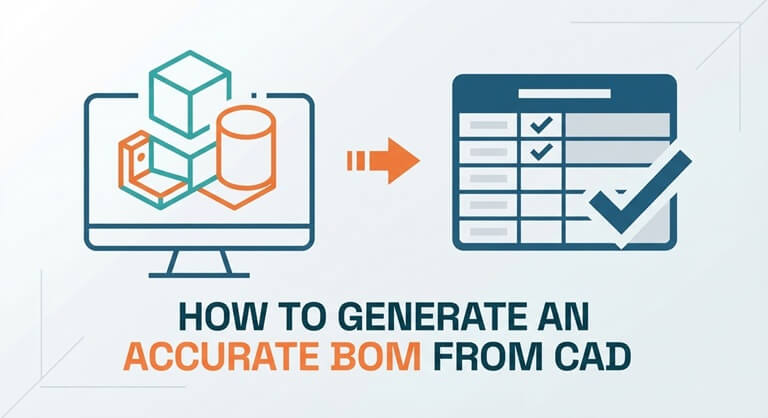
Modern CAD programs are capable of producing a BOM directly out of the assembly structure without having to be created after-the-fact. All parts in an assembly have their own properties, name, material, quantity, and sometimes part number or supplier reference, and a CAD-based BOM is just a compilation of that information in a structured list.
That isn’t only convenience. The BOM is directly drawn from the same model that the design team is working with, so changes to the design are reflected in the BOM. Attach a part, and it will show in the BOM. Take one out, and it’s gone. No need to keep an extra spreadsheet to keep up to date, and no chance of a BOM going out of sync with the actual design.
Best Practices for Keeping Your BOM Accurate
A few habits make the difference between a BOM you can trust and one that needs to be double-checked before every order:
- Use accurate, real-world components wherever possible. A modeled placeholder bolt with made-up dimensions might look fine visually, but it won’t carry the real part number or specification your purchasing team actually needs.
- Keep part metadata attached to the model, not stored separately. Part numbers, materials, and supplier data should live inside the CAD file itself, not in a disconnected tracking sheet.
- Standardize your part numbering scheme early. A consistent, unambiguous numbering system prevents duplicate or conflicting entries as an assembly grows.
- Treat the BOM as a live document, not a final export. A BOM generated once at the end of a project is already outdated the moment the next revision happens.
Where HVH Designer Fits
HVH Designer is built with accurate BOM generation in mind from the start. As a browser-based CAD platform, it keeps assembly and part data in one connected model rather than scattered across exported files, so a bill of materials reflects exactly what’s in the design, not a manually maintained approximation of it.
That’s where a fully integrated 3D parts library comes in handy. Engineers can take real parts that are accurately specified and bring them straight into an assembly rather than create a new model of a bolt, bearing, or bracket, and then hope it’s close enough. Having parts that contain accurate, real-world information from the outset, the resulting BOM contains parts that can actually be sourced and ordered, rather than parts that will need to be corrected later.
Conclusion
The issue with an accurate Bill of Materials is not a documentation issue – it is a design-process issue. If a part has no data associated with it, or if it is replaced by a placeholder component, then the BOM contains all the absences. The BOM is a key element of last-minute panics that can become a thing of the past if it is created from a well-maintained and accurate CAD assembly that is made up of accurate components.
Popular on OTW Right Now!




About The Author

Gagan Bhangu
Founder of otechworld.com and managing editor. He is a tech geek, web-developer, and blogger. He holds a master's degree in computer applications and making money online since 2015.