
How to Create an LRC File for Any Song (Without Timing Every Line by Hand)
Most music players can display lyrics. Far fewer can scroll them in time with the song, and the difference comes down to one small text file sitting next to the audio: the LRC. If you have ever wondered why lyrics highlight line by line in one app and sit there as a static block in another, the app is not smarter — it simply found an .lrc file and read it.
This guide covers what is actually inside an LRC file, the two realistic ways to make one, and what else the timing data is good for once you have it.
What an LRC file actually contains
An LRC file is plain text. Rename it to .txt, open it in any editor, and you will see something like this:
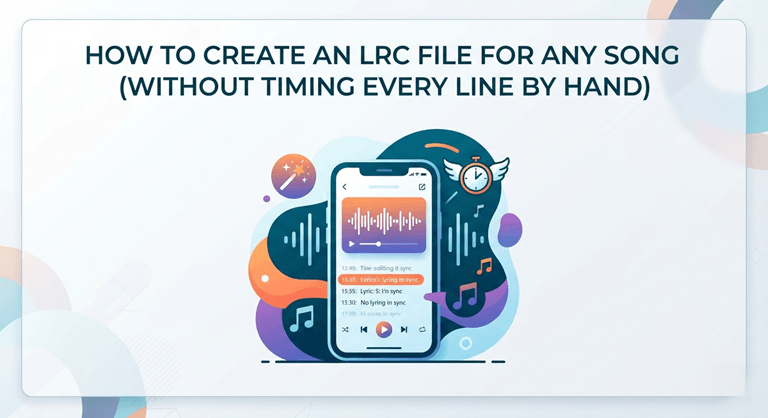
[ti:Song Title] [ar:Artist Name] [00:12.50]The first line of the chorus [00:17.20]The second line arrives here [00:21.80]And so on, all the way to the endEach bracket is a timestamp in minutes, seconds and hundredths, counted from the start of the track. The player reads the next timestamp, waits, then highlights that line. Nothing more sophisticated is happening — which is exactly why the format has survived since the early 2000s and still works in players that were written a decade ago.
Standard LRC vs enhanced (word-by-word) LRC
There are two flavours worth knowing about. Standard LRC gives one timestamp per line, so the player highlights a whole line at a time. Enhanced LRC adds a timestamp to every individual word:
[00:12.50]<00:12.50>The <00:12.78>first <00:13.10>line <00:13.44>of <00:13.60>the <00:13.95>chorusThat is what makes karaoke-style highlighting possible, where the colour sweeps across the words as they are sung. Karaoke apps and a growing number of mobile players expect this version. If you are making a file for yourself to read along with, standard LRC is fine. If anything is going to animate, you want word-level timing.
Method 1: time it by hand
The traditional approach is a desktop LRC editor — Minilyrics, LRC Editor on Android, or any of the small Windows utilities that have been around forever. You paste your lyrics in, hit play, and tap a key at the exact moment each line begins. The tool writes the timestamp for you.
It works, and it is free. It is also slow. A typical three-and-a-half minute song has 40 to 60 lines, you will mistime a handful of them on the first pass, and correcting a line usually means re-listening to that section. Fifteen to thirty minutes per song is a realistic estimate once you include the fixes — and all that effort buys you line-level timing only. Tapping out word-by-word timestamps by hand is not something anyone does twice.
Manual timing is still the right call in two situations: you only need one file and you want complete control over where each line breaks, or you are working offline with audio you cannot upload anywhere.
Method 2: let an alignment model do the timing
The alternative is to let software listen to the song. This is a solved problem in speech research — forced alignment takes an audio file and a transcript and works out when each word was spoken. Applying it to music is harder, because the vocals are buried under everything else, but separating the vocal stem first makes it tractable.
Tools like Lacuna’s LRC generator chain those steps together. You upload the track — MP3, WAV, FLAC, M4A or OGG, up to 10 MB and 10 minutes — and the model transcribes the vocals and assigns a start time to every single word, not just every line.
The more useful mode, if you already have the words, is pasting them in before you generate. The generator then keeps your exact text and your exact line breaks and only computes the timing. This is faster and noticeably more accurate than transcribing from scratch, because the model is no longer guessing at proper nouns, slang or ad-libs — it only has to decide when each word you supplied was sung. It is effectively TXT to LRC without typing a single bracket.
Automatic transcription is not perfect, so the output lands in an editor rather than straight in your downloads folder. You can play the song against the waveform, nudge a line by a tenth of a second, snap it to the playhead while listening, correct a misheard word, and split or merge lines that were grouped wrongly. Then you export — standard LRC, word-by-word LRC, SRT, WebVTT or plain text, all built from the same timing data.
Language coverage runs to English, Chinese, Japanese, Korean, Spanish, Portuguese, French, German, Italian and Russian. It is detected automatically from the audio, and you can override it before generating if the detection picks wrong — worth doing for bilingual tracks, where the guess is least reliable.
Which method to pick
| Manual LRC editor | AI alignment | |
| Time per song | 15–30 minutes | About a minute, plus review |
| Word-level timing | Impractical | Standard output |
| Needs the lyrics up front | Yes | Optional |
| Works offline | Yes | No |
| Best for | One file, full control | A batch, or anything karaoke |
Getting the file into your player
This part trips up more people than the timing does. Save the .lrc with the same filename as the audio file, in the same folder — song.mp3 and song.lrc. VLC, foobar2000, Rockbox and most mobile players then pick it up on their own, with no import step.
If nothing appears, check three things in order: the filenames match exactly including case, the file is saved as UTF-8 (older editors default to a local encoding and non-Latin characters come out as garbage), and lyrics display is actually switched on in the player — several hide it behind a view menu.
The timing data is worth more than the player view
Once a song has word-level timestamps, the LRC file is only one thing you can do with it. The same alignment exported as SRT or WebVTT is a subtitle track, which is what YouTube, TikTok and any video editor want — useful whether you are captioning a music video or just making a song accessible.
It is also the layer that lyric videos are built on. The tedious part of a lyric video was never the visuals, it was dragging text blocks around a timeline until they matched the vocal; feed timed lyrics into a lyric video maker and that step is already done. Music app developers use the same files to ship a scrolling-lyrics view without licensing a third-party lyrics API for a catalogue they already own.
The short version
An LRC file is a list of timestamps and lines, and making one is entirely a question of how you get the timestamps. Tap them in yourself if it is a one-off and you enjoy the control. If you need word-level timing, more than one song, or an SRT out the other end, let an alignment model do the listening and spend your time reviewing instead of tapping.
Popular on OTW Right Now!




About The Author

Gagan Bhangu
Founder of otechworld.com and managing editor. He is a tech geek, web-developer, and blogger. He holds a master's degree in computer applications and making money online since 2015.