
How PureVPN’s IP Per Tab Differs From Traditional Proxy Switcher Tools
Anyone who has managed multiple accounts, tested geo-specific content, or scraped data at scale has likely run into the same wall: browsers don’t let you use more than one IP address at a time without help. For years, the standard fix has been a proxy switcher extension paired with a separately purchased proxy list. That combination works, but it comes with a setup process that hasn’t changed much in over a decade.
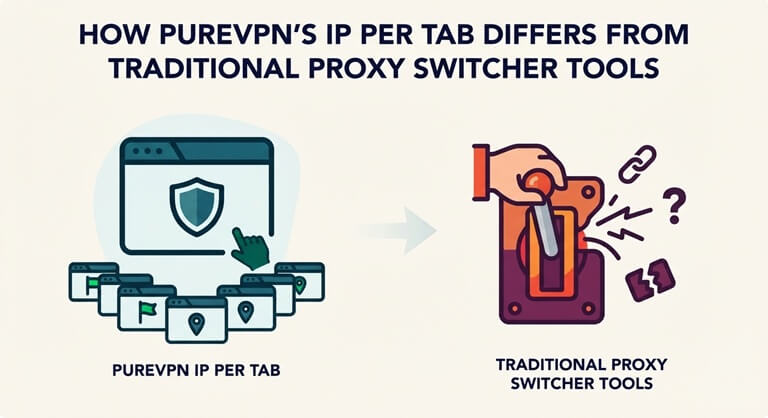
The new PureVPN Chrome extension, IP Per Tab, takes a different approach to the same issue, packaging their own proxy pool and switching interface into a single application. So what about the two approaches in reality, depending on how they are configured?
The Traditional Approach: Proxy Switcher + Bring Your Own Proxy
The most popular proxy management extensions are FoxyProxy and Proxy SwitchyOmega (which was withdrawn from the Chrome Web Store in 2024 due to the failure of its support for the new Manifest V3, but is now supported as ZeroOmega). It is neither a proxy seller nor a proxy seller’s site. Both assume that the user has already obtained proxy credentials from another provider.
Setting up FoxyProxy typically requires:
- Installing the extension and opening its Options page.
- Clicking “Add New Proxy” and manually entering the Host/IP address and Port number supplied by a proxy provider.
- Selecting the proxy type (HTTP, HTTPS, SOCKS4, or SOCKS5).
- Entering a username and password if the proxy requires authentication.
- Saving the profile, then separately clicking the FoxyProxy icon and selecting that profile from a dropdown to actually activate it.
- Repeating this entire process for every additional proxy or region needed.
- Manually visiting an IP-checking site afterward to confirm the connection actually changed.
Setting up SwitchyOmega/ZeroOmega follows a similar pattern:
- Creating a “New Profile” and choosing a Proxy Profile type.
- Entering the protocol, server address, and port manually.
- Clicking a separate lock icon to add authentication credentials if needed.
- Saving the profile — which, notably, does not activate it. The user must return to the toolbar. icon and manually select the profile to switch traffic through it.
- Building “Auto Switch” rules for domain-based routing requires navigating into a separate Rule List and manually defining wildcard patterns per domain.
They’re both fairly easy to understand when they’re set up. Still, both require the user to have a proxy source already arranged, to understand the difference between the two proxy protocols, and to re-enter the connection details for each new IP address they wish to use.
Reviewers have consistently described both tools as “difficult to set up” (particularly for “non-tech-savvy” users) and “inefficient and impractical at scale” (when you have to reconfigure settings for every user who wants to use a different IP).
What’s Structurally Missing From This Model
Two things are consistent across both tools:
No included proxy pool
FoxyProxy and SwitchyOmega are routing mechanisms only. You will need to buy the residential/datacenter IPs as well and manually copy the connection information (host, port, protocol, credentials) for each one by hand.
Activation is a separate step from configuration.
Neither tool uses a proxy when you save its properties. The user has to go back to the extension and manually switch the saved profile, which they need to do whenever the desired IP address changes— an extra step when switching between saved profiles.
This is easy for an individual with only a few accounts or a test or two. If you’re using it dozens of times a day, it’s the constant hassle and cumbersome task that proxy switcher guides admit it is.
Where IP Per Tab by PureVPN Takes a Different Approach
IP Per Tab by PureVPN folds the proxy pool and the switching interface into a single extension, which changes what the setup process actually looks like:
The Residential IP Pool Is Included
Users do not need to purchase residential proxies from a separate provider or manually configure proxy servers. The residential IP pool is built into the extension, allowing users to access residential IP addresses directly.
IP Switching Takes Less Than Three Seconds
The extension is designed to give a new residential IP address to a single browser window in less than three seconds. The absence of manual proxy configuration facilitates user mobility by allowing them to move from location to location without having to enter any hostnames, ports, or authentication credentials.
Each Browser Tab Can Use a Different IP Address
The extension is not like the classic proxy switcher, which uses a single proxy for the whole browser. The extension doesn’t use a single proxy address for each Chrome tab, as a classic proxy switcher does. There is no global setting to connect multiple tabs to different locations.
Domain Rules Automate Repetitive Tasks
It comprises Domain Rules, which enable users to set a residential IP for particular websites. After creating a rule, the domains are automatically opened with the assigned location, without the need to select an IP every time they are visited.
Side-by-Side Summary
| FoxyProxy / SwitchyOmega | PureVPN’s IP Per Tab | |
| Proxy pool included | No — sourced separately | Yes — built-in residential pool (USA, UK) |
| Setup per proxy | Manual host/port/protocol/credential entry | No manual entry required |
| Activation | Separate manual step after saving | Applied directly per tab |
| Connection speed | Depends on manual profile switch | Under 3 seconds |
| Domain-based rules | Manual wildcard pattern rules | Built-in, automatic |
| Scope of control | One active profile at a time (browser-wide) | Independent, simultaneous per-tab assignment |
The Practical Difference
The actual issue that proxy switcher extensions addressed was that changing IPs without altering the browser’s built-in network settings was a problem. What they failed to address was the need for a separately obtained proxy list and manual configuration. That’s where users need to have some technical comfort with tools, such as FoxyProxy and SwitchyOmega.
IP Per Tab fills that particular need by implementing the IP source and switching mechanism into one extension, which eliminates the manual configuration step altogether and enables multiple tabs to support multiple IP’s while not using a single global setting.
For those who already have a good proxy source and are comfortable with that, there’s still a proxy switcher that can be used. For users who have faced the most friction in setup, folding both pieces into one extension eliminates most of it by design.
Popular on OTW Right Now!




About The Author

Gagan Bhangu
Founder of otechworld.com and managing editor. He is a tech geek, web-developer, and blogger. He holds a master's degree in computer applications and making money online since 2015.