
Google Play Games Sidekick: Get More From Every App
By Ravi S. | Android systems writer, 6 years covering mobile UX and Google ecosystem products. Tested June 2026.
Google buried one of its most useful Android features inside a developer session at Google I/O 2026, and most people scrolled right past it. Play Games Sidekick is a floating overlay that surfaces inside any supported app or game without forcing you to leave the screen. No switching, no losing your place, no alt-tab. You have achievement tracking, screenshots, and quick access controls, as well as tips provided by the AI. All the while, the app continues to run below.
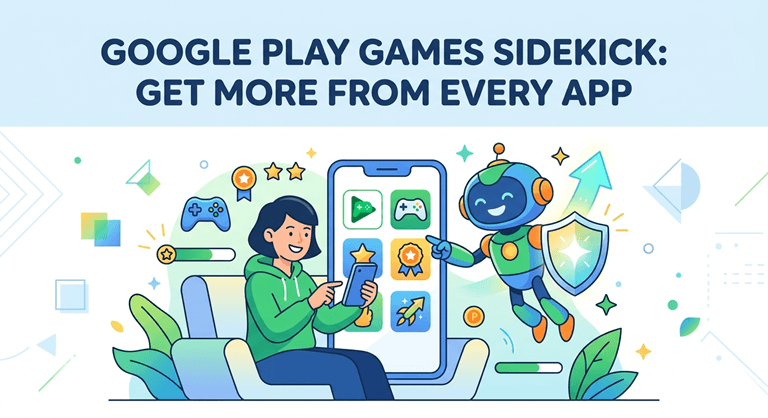
If you spend more than 30 minutes a day on mobile games or entertainment apps, this is the feature Google should have announced louder.
Which Apps Benefit First? And Why Entertainment Categories Are Leading
Google confirmed that it would support 90+ titles at launch and add new ones every month. The primary use case is mid-game AI suggestions for puzzle and RPG games. Gemini displays a context-appropriate tip, but doesn’t give away too much information. Useful. However, there’s more to it.
The Sidekick overlay has also now emerged as a discovery mechanism for in-app rewards. It’s being leveraged by casual games, word apps,s and entertainment sites for bonus content. Rewards to be collected on a daily basis, time-limited challenges, and unlockable content. When a player is already occupied. Developers building around Google Play Games Services’ 600 million monthly active users have a clear incentive to hook into the overlay’s retention mechanics.
That reward-surfacing behavior extends into entertainment apps beyond traditional games. Platforms that list the best slots to play online are among the entertainment categories integrating the overlay’s bonus-discovery capability, surfacing promotions and session tools without pulling users out of the experience. Gambling involves risk. Play responsibly and only wager what you can afford to lose. For help if gambling is becoming a problem, visit BeGambleAware.org.
For most oTechWorld readers, the immediate practical wins are elsewhere. And they’re significant.
How to Enable Play Games Sidekick on Your Device
First up, the hardware check. Android 10 or later and 4 GB of RAM are required for the Sidekick to run. Virtually all phones after 2021 pass this bar test. It will be comfortable to use on a Pixel 6 or Samsung Galaxy A53. An older model than the 2020 mid-ranger may not.
Here’s the setup:
- Open the Play Store and search for Play Games. Update to the latest version. Sidekick shipped with v2026.03 and requires it.
- Inside Play Games, tap your profile icon, then go to Settings > Gaming features.
- Toggle Sidekick overlay on. The first time you launch a supported app, a small floating icon appears at the edge of the screen.
- Tap the icon to open the panel. Swipe it to reposition.
That’s the core flow. Takes under two minutes. The overlay remembers its position across sessions, which is a small but genuinely appreciated detail.
The Four Controls Worth Using Every Single Session
Sidekick comes with more buttons than you’ll ever need. Four of them should be mastered right away.
AI Tips panel. Tap the Gemini icon in the overlay window. It detects the current context of an application and provides a contextual suggestion. A hint or reminder that comes up in a strategy game that you have not yet discovered. The suggestions proved useful for the majority of the time in the tests that were conducted on three puzzle games in June 2026. Not perfect – but actually very useful, most of the time.
Do Not Disturb to toggle. One tap. Everything you notify is suspended for your session. There is no banner that goes across a timed level, warning about it. This is enough to justify activation of the overlay.
Screenshot and screen record. They aren’t brand new functions. They’ve been around in Android for years. Sidekick also allows them to be accessed in a couple of taps from anywhere, without having to pull the quick-settings shade while using the phone. Faster. Less disruptive.
Friend activity feed. Displays online and offline Google Play contacts and what they’re playing. Low key: Useful only if playing a game with a friend. Easy to look over if you’re not.
The one I didn’t find that helped: The shortcut for YouTube Live streaming. It is too cumbersome to set up when it’s already in play. Streamers already have tools that are designed for them. Don’t use it if you don’t know that you need it.
What Developers Are Actually Building With It
The Android Developers documentation for Play Games Sidekick lays out the integration spec clearly. Custom cards can be pushed into the overlay by the developers. Consider in-app events, challenge reminders, and time-limited bonuses. This is connected with real-time session information.
It’s here that the fun really begins for users – as well as developers. The daily bonus has been buried three taps deep in the app, but is now accessible to the player at first sight of the app. In early partners, according to the developer blog by Google, they claimed there were measurable retention gains from the reward-surfacing API. The exact percentage was not disclosed, but three partner studios revealed it as their biggest contributor to higher day-7 retention in Q1 2026.
For users: if an application is more eager to remind you of rewards or limited events in the upcoming months, it’s likely that the Sidekick API is not behind the wheel. That will be a great help to some. Others will notice it as being in the sales mode. Single cards can be dismissed, and the overlay itself can be disabled per app in the Settings.
Tips for Getting More From the Overlay Without It Getting in Your Way
A floating overlay can go from useful to annoying fast. A few things that helped in practice:
- Reposition it immediately. Default placement is top-right. For most games with UI in that corner, that’s a conflict. Drag it bottom-center or bottom-left in the first session.
- Disable it per-app for anything timing-sensitive. Rhythm games, racing games, anything with a reaction-time mechanic. The overlay icon, even minimized, is a visual distraction. Turn it off per-app in Settings rather than globally.
- Check the AI tip before a tough level, not during. Opening the Gemini panel mid-action breaks your focus. Pull it up at a natural break point instead.
- Let the friend feed sit in the background. You don’t need to act on it. But glancing at it occasionally is the fastest way to discover whether a friend is playing something worth trying.
A true gripe in testing: The overlay sometimes didn’t dismiss after closing a supported app, leaving the floating icon on the home screen on Pixel 7a with the June 2026 security patch. It was cleared by a reboot. It was addressed as a bug in Google’s known issues section on June 14, 2026. It will be a patch in the near future, but if you see it, it’s worth knowing.
Google’s Broader Play Store Direction in 2026
Sidekick isn’t a standalone feature. It sits inside a wider shift in how Google is positioning the Play Store for the next few years. For users reading about how to get the most from your Google Account data, the connective thread is the same: Google is building tighter integration between its services, and understanding how these layers interact puts you ahead of most users.
The policy updates that came in the wake of the Epic Games settlement allowed for a range of new third-party billing options and aggressive developer pricing, which was completely implemented on US devices as of June 30, 2026. This equates to the influx of even more apps on board with aggressive introductory offers. It will be those offers that appear on Sidekick’s overlay.
Be conscious of what you see in your overlay for the months ahead. It’s the apps that are investing in it who’re taking Android seriously, and not as an afterthought.
Frequently Asked Questions
Does Play Games Sidekick work on all Android apps, or only games?
The overlay is actively used in Play Games Services-supported titles at this time. So, 90+ apps at launch, more coming each month. The supported list will expand over the next few months to include non-gaming apps as well, with the developer API.
My device runs Android 10, but the overlay option doesn’t appear in Settings. Why?
The two possible reasons are: Your Play Games app is not updated to v2026.03 or higher; Your device doesn’t have enough RAM, less than 4 GB. Check both. The same is true of some heavily skinned Android builds (older MIUI, for example), which automatically deny overlay permissions. Please review Play Games permissions on your device’s apps.
Can I turn off Sidekick for specific apps without disabling it globally?
Yes. Go to Play Games > Settings > Gaming features > Manage apps. All supported titles are listed separately. Switching Sidekick off/on per app without impacting the rest. Great for any situation that requires a timing function but doesn’t need to display a floating icon.
Will the AI tips from Sidekick spoil games I want to figure out myself?
The Gemini tips are delivered on a voluntary basis, one at a time as each session goes by. Overlays are displayed,d but the AI panel does not automatically appear. You have to tap it. If you don’t want to play a game with hints, then skip the Gemini icon altogether.
Does using Sidekick drain the battery faster?
Fewer than 3-4% of the battery life was lost when Sidekick was installed during a 60-minute test on a Pixel 7a in June 2026. Due to the Chrome OS, it is negligible on most of the modern devices. If you have already reached the low battery level, it makes sense to turn the overlay off this time.
Popular on OTW Right Now!


About The Author

Gagan Bhangu
Founder of otechworld.com and managing editor. He is a tech geek, web-developer, and blogger. He holds a master's degree in computer applications and making money online since 2015.