
Best Free Hard Drive Cloning Software for Windows 2026
Computer users often replace their hard drives or other PC components. A common concern here is how to migrate the data without losing data, applications, or settings. Rather than transferring individual files, drive cloning offers a more secure option as it creates an exact copy of the source drive.
But not all free software works. Many face errors during the cloning process, or do not support newer SSDs and Windows drives. So, selecting the best free hard drive cloning software is crucial for an upgrade.
In this article, we will look at the best free hard drive cloning software on the market and how 4DDiG Partition Manager is a safe choice for both beginners and experts. Let’s take a look at the best way to select the best software and do a painless hard drive cloning job.
Why You Might Need Hard Drive Cloning?
There are numerous use cases for hard drive cloning, such as upgrading, backing up, and replacing old hardware. Rather than reinstalling operating systems and applications, you can clone the whole thing.
Upgrade to a Larger HDD or SSD
Users often replace their drives when they are full. You can use cloning to copy a hard drive with Windows installed to a new hard drive of larger capacity without losing any data or software.
Migrate OS to a Faster SSD
If you have a hard disk drive (HDD), you can increase the speed of your PC by swapping it for a solid-state drive (SSD). Using cloning utilities, you can transfer the OS to the new hard drive and skip the need to reinstall Windows and applications.
Backup Your Entire System
Cloning can be used as a backup. When you back up a hard drive free with cloning software, you are making a copy of your entire drive, operating system, and all.
Disk Replacement Without Data Loss
It’s important to replace a drive when it shows signs of failure. Cloning enables you to replace the drive without downtime or the need to transfer files.
Now that you know why disk cloning is important, here’s how to choose the right software.
Key Features to Look for in Free Hard Drive Cloning Software
Picking the right software to clone your drives is essential, as not all programs are created equal. There are some key features to look for when choosing the best free hard drive cloning software.
- First, it should be compatible with HDDs and SSDs. Modern computers may have different types of storage. The free HDD cloning software should also work with NVMe and M.2 drives.
- The next feature is the ability to clone the operating system. Users may wish to transfer their operating system to a new drive. Good software will help you clone a hard drive Windows system without having to re-install the operating system.
- User-friendliness is also important. A user-friendly interface with step-by-step guidance is helpful for beginners.
- Flexibility in drive size is also important. It should support cloning from smaller drives to larger ones and resizing partitions accordingly.
- Finally, the best cloning tools have security measures to avoid data loss during the cloning process, while offering fast transfer rates for larger drives.
Now, let’s look at the top free hard drive cloning software available today.
Top Free Hard Drive Cloning Tools
Windows users have plenty of choices when it comes to cloning tools, but only a handful offer fast and reliable performance with user-friendly options. Here are a few of the most common.
1. 4DDiG Partition Manager (Recommended)
4DDiG Partition Manager‘s hard drive cloning features make it one of the most practical tools for both beginners and professionals. The software supports cloning for HDDs, SSDs, and other modern storage devices.
Key advantages include:
- Full disk cloning and OS migration
- Support for both internal and external drives
- Simple interface designed for easy navigation
- Reliable cloning process that minimizes the risk of data loss
It also allows users to migrate the OS to a new drive quickly without reinstalling Windows.
2. Macrium Reflect Free
Macrium Reflect is a popular disk imaging and disk cloning software for Windows.
- Users can create images of disks and clone drives.
- But it might be more complicated for new users.
Some advanced options are only available in the paid edition.
3. Clonezilla
Clonezilla is a great open-source tool for cloning that IT pros love
- Has a range of file system support (NTFS, FAT, ext3, and ext4)
- Supports advanced disk imaging
- Ideal for corporate or server use
But it offers a command-line interface that can be confusing for new users.
4. Redo Rescue
Redo Rescue is a free backup and recovery tool that also includes disk cloning capabilities.
- Runs from a bootable Linux environment
- Supports bare-metal backup and recovery
- Provides disk partition cloning
While useful, it may require creating a bootable media device before starting the cloning process.
How to Clone a Hard Drive Using 4DDiG Partition Manager
Hard drive cloning is more accessible when you have good-quality software with an intuitive user interface. 4DDiG Partition Manager hard drive cloning tools make it easy and ensure your data is cloned properly
Step-by-Step Guide
Follow these steps to clone your drive:
- Download and install 4DDiG Partition Manager on your Windows computer.
- Launch the program and select the “Clone Disk” option from the main interface.

- Choose the “source drive” that contains the data you want to copy.
- Select the “destination drive” where the cloned data will be stored.
- Adjust partition sizes if necessary to match the destination drive capacity.
- Click “Start” to begin the cloning process.
- Wait for the process to complete and safely eject the destination drive if needed.
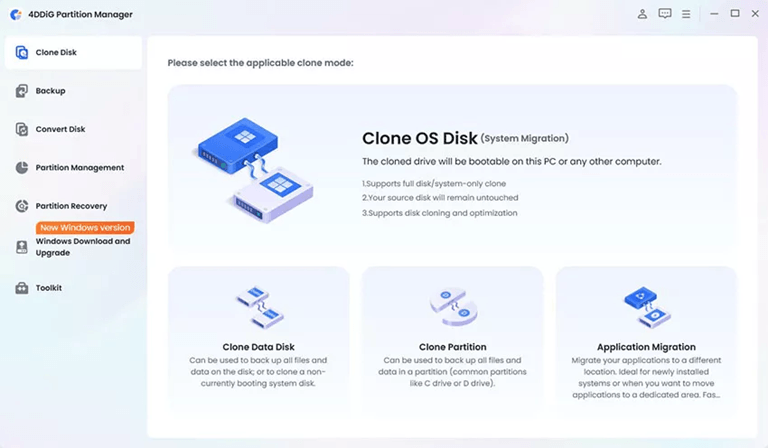
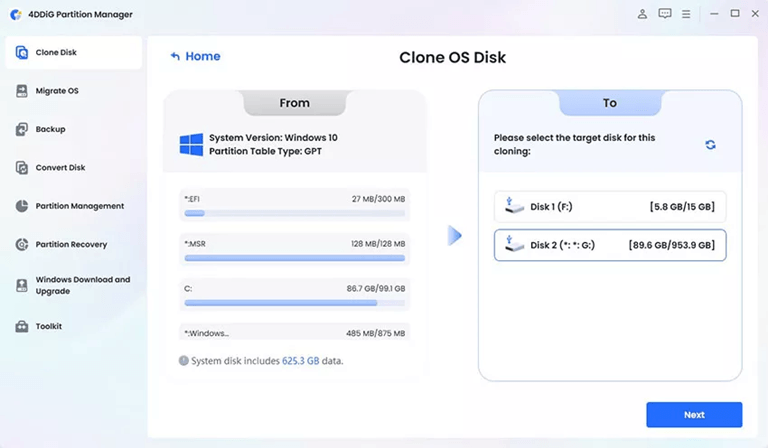
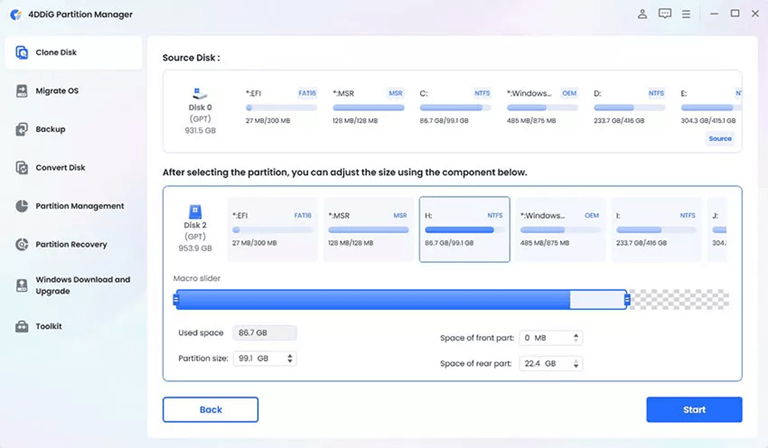
After the process is complete, you’ll have a duplicate of the original hard drive on the target drive. You can then use the new drive to boot your computer.
Benefits of Using 4DDiG Partition Manager
There are several advantages to using this software:
- Easy cloning with one click prevents errors.
- It automatically clones hidden system files and partitions.
- It works with all types of Windows storage devices, such as HDD, SSD, and M.2.
- The cloning process is quick and efficient, even with large hard drives.
Tip: Although the cloning process is secure, it is always worth backing up your important data as a precautionary measure.
Tips for Successful Hard Drive Cloning
Hard drive cloning is generally a simple process, but there are some tips to keep in mind to avoid problems.
- Make sure the destination disk is large enough to accommodate all files on the source disk.
- Close all other applications before you start cloning a drive. Other programs may prevent the drive from being accessed.
- Use SMART monitoring software to check the state of the source drive. If there are significant issues with the drive, they can affect cloning.
- Don’t stop the cloning process. Unplugging cables or turning off the computer during the process can result in damage.
- Finally, if you’re cloning a different drive to move the operating system, be sure to set the cloned drive as the boot drive in the BIOS or UEFI settings.
Frequently Asked Questions
Can I clone my hard drive for free?
There are tools available that let you clone a drive for free. There are a number of free HDD cloning software tools that allow you to clone drives. But there may be some restrictions. Software such as 4DDiG Partition Manager offers a more effective and intuitive cloning solution.
Will cloning copy my OS and programs?
Yes. Cloning a drive involves copying the entire disk content, including the Windows operating system, applications, system files, and user data. The new drive will be an exact copy of the original drive.
Can I clone to a smaller drive?
It depends on whether the data stored on the original drive will fit onto the smaller drive. Some cloning software will automatically reduce the size of partitions when creating the clone.
Conclusion
Upgrading to a new hard drive, or a drive with more capacity, doesn’t have to be complicated. The best free hard drive cloning software allows you to clone your hard drive, your operating system, programs, and data without having to reinstall. Disk cloning can be done in many ways, including using Macrium Reflect, Clonezilla, and Redo Rescue.
However, if you’re looking for a secure option that’s easy to use, then 4DDiG Partition Manager has a hard drive cloning feature. To help you have a smooth and safe hard drive cloning experience, we recommend using the right software to clone a hard drive, to transfer the operating system, and to back up data, in this guide, to upgrade or replace your hard drive.
Popular on OTW Right Now!


About The Author

Gagan Bhangu
Founder of otechworld.com and managing editor. He is a tech geek, web-developer, and blogger. He holds a master's degree in computer applications and making money online since 2015.