
How to Preview Markdown Tables and Code Blocks Online
Markdown is great for documentation, though at times tables and code blocks don’t render as you’d expect.
A table that looks properly formatted in your editor may well appear as plain text elsewhere. Code blocks can also lose their formatting or simply not appear at all with syntax highlighting.
Previewing your Markdown before you publish is a simple way of spotting these issues.
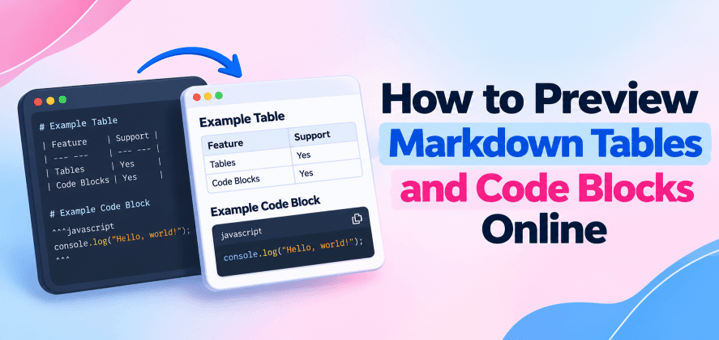
This guide will show you how to preview your Markdown tables and code blocks online, how to fix the common formatting problems and how to make sure your document looks correct.
How to Preview Markdown Tables and Code Blocks Online
You don’t need to install a Markdown editor to check your formatting. A browser-based preview tool will take your Markdown and turn it into a readable document.
Here’s how I recommend doing it:
- Open the Markdown Viewer Tool in your browser.
- Paste your Markdown content into the editor, or upload an existing .md file.
- Check the live preview to see how your tables and code blocks appear.
- Correct any formatting issues in the editor.
- Review the updated preview before copying or exporting your document.
With live preview you can see instantly whether your table columns, headings, lists and code blocks are all displaying correctly.
Tip: If you’re producing a GitHub README, it’s worth checking the final file on GitHub as different Markdown tools will render the advanced formatting in different ways.
How to Preview Markdown Tables Correctly
Markdown tables are commonly written using pipes (|) to separate columns and hyphens (-) to define the header row.
Here’s a simple example:
| Feature | Markdown Viewer | Markdown Editor |
| Read MD files | Yes | Yes |
| Edit content | Sometimes | Yes |
| Live preview | Usually | Often |
In the Markdown source, each row is separated by a new line, while pipes divide the cells. A separator row containing hyphens tells compatible Markdown renderers where the table headers end.
Tips for Proper Table Formatting
- Include a header separator: Without the hyphen separator row, your table may display as ordinary text.
- Keep the column count consistent: Each row should contain the same number of cells.
- Use alignment markers when needed: Colons in the separator row can control left, center, or right alignment.
- Check long cell content: Large amounts of text can make tables difficult to read on smaller screens.
One thing worth remembering: tables are part of GitHub Flavored Markdown (GFM), not the original basic Markdown syntax. Make sure your preview tool supports them.
How to Preview Markdown Code Blocks
Code blocks allow you to display programming examples, commands and config files as such rather than as normal paragraphs.
Markdown typically supports two primary methods of inserting code blocks.
1. Indented Code Blocks
You can create a simple code block by indenting each line with four spaces.
This will work for simple examples; you just can’t set a programming language for syntax highlighting.
2. Fenced Code Blocks
Fenced code blocks are three backticks before and three backticks after your code.
You can add a language name after the opening backticks (e.g. python, javascript, html).
For example, a JavaScript code block might contain the line:
console.log(“Hello, world!”);
If you use the appropriate JavaScript fence a Markdown previewer will render it as a separate code block and may even highlight the syntax.
What Should You Check in the Preview?
I recommend checking whether:
- Code appears in a separate, readable block.
- Indentation and line breaks remain intact.
- Special characters display correctly.
- Syntax highlighting works for the selected language.
Remember that syntax highlighting depends on the renderer. Adding a language name doesn’t guarantee every tool will color the code.
Common Markdown Preview Problems and How to Fix Them
Even correctly written Markdown can look different across platforms. Here are the issues I’d check first.
| Problem | Possible Cause | How to Fix It |
| Table displays as plain text | Unsupported table syntax or missing separator | Use a GFM-compatible viewer and check the separator row |
| Table columns look incorrect | Missing or extra pipe characters | Check the number of cells in each row |
| Code block isn’t formatted | Missing closing fence or incorrect indentation | Check the opening and closing backticks |
| Syntax highlighting is missing | Unsupported or unrecognized language identifier | Use a supported language name |
| Code formatting looks broken | Inconsistent indentation or line breaks | Review the original Markdown source |
Leave a blank line before and after tables and fenced code blocks. This will make your document much easier to read and can help to avoid some parsing issues in certain Markdown tools.
If the preview is still coming out wrong then check your source against the Markdown syntax that your preview tool supports before making any changes.
What to Look for in an Online Markdown Preview Tool
Not every Markdown viewer handles tables and code blocks equally well.
Before choosing one, I’d check for these features:
- GitHub Flavored Markdown support: Important for rendering tables, task lists, and other extended formatting.
- Live preview: Helps you identify mistakes while editing.
- Code formatting: Preserves indentation and ideally supports syntax highlighting.
- File upload: Useful when reviewing existing .md
- Export options: Convenient when you need to save or share formatted content.
If you only ever glance at your Markdown once in a while then a simple browser tool will be quite sufficient. If you’re regularly working on technical documentation then you may want to consider a tool with more sophisticated editing capabilities.
Frequently Asked Questions
Why is my Markdown table not rendering?
The most likely causes are a missing header separator, incorrect table syntax or a renderer that doesn’t support GFM tables. Check the source and try a different viewer that is known to be compatible.
How do I enable syntax highlighting in Markdown?
Add a supported language identifier straight after the opening backticks of a fenced code block. The preview tool must also support syntax highlighting.
Can I preview Markdown tables and code blocks without installing software?
Yes, browser based Markdown viewers allow you to paste in some Markdown or open up your supported files and then view the formatted output without having to install any desktop application.
Popular on OTW Right Now!



About The Author

Gagan Bhangu
Founder of otechworld.com and managing editor. He is a tech geek, web-developer, and blogger. He holds a master's degree in computer applications and making money online since 2015.