
Sites Like remove.bg: 7 Tools Worth Testing for Clean Cutouts
remove.bg has been the go-to for background removal for a long time. Need a transparent PNG? Just drop it in, download and you’re done. No editor, no template, no extra steps required.
Now that the tool is fully inside Canva and the standalone site is set to shut down on December 1, 2026, a lot of designers, sellers, and freelancers are looking for sites like remove.bg for daily use that work the same way – fast, clean, and give you a real file you can use anywhere.
Not all background removers are created equal. Some are good, but only work within a design suite. Others are free but will reduce your image to 500px. The good ones will get you edge quality, speed, and export right.
Here are 7 sites like Remove.bg that are worth a go now. We’ll look at how they deal with the difficult bits (hair, fur, etc.), how fast they are, what the free version gives you, and whether they can handle batches. That should enable you to find the one that’s best for your own workflow.
1. Designkit – Closest Workflow to remove.bg
Designkit is frequently missed in the background remover lists, but it’s definitely one to look at. Of all the AI background removers we’ve tested, it’s the only one that actually feels like remove.bg; you just open it, drop your image in, download it and you’re done. There are no templates, no editors.
Tested example: We tried an image of a woman with big curly hair and a tan tote bag. Most of the free ones struggle with this kind of image (they either make the hair look very stiff or they cut into the bag strap).
Designkit did both of those quite nicely, actually. The curls came out very distinct and the strap was complete on the first attempt. The results are side by side in the image below.
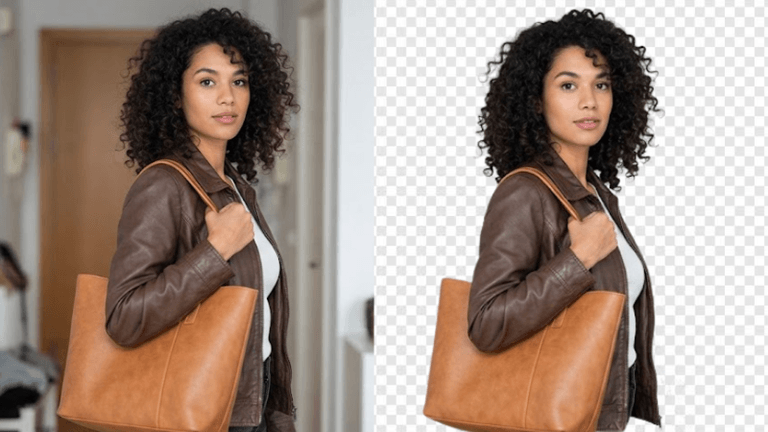
Overall, here’s what came up in testing across various images:
- Edge quality: Very good on hair, fur, jewelry chains, and soft edges.
- Speed: Instant for single images, about a minute for 20-30 images.
- Export: Full-resolution transparent PNG, white background, solid color, or new scene.
- Batch: Real batch upload and ZIP download plus API.
2. Photoroom
Photoroom is aimed at people who are selling products online so it does much more than just remove the background. You upload your product (say a pair of shoes, a handbag, a coffee mug etc) and it removes the background. It then places your product into a studio template, which is a much cleaner, more central-looking template for your store.
Tested example: We used a black evening dress with lace on the sleeves and hem. The tool handled the difficult bits very well indeed. The sheer lace held all its detail and the edge around the hanger and the satin was clean with no grey fringe.
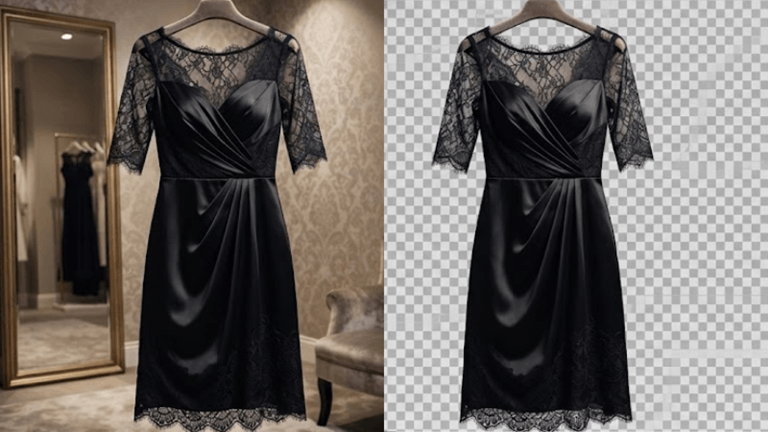
Overall, here’s what came up in testing across various images:
- Edge quality: Very clean on the products and the hard edges, a little soft on the flyaways.
- Speed: Under 3 seconds on average.
- Export: PNG with transparency is available, though a number of the good background templates will require the paid plan. The free version does leave a watermark if you use a template.
- Batch / Limits: Batch processing works a treat in the mobile app, much more limited on the web.
3. Adobe Express Background Remover
If you’ve used Photoshop’s Remove Background button, then this will be very familiar. Adobe Express uses the same AI engine. You upload an image, it removes the background in a flash and you can either download it or carry on editing it in Adobe Express. It’s free if you have an Adobe account (which most people do).
Tested example: for a hair test we used a portrait with short tousled hair, bright sunlight on the top and a fairly cluttered background. The result was clean. Most of the removers either chop off the sunlit flyaways or leave a white halo; this one cleaned the background up without affecting the hair texture or blurring the edges.
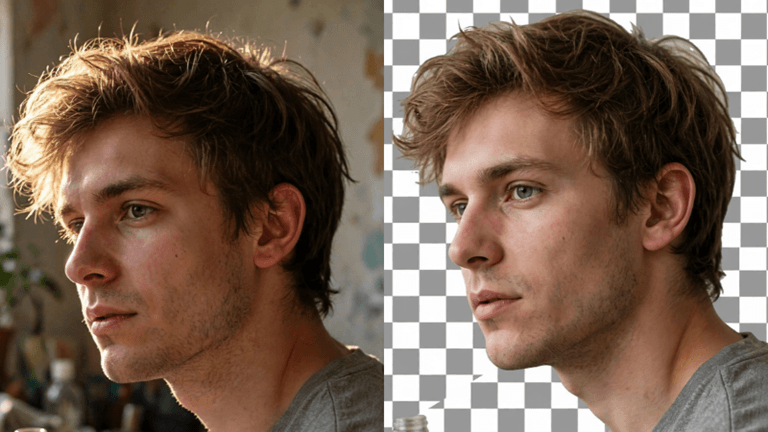
Overall, here’s what came up in testing across various images:
- Edge quality: Excellent for people, good for simple objects.
- Speed: Approximately 5 to 7 seconds as it loads the editor first.
- Export: Transparent PNG, high resolution (you’ll need a free Adobe account to download).
- Batch / Limits: No batch on the free version. You have to do one image at a time.
4. ClipDrop by Stability AI
ClipDrop is a toolkit from the team behind Stable Diffusion and includes a few tools: background remover, image upscaler, relight and cleanup. The background remover is by far the most popular and it’s designed for speed.
Tested example: We had a black office chair with thin metal legs in a very busy office. Chairs are a bit of a fiddle really as it’s the legs and the gaps that you’re dealing with. ClipDrop retained all four legs and the gaps perfectly with no grey or white edges at all. The cut was ready to use.
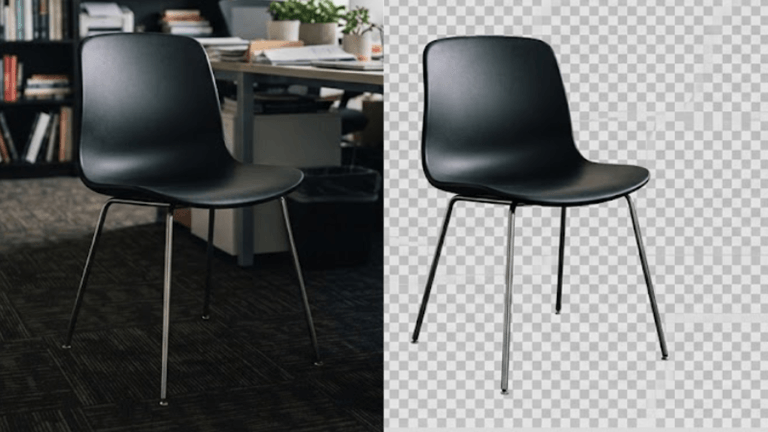
Overall, here’s what came up in testing across various images:
- Edge quality: Excellent on hard edges, a bit aggressive on very fine hair.
- Speed: Under 2 seconds, no login required.
- Export: Transparent PNG, HD behind Pro.
- Batch: No real batch.
5. Slazzer
Slazzer is built for stores and automation. It’s not about producing the perfect single portrait really, it’s about speed when you’ve got 100+ images to process. It has a web app, an API and plugins for Shopify, WooCommerce, Figma and Photoshop so you can integrate it straight into your workflow.
Tested example: 30 sneaker images on various backgrounds. 28 were perfectly centered with clean edges around the sole. Two of the reflective ones had a very slight shadow under the shoe. For stores doing daily drops, this pass rate is worth a hell of a lot of hours.
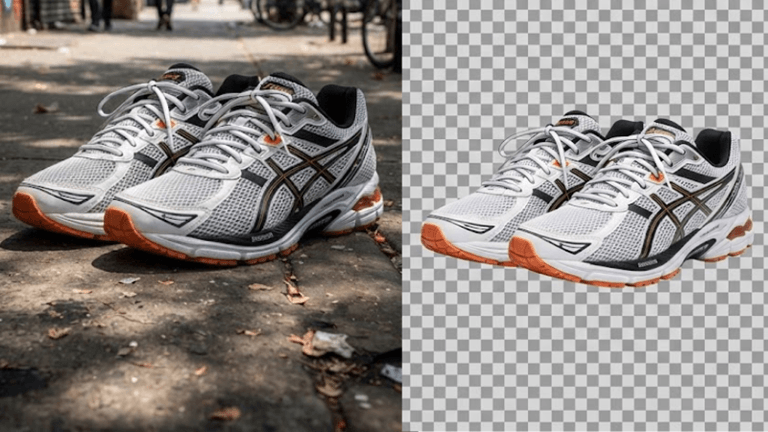
Overall, here’s what came up in testing across various images:
- Edge quality: Solid on products, people and cars. Average on frizzy hair.
- Speed: Fast on the web, faster via the API.
- Export: Full-res PNG.
- Batch: Batch, API, plugins. Credit-based.
6. Removal.ai
Removal.ai is all about simplicity, really. You go to the site, drop your image in, and download the transparent version. The downside is there’s no editor to fix anything. If you’ve got a fine edge that’s not quite right (e.g. very curly hair) you’ll need to go elsewhere and fix that. High-res downloads, of course, require credits.
Tested example: simple white mug on a wooden table; the cut was clean, and the handle edge was sharp. On the curly hair portrait, the hair edge was quite blocky, and the free download was low-res with obvious compression.
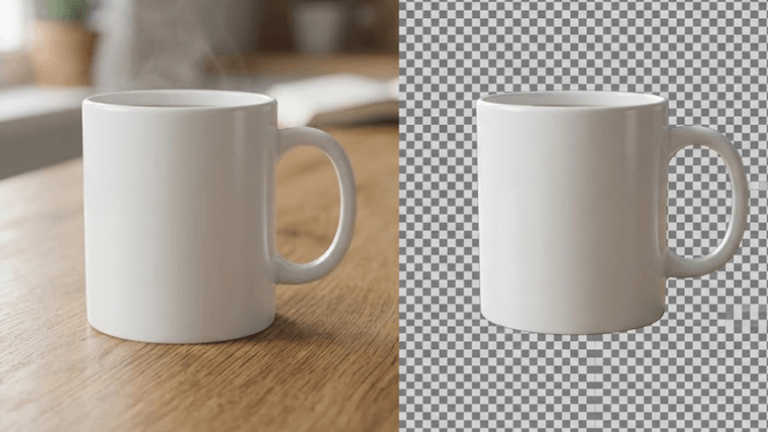
Overall, here’s what came up in testing across various images:
- Edge quality: Good for simple products, average for fine edges.
- Speed: 2-3 seconds.
- Export: Free is low-res compressed; HD requires credits.
- Batch: Only on paid plans.
7. Fotor
Fotor is an online photo editor (very much like Canva) and has a background removal feature. It’s used predominantly for social content, profile pics and the like rather than for e-commerce cutouts where you need a perfect edge around the product.
Tested example: We used an image of a green top handle bag with a shoulder strap and gold lock, taken in a showroom. Fotor removed the background and left the strap thin and intact with no cut through the middle. The leather and the gold clasp were both clean, although the edge was a little soft in the shadow under the bag.
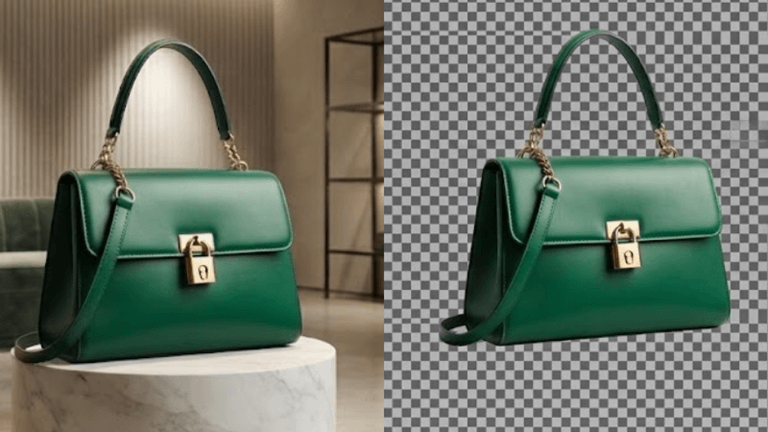
Overall, here’s what came up in testing across various images:
- Edge quality: Average, soft on detailed edges.
- Speed: 5-7 seconds as it loads the editor.
- Export: Transparent PNG (free), watermark sometimes added.
- Batch: None, one at a time.
So which one should you keep bookmarked?
It depends on what you actually do all day.
Products = PhotoRoom / Slazzer. People = Adobe Express. One-off quick cut = ClipDrop / Removal.ai.
If you were using remove.bg as a quick way to get some usable PNGs (just open, drop, download) then you’ll want a dedicated remover. That’s why most people will actually have two. One will be a suite tool for design work, and the other will be a dedicated remover like Designkit for the files you then want to use in Photoshop, Figma, or Shopify.
Don’t test it with an easy white mug on a white background. Test it with your hardest image possible: curly hair backlit by a window, a fluffy dog, a chair with thin legs etc. The tool that maintains full resolution, preserves fine detail, and allows you to batch as a ZIP is the one you want to keep as your default going forward from December 1st.
Popular on OTW Right Now!



About The Author

Gagan Bhangu
Founder of otechworld.com and managing editor. He is a tech geek, web-developer, and blogger. He holds a master's degree in computer applications and making money online since 2015.