
How to Compress Large PDF Files With PDF-Compress.ai Without Uploading Them to a Server
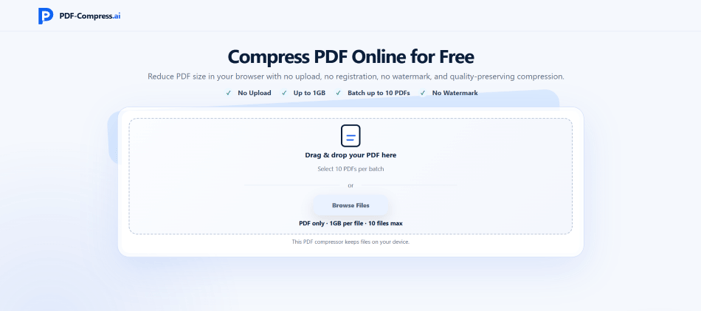
Large PDF files can become inconvenient surprisingly quickly. A scanned report may be too large to email, a portfolio may exceed an application portal’s upload limit, or an image-heavy document may take longer than expected to share. PDF-Compress.ai provides a browser-based way to compress these files directly on the user’s device without first uploading them to a remote compression server.
The tool is designed for straightforward PDF compression rather than complicated document editing. Users select one or more PDFs, choose between Light, Balanced, and Strong compression, process the files locally in the browser, and download the compressed files. No registration is required.
Why Do PDF Files Become So Large?
Two PDFs with the same number of pages can have completely different file sizes.
The difference usually comes from what is stored inside them.
Scanned Pages Can Use Much More Space
A text-based PDF may contain relatively little data because most of the document consists of digitally stored characters.
A scanned PDF behaves differently. Each page may effectively be stored as an image.
A long scan containing high-resolution pages can therefore become much larger than a document created directly from a word processor.
The same issue can affect PDF files containing photographs, graphics, product images, presentation slides, charts, or other visual elements.
When Does PDF File Size Actually Matter?
Storage space is rarely the only reason to compress a PDF.
In everyday use, the problem usually appears when the file has to move somewhere else.
Email Attachments
Email providers and company mail systems may limit attachment sizes.
If a report, proposal, or set of scanned documents exceeds that limit, compressing the PDF may make it possible to send the file without switching to another sharing method.
Online Forms
Job applications, university portals, government forms, and business systems often impose their own upload limits.
A résumé or supporting document may look perfectly normal but still be rejected because the file is too large.
Mobile and Slow Connections
Smaller files can also be easier to upload or download when users are working on mobile networks or slower internet connections.
Start With the Compression Level That Matches the Task
PDF-Compress.ai provides three compression strengths: Light, Balanced, and Strong.
The choice matters because reducing file size and preserving visual detail are connected.
Light Compression
Light mode is useful when the PDF only needs a modest reduction.
For example, if an upload portal accepts files up to 20MB and the original document is 22MB, aggressive compression may be unnecessary.
A lighter setting gives users more room to preserve document quality.
Balanced Compression
Balanced mode is a practical starting point for many everyday documents.
Reports, résumés, lecture notes, business files, and presentation exports may benefit from a noticeable reduction without immediately applying the strongest available setting.
Strong Compression
Strong mode is more suitable when file size is the main constraint.
It may help with particularly large PDFs or strict upload limits, although the finished document should be checked carefully afterward.
Small text, fine diagrams, screenshots, and photographs deserve particular attention.
How to Reduce PDF File Size in a Browser
The basic workflow is intentionally simple.
Step 1: Select the PDF
Open PDF-Compress.ai and choose the PDF that needs to be compressed.
Individual files up to 1GB can be selected.
Step 2: Choose a Compression Level
Select Light, Balanced, or Strong depending on how much reduction is required.
Starting with Balanced can be useful when there is no specific reason to prioritise either maximum image quality or maximum compression.
Step 3: Run the Compression
The processing takes place locally in the browser.
The original PDF does not need to be uploaded to a compression server as part of the compression workflow.
Step 4: Check the Finished PDF
Once processing is complete, save the compressed result and open it.
Check text, images, tables, diagrams, page order, and other important information before using the new version.
If the quality has dropped too much, return to the original file and try a lighter compression setting.
Why Local Browser Processing Is Useful
Many online file-processing tools rely on remote servers.
The browser sends the file to the service, the server processes it, and the finished document is sent back.
PDF-Compress.ai performs the compression on the user’s device instead.
It Removes an Extra File Transfer
If the purpose of the task is simply to make a file smaller, uploading the complete source PDF to a remote compression server creates an additional step.
Local processing removes that upload from the compression workflow.
This can be particularly useful when working with large files.
It Can Also Be Relevant to Privacy
PDFs frequently contain personal or business information.
Examples include résumés, internal reports, contracts, application materials, academic documents, and administrative records.
Processing locally means the PDF does not need to leave the device merely for compression.
Users working with sensitive information should still follow any company, client, or regulatory requirements that apply to the document.
Browser Performance Still Matters
Local processing also means the user’s computer provides the processing resources.
That creates an important practical limitation.
A 1GB Limit Is Not a Speed Guarantee
PDF-Compress.ai allows users to select individual files up to 1GB, but two devices may handle the same large file differently.
Performance can depend on the browser, available memory, device hardware, and the structure of the PDF itself.
A laptop with limited free memory may take longer to process a large image-heavy document than a desktop computer with more available resources.
The maximum selectable file size should therefore be viewed separately from actual processing speed.
Compress Several PDFs in One Session
Some document tasks involve an entire group of files rather than one oversized PDF.
PDF-Compress.ai supports up to 10 PDFs in one batch.
When Batch Compression Helps
Imagine preparing several documents for an online submission.
Instead of selecting, compressing, downloading, and repeating the same process for every PDF, multiple files can be prepared together.
This can be useful for sets of reports, scanned forms, academic documents, invoices, or application files.
Compression Results Depend on the Original PDF
Users should not expect every PDF to shrink by the same percentage.
A file that has already been optimised may have relatively little additional data that can be removed.
An unoptimised scan containing large images may have much more room for reduction.
Compare the Result With the Original
When you reduce PDF file size, compare both versions before deleting the source document.
Check whether the size reduction is actually useful and whether important content still looks clear.
For important files, keeping the original full-quality version is a good practice even after a compressed copy has been created.
No Watermark Makes the Result Easier to Reuse
Some free online document tools insert branding into the processed file.
That can create problems when the document needs to be submitted professionally.
PDF-Compress.ai does not add a watermark to compressed PDFs.
This is particularly useful for résumés, university assignments, client reports, proposals, and other documents where the final appearance matters.
Practical Tips Before Compressing an Important PDF
A few habits can prevent unnecessary problems.
Keep the Original
Always retain the source document until the compressed version has been reviewed.
Do Not Automatically Choose Strong Compression
Use the level required by the actual situation.
If the file only needs to shrink slightly, lighter compression may produce a better result.
Check Detailed Pages
Pay special attention to pages containing photographs, diagrams, screenshots, small fonts, signatures, or dense tables.
Confirm the Final Upload Requirement
If an application portal requires a PDF below 10MB, check the finished size before beginning the upload.
The purpose of compression is to meet a practical requirement, so the final number matters.
FAQ
Is PDF-Compress.ai free to use?
Yes. PDF-Compress.ai is a free browser-based PDF compression tool and does not require users to create an account or purchase a subscription before processing a file.
Does PDF-Compress.ai upload my PDF to a server?
The compression process runs locally in the browser, so the PDF does not need to be uploaded to a remote compression server.
How many PDFs can I compress at once?
Users can select up to 10 PDF files in one batch.
What is the maximum PDF file size?
Individual files up to 1GB can be selected. Actual processing performance depends on factors such as the PDF structure, browser, device, and available memory.
What is the difference between Light, Balanced, and Strong compression?
Light applies a less aggressive reduction, Balanced provides a middle option, and Strong prioritises reducing the file size further. Users should review the result after compression, particularly when choosing Strong.
Will PDF-Compress.ai add a watermark?
No. The compressed output does not contain an added watermark.
Can I compress scanned PDFs?
Yes. Scanned and image-heavy PDFs are among the types of documents that can be processed. The actual amount of size reduction varies depending on how the original file was created.
Final Thoughts
PDF compression is a simple task, but the right approach depends on why the file needs to become smaller.
A document that barely exceeds an email limit may only need light compression. A large scan intended for an online portal may need a stronger reduction. Several documents can benefit from batch processing instead of being handled individually.
PDF-Compress.ai keeps that workflow straightforward by processing files locally in the browser, providing three compression levels, supporting batches of up to 10 PDFs, allowing individual files up to 1GB to be selected, and producing watermark-free output.
For users who regularly deal with oversized reports, scans, résumés, applications, or business documents, it provides a practical way to make PDFs easier to send and upload without adding another account or unnecessary server upload to the process.
Popular on OTW Right Now!



About The Author

Gagan Bhangu
Founder of otechworld.com and managing editor. He is a tech geek, web-developer, and blogger. He holds a master's degree in computer applications and making money online since 2015.