
Getting the Most out of Microsoft 365 Copilot
Microsoft 365 Copilot lands in your Word, Excel, Outlook, Teams, and PowerPoint with a simple promise: less busywork, more of the work that matters. For a lot of people, though, the reality after the first week is a shrug. They ask it to “make this better, ” get a bland result, and go back to doing things the old way. The tool is genuinely powerful, but, like any tool, its value lies in how you use it. Here is a practical guide to getting real mileage out of Copilot instead of treating it as a novelty.
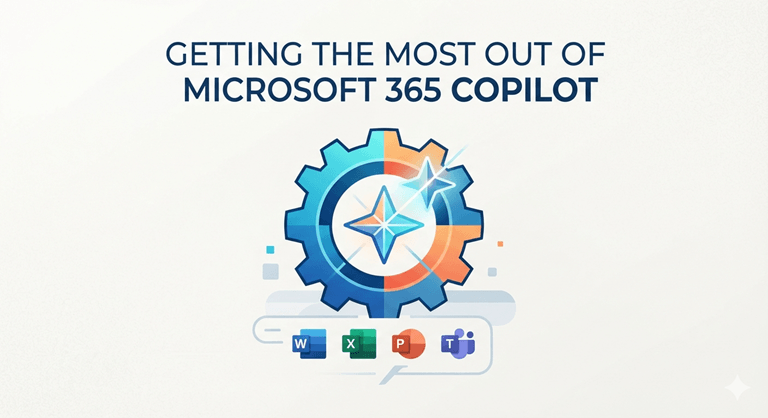
Understand what Copilot can actually see.
The biggest misunderstanding about Copilot is thatit’ss simply ChatGPT integrated into Office. It is not. The superpower is that it can reason with your own content, your email, your docs, chats, meetings, and files stored in Microsoft 365, if you grant the appropriate permissions. It’s that foundation in your data that makes it practical for real-world drafting, rather than boilerplate.
It also implies that what you receive is as good as what is put in. When your files are not organized, your meetings don’t have an agenda, and your files are not named draft documents, Copilot isn’t as well-equipped to help you. Document file names, a bit of housekeeping, shared documents in place, and meetings with real names begin to pay off right away.
Write prompts as if you were briefing a colleague.
Apply” Summarise this ” to get a summary. It’ss really a matter of summarizing this in five bullets for a client whocouldn’tt attend the meeting, summarizing decisions and next steps, and marking anything that requires my approval. It’ss all about specificity. Treat Copilot as a new member of the team; provide context: who the audience is, what the format will be, what the tone will be, and what the objective will be.
Role, task, context, and format are a reliable prompt recipe! For instance: “You’re my E.A. Make a response to this email message which politely rejects the appointment, proposes two other dates next week, and is under 80 words. The more you can front-load, the less time you will be spending editing.
App-by-app wins worth stealing.
Use Copilot to deal with a cluttered inbox in Outlook: Request Copilot to summarize lengthy conversations before you respond and let it write responses you then edit. The meeting recap is a key feature of Teams. It records who was double-booked, what was decided, and what actions were to be taken, allowing the person who was double-booked to catch up in 2 minutes rather than spending an hour watching the recording.
Copilot really excels as a first-draft engine and as a rewriter in Word. Use it to input your inexact notes and desired structure, then hard-edit. Before creating a chart in Excel, query it to explain a data set, provide formulas, or identify trends. It can convert an existing document into a PowerPoint starter deck, saving time on the first pass, even if later restyling is performed. The same with them all: Copilot takes you to a respectable 70 percent; you do the rest.
The productivity trap to avoid
The word of warning. Researchers have found that simply enabling an AI assistant is not sufficient to make a difference in output. The improvements are apparent when Copilot is integrated into the actual flow of work, rather than attached as a separate “tab ” that people sometimes click on. Those who get returns redesign the job, standardizing how status reports are written, how meeting notes are distributed, how customer replies are drafted, etc., instead of hoping someone will work it out on their own.
That is really a process question, and it rhymes with the advice inoTechWorld’ss own guide to business process automation and the processes you should automate before hiring more people. The principle is identical: map the repetitive work first, then apply the tool to the parts that genuinely drain time.
Roll it out deliberately, not all at once
When rolling out Copilot to a team, don’t simply grant everyone a license and pray for the best! Do small-group work that involves a lot of documents or a lot of communication, and record the communication- and document-heavy prompts that are successful and useful. Then create a short list of internal, successful use cases. People will be convinced much more easily by peer examples than by a list of features.
Governance is not to be overlooked. Copilot respects existing permissions and will show content that people already have access to, so sometimes it will turn out that you’ve had insufficient permissions to start with. Make sure to do a quick review of the sharing settings before rolling it out widely to avoid any awkward surprises. For larger organizations, this is exactly where structured Microsoft Copilot consulting earns its place, covering readiness assessment, data hygiene, security co-configuration and the change management that turns a license into adoption.
Make it a habit, not a party trick.
The users who benefit the most from Copilot are not the ones who create the cleverest prompts. It is they that instinctively pick up the phone, or a tablet, or something else to make a status call before they post an update, after a meeting, when they have a blank document, or a mysterious spreadsheet. Only a few weeks of purposeful use of that reflex are needed to build it, andit’ss worthwhile.
For B2B and technology firms especially, the same principles that drive internal adoption also shape how these capabilities are sold; many now lean on a specialist B2B tech marketing agency to communicate their AI-enabled productivity story to customers. But it starts at home. With the right workflow, clear and concise briefs, and the help of Microsoft 365 Copilot, this new tool goes from being a novelty to a productivity force working behind the scenes throughout your day.
Popular on OTW Right Now!


About The Author

Gagan Bhangu
Founder of otechworld.com and managing editor. He is a tech geek, web-developer, and blogger. He holds a master's degree in computer applications and making money online since 2015.