
A Practical Windows Checklist for Installing a New Messaging App Safely
Installing a new messaging app on Windows can give the application access to notifications, downloaded documents, shared media, microphone permissions, contact data, and account sessions. The process should therefore be treated as a security and configuration workflow rather than a simple download-and-click task.
Before running the installer, users should verify the website, Windows compatibility, file properties, and publisher identity. After installation, they should review automatic downloads, local storage, startup behavior, notifications, updates, recovery settings, and the new desktop session.
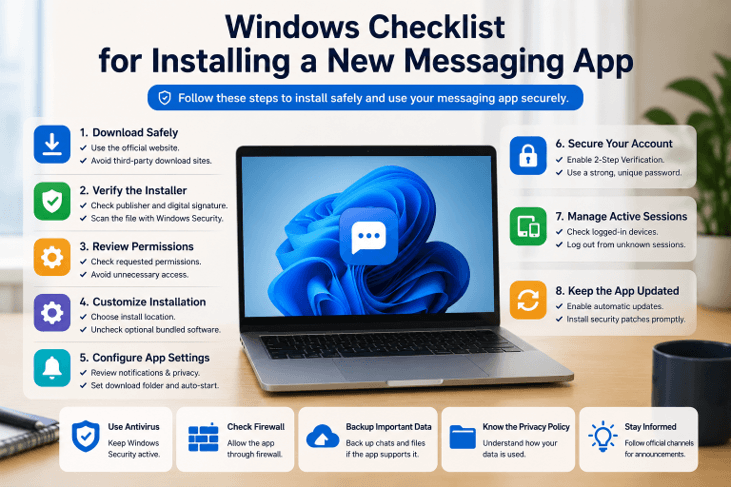
The following checklist applies to most Windows messaging applications. It is particularly useful for users in Hong Kong and Taiwan who may encounter multilingual download pages and switch between mobile and desktop throughout the day.
Confirm Windows Requirements and Compatibility
Before downloading the application, confirm that the computer meets the basic system requirements.
Start by checking the Windows version. Open:
Settings > System > About
This page normally shows the installed Windows edition, operating-system version, processor information, memory, and system type.
Most modern Windows computers use a 64-bit operating system, but some older or specialized devices may still use 32-bit Windows. Downloading the wrong installer may cause the setup to fail or the application to behave unpredictably.
Review the following requirements:
- Supported Windows versions
- 32-bit or 64-bit architecture
- Available storage space
- Minimum memory requirements
- Stable internet access
- Administrator permissions
- Desktop notification support
- Automatic update support
Storage requirements should include more than the installer size. Messaging applications may later store cached images, videos, documents, voice files, and temporary data.
A reliable network is also important during the first setup. The application may need to verify an account, synchronize messages, download updates, or register the new device.
On a company-managed computer, users should confirm that the application is permitted. Security policies, restricted accounts, or centralized software management may prevent installation even when the computer technically meets the requirements.
Verify the Messaging App Download Page
Review the download page before any file is transferred.
Before selecting a potato下载 resource, users should review the domain, Windows version, application description, download destination, and available publisher information.
Read the full domain carefully. Look for misspelled product names, extra words, unnecessary hyphens, unfamiliar extensions, or pages designed to resemble another website.
HTTPS is helpful because it protects the browser connection, but it does not prove that the website belongs to the application publisher. The page should provide additional identity signals, such as clear product information, platform descriptions, version details, contact information, and consistent navigation.
A useful download page should explain:
- Which operating system the file supports
- Whether the installer is 32-bit or 64-bit
- The expected filename or installer type
- The application version
- The release or update date
- Whether the page is an official source or an independent guide
- Where the download button leads
Move the pointer over the download button before clicking. Most browsers display the destination URL near the bottom of the window. An unrelated advertising network, shortened link, or unknown file host deserves additional scrutiny.
Avoid Fake Messaging App Download Buttons
Download pages may contain several buttons that look almost identical. The largest or brightest button is not always the correct one.
Common misleading elements include:
- Advertisement buttons placed near the article
- Multiple “Download Now” buttons
- Automatic redirects
- Download managers
- Browser-extension offers
- Bundled system utilities
- Fake update notices
- Countdown timers
Some pages use advertisements that copy the visual style of the real download button. Others redirect users to a separate installer that manages several software downloads.
A direct application installer is usually easier to verify than an unknown download manager. If the page unexpectedly asks users to install another program before obtaining the messaging app, the process should be stopped and reviewed.
Users should also be careful with files described as mandatory updates. A webpage cannot always determine accurately whether a local messaging application needs an update. Update instructions should be confirmed through the installed application or a verified publisher source.
Inspect the Windows Installer File
After downloading the file, inspect it before opening it.
Locate the installer in the Windows Downloads folder and confirm that the filename matches the expected application. Windows desktop installers commonly use .exe or .msi extensions, although other package formats may also exist.
Check for double extensions, such as:
messenger-setup.pdf.exe
If Windows hides known file extensions, a misleading filename may appear to be a document rather than an executable program.
Right-click the installer and select Properties. Review:
- Filename
- File type
- File size
- Product description
- Product version
- Company or publisher
- Modification date
- Digital-signature information
When a Digital Signatures tab is available, check the signer name and signature status. A valid signature can help confirm that the file has not been changed since signing.
Use Windows Security or another trusted security tool to scan the installer. A security scan is not a complete guarantee, but it can detect many known threats or suspicious files.
If the publisher shown in the file properties or User Account Control prompt does not match the expected application identity, do not continue until the difference is explained.
Complete the Windows Installation Carefully
Once the file has passed the initial checks, start the installation and read each screen.
Avoid accepting every default option automatically. The installer may offer settings related to:
- Installation directory
- Desktop shortcuts
- Start menu shortcuts
- Automatic launch at Windows startup
- Automatic updates
- Additional components
- File associations
- Diagnostic data
- Notification permissions
For most users, the default installation location is fine, but for a company device or multi-user computers it may be necessary to change the installation location.
The startup behavior needs to be selected purposefully. Being able to open the app automatically can be helpful to users who need to receive desktop messages all day long. Still, it can also slow down the app’s startup time and generate an overload of notifications.
Generally, it is best to refuse unrelated optional parts. A messaging app shouldn’t force you to change your browser toolbar, clean the system, or install third-party software.
Once installed, click on the application from the Windows start menu and do not go back to the download page.
Review the Messaging App After Installation
The installed application should be checked before it is used for regular communication.
Users testing Potato for Windows should verify the installed version, startup behavior, notification permissions, active sessions, and update settings before using it for regular communication.
Navigate to About, Settings, or Update and check whether the version in the message matches the information on the download page.
Review whether the application:
- Starts normally
- Uses the expected name and icon
- Provides an update mechanism
- Requests reasonable permissions
- Connects to the intended account
- Appears in the active-session list
- Uses the expected download folder
- Shows normal notification options
If the interface is significantly different from the one you are expecting for the product, or it requires a very unusual username and/or password, do not enter any sensitive information.
It’s also a good idea to review the Windows list of installed apps. If multiple unrelated programs were seen during installation, it’s possible that a software package was installed.
Configure Chat Downloads, Cache, and Storage
Messaging apps can take up a lot of space over time, particularly if automatic multimedia downloads are turned on.
Review the aapplication’sfile and storage settings. Important options may include:
- Default download location
- Automatic image downloads
- Automatic video downloads
- Document downloads
- Cache size
- Media-retention period
- Temporary file cleanup
- Storage limits
The automatic download feature might be useful for private conversations, but not for larger groups. Images, video, documents, and audio files can fill up a local drive rather quickly.
Users can have their own folder for a messaging app and move important documents into an organized archive. Files that require long-term storage should not be stored only in the chat cache.
It is important to provide extra care for sensitive files. For all contracts, personal identification, customer data, financial records, and private media, they should be kept in approved areas with proper access and backup.
The application will free up storage by cleaning it up without deleting the original conversation stored in the cloud. Still, users should know the application’s behavior before deleting the local data.
Protect the Messaging Account and New Session
Now, the Windows application is an additional authorized entry point for the messaging account. It, therefore, needs to be protected similarly to the mobile device.
Lock the computer screen when not in use and never leave the computer unlocked in other people’s areas. If the application provides a local passcode or automatic lock, configure it if applicable.
Account-protection steps may include:
- Enabling an additional password
- Reviewing recovery information
- Protecting the recovery email
- Checking active sessions
- Removing unfamiliar devices
- Keeping login codes private
- Avoiding public or shared computers
- Logging out before selling or replacing a device
Never give out verification codes to other people. If anyone obtains the code, they could authorize a new session.
Check out running sessions after first Windows login. Ensure that the device name, operating system, and approximate location and activity time match the computer in use.
If a session is listed that you don’t know, delete it right away and check the aaccount’s password and recovery options.
Troubleshoot Windows Installation and Launch Problems
If the installer does not open, confirm that the download completed successfully. A partial file may be smaller than expected or may display an error when launched.
Common causes of installation problems include:
- Unsupported Windows version
- Incorrect system architecture
- Insufficient storage
- Missing administrator permission
- Security software restrictions
- Damaged installer
- Existing older version
- Pending Windows restart
Restart the computer, confirm available storage, and download a fresh installer from the verified source.
Check Windows security, system updates, and application compatibility. If it installs but does not launch, then check Windows security, system updates, and application compatibility. May not work with the new installation if an older version is in existence.
If notifications don’t work, check Windows notification settings and the application’s notification settings. Alerts might not show up if focus mode, muted chats, or battery-saving settings are enabled, or if the chat doesn’t start.
Check network, available storage, download folder, and automatic media settings if files are not downloading.
Messaging App Installation in Hong Kong and Taiwan
Localized guides may be helpful, but for users it’s important to distinguish language in instructions from the source of the instructions. A Traditional Chinese page is not the official page and an English installer is not an unsafe installer. Check the domain, destination, publisher, and application ID individually.
Once installed, check the Chinese names of contacts, files, notifications, and search. Also check time zone and date display, since the activity of the session and alerts for logging in and out should be meaningful in the local context. If the app isn’t allowed on the shared or company-managed Windows device, ensure that it is allowed before connecting a personal or business account.
Windows Messaging App Installation Checklist
Before using the application regularly, confirm the following:
- The Windows version and system architecture are supported.
- The computer has enough storage and a stable connection.
- The download domain and button destination were checked.
- Avoid misleading advertisements and download managers.
- The filename and extension match the expected installer.
- The publisher and digital signature were reviewed.
- The file was scanned with Windows Security.
- Optional bundled software was declined.
- Startup and update settings were configured deliberately.
- Notification permissions were reviewed.
- Download folders, cache, and media settings were configured.
- The installed version and application identity were confirmed.
- The new Windows session was reviewed.
- Unfamiliar devices were removed.
- Account recovery and additional password settings were checked.
Frequently Asked Questions
What file types are normal for a Windows messaging app installer?
Typical installers for Windows desktop applications are .exe or .msi, while store-based installations might not have a separate .msi file. The extension does not make the content safe; it needs to be verified by the publisher and source.
Should I allow a messaging app to start with Windows?
Allow the app to start automatically only when the app is used regularly and the device is trusted. Startup can improve message availability, but it will also keep the account available and could cause more background activity.
Where should downloaded chat files be stored?
Select a familiar, easily reviewed and backed-up folder. Don’t leave sensitive documents in a generic ‘’aches’’or ‘’ownloads”folder for an extended period of time, and store formal business files in an approved storage facility.
Conclusion
Safe Windows messaging installation spans the entire lifecycle, from source verification, to checking the Windows installer, to the controlled installation, post-installation review, storage management, account protection, and session monitoring.
Users in Hong Kong and Taiwan can use the same checklist when they and their staff are working on English and Traditional Chinese workflows to avoid false pages, configuration issues, and unauthorized access before the app becomes part of their daily communications.
Popular on OTW Right Now!



About The Author

Gagan Bhangu
Founder of otechworld.com and managing editor. He is a tech geek, web-developer, and blogger. He holds a master's degree in computer applications and making money online since 2015.