
How to Choose and Set Up a Desktop Messaging App on Windows Safely
A desktop messaging app can make long conversations, group management, file handling, and multi-chat work easier on Windows. The benefit is greatest when the application is selected for a clear use case and configured to reduce interruptions rather than copied from a phone setup.
Safe setup begins before login. Users should verify the download source, confirm Windows compatibility, inspect the installer, and understand how verification codes or QR login work. After connecting the account, notification rules, download folders, startup behavior, and active sessions all need attention.
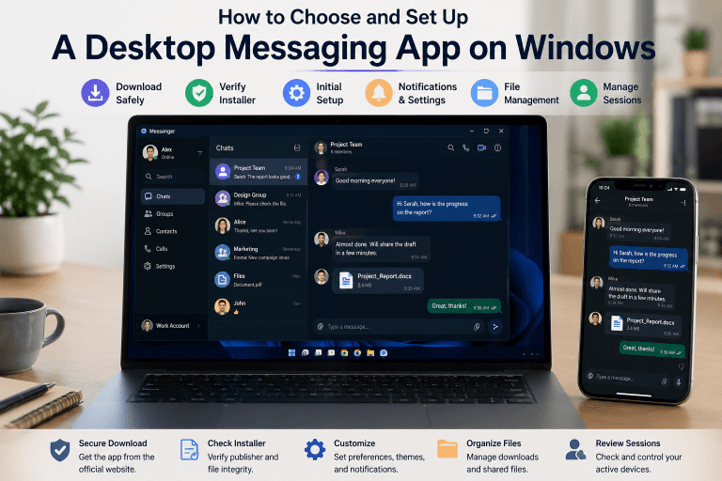
This guide provides a practical desktop messaging app setup workflow for individual users, remote teams, and multilingual communities, including Hong Kong and Taiwan users who switch between English and Traditional Chinese across mobile and Windows devices.
Define the Desktop Messaging Use Case
It’s advisable to determine the application’s purpose before downloading any application. This prevents selecting a device simply because it looks good or is popular.
Private one-to-one messaging is the primary need of some users. If so, then the ease of use, the reliability of the message, and the reliability of the notification could be the most important. Others want the app to have a feature that allows them to actively participate in a group chat, share files, pin a chat, or access the searchable message history.
Useful questions to ask include:
- Will the app be used mainly for private chats or group discussions?
- Do you need to share files regularly?
- Will you use the same account on both phone and computer?
- Is cross-device syncing important?
- Do you need a strong built-in search function?
- Are desktop notifications necessary during work hours?
- Do you want keyboard shortcuts or quick desktop actions?
- Will the app be used for personal, team, or community communication?
It really comes down to the workflow and not the number of features promised in the advertisement. Some applications are more suitable for speedy communication, and others are more useful for desktop productivity and file management.
Check Windows Compatibility and System Requirements
After the communication needs are identified, the next step is to ensure that the app is compatible with the computer.
Look at the version of Windows. Some applications are compatible with the current Windows releases and may suffer problems on previous versions. It’s also important to know whether the system is 64-bit because many modern desktop software programs are optimized for 64-bit.
Users should also review:
- Available storage space
- Memory requirements
- Whether the app receives regular updates
- Whether Windows desktop notifications are supported
- Whether administrator permission is required
- Whether a mobile device is needed to complete login
- Whether the app can run properly on work or school devices with restrictions
Some messaging tools use the phone during initial setup, and others also provide flexible access to the desktop. It is a good idea to have this information in mind in advance to prevent confusion when installing the unit.
Verify the Desktop App Download Source
It’s very important to always review a download page before opening the installer. Just because a file is well known or has a nice layout doesn’t mean it is safe or up to date.
Chinese-speaking users searching for 纸飞机电脑版下载 should still verify the domain, Windows compatibility, installer publisher, and download destination before opening the file.
This is particularly crucial as a download page can feature mirror links, ads, bogus buttons, or directories of software not managed by the product developer. The best way to go is to look closely at the domain name, check for additional words or strange spelling, and see where the download button takes you.
Before clicking, users should check:
- Whether the page clearly identifies the product
- Whether the site distinguishes Windows from other platforms
- Whether the download button leads to a reasonable destination
- Whether the page includes version details or release information
- Whether the page appears overloaded with unrelated ads or redirects
Even if the website looks professional, the file itself still needs separate inspection.
Review the Windows Installer Before Running It
Once downloaded, don’t run the file right away. First, look at the installer in the Downloads folder.
Verify that the filename corresponds to the desired messaging application. Most Windows installers are in the .exe or .msi format. It is normal to have these – it should still correspond to the product being installed.
Users should review:
- The filename
- The file extension
- The file size
- The company or publisher name
- Available digital-signature information
- Windows Security warnings
- The file properties in Windows
Double-clicking the file and viewing the Properties will show some information about the installer. If a digital signature is available, check out the signer’s name. If the publisher is not recognized or doesn’t match the one you’d expect from the application, take a moment to stop and consider.
But Windows Security might also alert users that an unrecognized or potentially risky file was opened. Warnings should not be taken for granted, as shown in this case. A warning does not always indicate malware; rather, it should prompt extra caution.
Complete Desktop Login Safely
The first login is more than a formality. It is also the point where account security begins.
Most messaging apps require a phone number, one-time code, or account verification to ensure the user is logged in. Users should ensure that they are not entering information on an untrusted web page but on the trusted desktop application.
The safest login process includes:
- Confirming the correct phone number or account identifier
- Waiting for the code through the expected official channel
- Not sharing the login code with anyone
- Checking whether another device is already signed in
- Enabling extra account protection when available
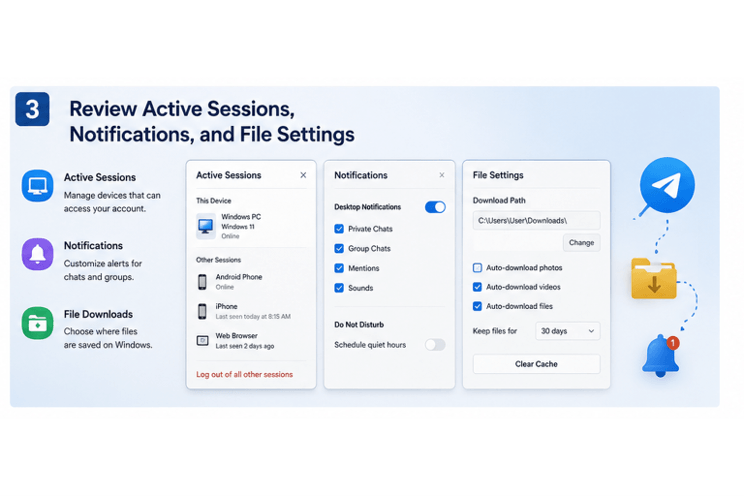
- Reviewing any new-session alert after login
If the application allows for a secondary password or two-step verification – it should be enabled as early as practical. This will give added security in case someone else gets a login code.
Users should also be alert for any indications that an account may not match. After signing in, if the profile you see doesn’t match, or if you see profiles you don’t know, stop and check the account now.
Configure Windows Notifications and Quiet Hours
Notifications determine whether the messaging app feels useful or disruptive.
A desktop application might require an alert to the user for direct messages, group mentions, file deliveries, or calls. However, if there are too many notifications, this can decrease concentration, particularly when working.
Useful notification settings typically include:
- Separate controls for private chats and groups
- Sound on or off
- Pop-up banner behavior
- Muted group settings
- Windows system notification permission
- Focus or do-not-disturb integration
- Quiet-hour scheduling during work or sleep
Users should not keep all chats alert, but rather set them according to their importance. You can send a message that is customized for private discussions, or set it as alerts for messages that are sent in groups.
A good desktop setup supports productivity by reducing unnecessary interruptions.
Organize Messaging Files and Download Folders
Most users opt for a desktop messaging app because there’s a lot less hassle in handling the files on Windows than on a cell phone. However, files can quickly get cluttered if download behavior isn’t monitored early on.
Users should check:
- The default download folder
- Whether media downloads happen automatically
- How cached files are stored
- Whether filenames remain clear
- How sensitive files should be managed
- Whether old downloads and cache should be cleaned regularly
A messaging application should not be an out-of-control storage folder. While in some chats automatic downloads might be easily tolerated, in more popular groups it can quickly fill up storage with images, videos and duplicate files.
Creating a structure for downloaded materials in a folder system for work-related use may be helpful. Also, if necessary, important files should be removed from the messaging app folder, particularly if they need to be stored, backed up, or versioned.
Review and Remove Active Device Sessions
Active-session management is one of the most important security checks after installation.
A useful desktop messaging app guide should explain how to identify the current Windows session, remove old devices, and respond quickly if an unfamiliar login appears. Many contemporary messaging apps let the customer see which devices are logged on. This can be past computers, desktops, tablets, or phones. This list helps verify that the right Windows session is running and that no forgotten device could be accessing it.
Users should regularly check:
- The name of the current Windows device
- The date and time of recent activity
- Whether any unknown or unused device appears
- Whether old sessions should be removed
- Whether the login history looks consistent
If you don’t recognize a session, it is best to log out, adjust relevant account settings, and check for additional security measures that should be implemented.
Troubleshoot Common Windows Messaging Problems
Even a good setup can have issues down the road. Luckily, many common problems can be diagnosed step by step.
Installation failure
If the installer won’t run, make sure the file downloaded successfully, verify that the file is compatible with Windows, and see if security software prevented it from running.
Verification code not arriving.
Ensure that all account information is accurate, the network is stable, and the code is being transmitted via the proper channel. See if a previously logged-in mobile device has been updated with the code.
Messages not syncing
This can be due to a temporary network problem, account mismatch, or unsynchronised data. Re-open the application and check that the right account is being used.
Notifications not appearing
Check both app permissions and Windows notification settings. It could also be the quiet mode or focus settings, or muted chats.
Files not opening
The file might not have downloaded, may be located in a different folder, or may require a different program to open it.
App not launching
Restart the computer, verify there are no pending Windows updates, and confirm whether the app seems to have installed correctly or has been blocked by another tool.
Most desktop problems can be resolved through a step-by-step examination, rather than drastic measures.
Desktop Messaging Considerations in Hong Kong and Taiwan
The language and input mode of the interface may be different and could impact daily use for users in Hong Kong and Taiwan. Test Traditional Chinese menus, search, contact names, file names, emoji, and mixed-language conversations. The application should be able to display Chinese characters consistently and uniformly, and the text should remain searchable and accessible on mobile and desktop.
Shared files should also be established as a shared work location,n and which device should get priority notifications. While a Windows client might be handy for large downloads, sensitive documents should be stored in a legitimate place rather than an open chat folder or the local cache for chat files.
Desktop Messaging App Setup Checklist
Before considering the setup complete, confirm the following:
- The app matches your actual messaging needs.
- The software is compatible with your Windows version.
- The download source has been reviewed carefully.
- The installer filename, format, and publisher have been checked.
- The first login was completed through a trusted process.
- Two-step or secondary verification has been enabled if available.
- Notifications have been customized for work and personal use.
- File downloads and storage behavior have been reviewed.
- The current Windows session has been identified correctly.
- Old or unfamiliar sessions have been removed.
- Common startup, notification, and sync issues are understood.
- The app is ready for safe daily use.
Frequently Asked Questions
What should I check before installing a desktop messaging app?
Verify domain, Windows version, publisher of the installer, file properties, and security scan results. Don’t visit pages that try to super-sell you extensions that have nothing to do with you, redirect you to an unknown file host, or give you ambiguous information about the platform you are on.
Is QR-code login safe?
It is convenient, but only scan a code shown by the verified desktop client. Review the new session afterward, and cancel the login if the device name, location,n or time is out of the ordinary.
How can I prevent duplicate notifications?
Select a main alert device, silent low-priority groups, mention alert groups, and set up Windows Focus with the app. Test each separately: test calls, private messages, and group notifications.
Conclusion
The right Windows messaging configuration can make communication easier, but it shouldn’t create new security or productivity issues. Some of the installation process features include source verification, controlled login, organized downloads, sensible notifications, and regular session review.
The settings tested in this experiment can be used as a solid foundation for extending a mobile account to a user or team in Hong Kong, Taiwan, and other multilingual environments with the help of a desktop client.
Popular on OTW Right Now!



About The Author

Gagan Bhangu
Founder of otechworld.com and managing editor. He is a tech geek, web-developer, and blogger. He holds a master's degree in computer applications and making money online since 2015.