
10 Free Tools for Converting and Managing Documents Online
Converting PDFs and managing documents online refers to web applications that transform PDFs to different formats and help you organize, secure, and access digital files.
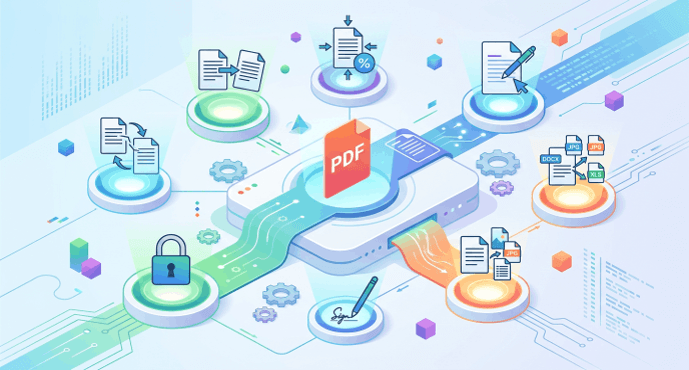
Both individuals and companies turn to the cloud these days for fast editing, sharing, and storing. These online tools expedite typical actions such as merging, splitting, or compressing PDFs.
Here are some of the best ways to deal with digital files, with tips and how-tos.
1. ConvertPDF
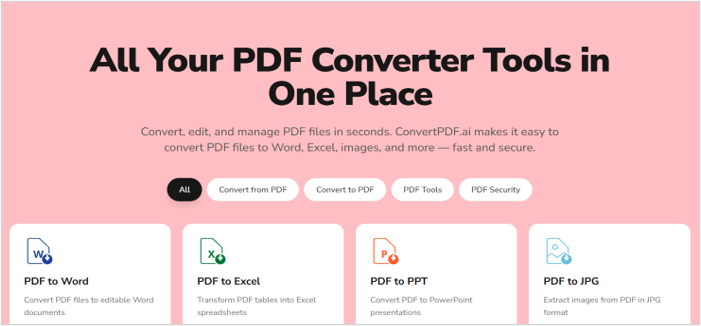
ConvertPDF is notable for its straightforward means to convert files to or from PDF, taking the headache out of dealing with documents. ConvertPDF makes toggling between Word, Excel, PPT, and commonly used image formats like JPG or PNG effortless and speedy.
It works across devices Mac, Windows, even phones, so if you’re in your office or on the go, you get the same convenience.
You simply select your file, select your format and let the tool work. For instance, a scanned PDF from a meeting can turn into an editable Word document in minutes, so you can easily update or reuse content.
The site emphasizes an easy-to-use layout. It’s all pretty clearly laid out, so even lazy file converters can accomplish tasks without a learning curve. File uploading requires only a few clicks, and oversized buttons clearly direct you where to begin.
If you want to convert a bunch of photos to a single sharable PDF or break up a large PDF by chapter, the process is straightforward and intuitive. Even for first-timers, the instructions and flow are intuitive.
ConvertPDF provides numerous conversion options to assist with various tasks. More than just documents, you can get down to business with images, spreadsheets, and presentations, making this a useful tool for work reports, study notes, or creative projects.
Say you have tables in a PDF that you want to edit in Excel. ConvertPDF can preserve the table’s formatting. For converting lecture slides from PowerPoint to PDF handouts, the formatting remains intact so nothing gets lost in the conversion.
Retaining the original appearance of the file is a plus in this instance. Fonts, images, and layouts don’t wiggle or fracture when it converts, so the final product remains clean and businesslike. This comes in particularly handy for resumes, legal forms, and reports where a minor tweak can have a significant impact on the impression or meaning.
Security issues are covered as well. ConvertPDF employs robust 256-bit SSL encryption so documents remain confidential during upload and download. Uploaded files are usually removed a few hours later, which provides some comfort for those dealing with confidential information.
Several of its features are free, but there are limits to conversions before you have to upgrade. Some users may have to consider the price if they convert big batches frequently.
2. iLovePDF
Furthermore, iLovePDF is known for being an all-in-one online PDF toolbox that combines over 25 tools in one area. One of its key attractions is its comprehensive collection of PDF editing and conversion tools. If you want to combine several PDFs into one or divide a bulky file, the merging and splitting tools are a must.
Compressing files to make them smaller makes sharing quicker and saves space, particularly if you’re dealing with big reports or image-intensive documents. There are editing functions built in, so it feels direct and fast to make small text edits or annotate PDFs. For instance, students will use highlight and underline functions to go over study guides or homework assignments.
ILovePDF is usually easy to navigate, even for novices. The design is clean, with big buttons and step-by-step instructions for every tool. Converting a Word doc to PDF or extracting images can be done in a few clicks.
The majority of users find the interface intuitive to navigate, though a few may require some time to adapt to the tool layout, particularly when accessing advanced features for the first time. The site provides guidance in multiple languages such as English, Spanish, French, German, and Italian to assist users worldwide.
Ease is the other super-strong suit. Files can be uploaded not only from a PC, but directly from Google Drive or Dropbox. This makes it easy to edit cloud-based documents without any additional downloads.
The service operates device to device, with a desktop application for Mac and Windows as well as a mobile application for iOS and Android. That is, you can edit, merge, or convert PDFs from a laptop at work, a tablet at home, or a phone on the go. For those with regular PDF duties, the premium plan unlocks additional capabilities and greater limits. The complimentary rate already addresses most fundamental requirements.
Security is important for iLovePDF, which protects files on upload or processing. It’s prudent to proceed with caution when dealing with confidential documents online, regardless of the site.
3. Smallpdf
After that, Smallpdf shines with its powerful PDF converter tools that make dealing with numerous file types seamless and hassle-free. There are more than 20 tools to choose from, allowing you to convert, compress, merge, split, or even edit PDFs from within your browser. Converting Word to PDF, compressing a file for email, or combining multiple scans into one all work in a few clicks.
For example, dropping a PPT file on the site returns a clean PDF version in seconds. This type of versatility serves users dealing with mixed file formats, whether it is for school, work, or business.
Smallpdf puts a big emphasis on privacy and security, which counts for anyone sharing sensitive data. All file transfers are protected with 256-bit TLS encryption, which means that whenever files transit between your device and the site, they’re secured to global security standards.
On top of that, you can add password protection to any edited files, further locking down contracts, reports, or personal papers. For teams requiring compliance, this security layer provides peace of mind without cluttering the workflow with new steps.
Speed is key. Smallpdf’s servers handle more than 40 million users per month, so uploads and conversions hardly ever stall. Users gush about how even bigger files, like a scanned book or batch of high-res images, convert or compress in no time.
The speedy timing works perfectly for the deadline stricken or those wishing to batch-convert a set of files for a project. The site is within the top 200 to 300 sites, and its infrastructure supports peak traffic without lagging.
Beyond the basics, Smallpdf has some pro features for quick PDF management. The e-signing tool allows you to sign agreements or paperwork digitally. Adding text, shapes, and highlights to a PDF works for reviewing documents or filling out forms online.
There’s even a convenient annotation tool for group assignments or collaborative review. Compressed files remain clean and readable, which is great for forwarding files without hitting email attachment size limits.
Smallpdf offers tools in 24 languages so teams or clients can use them anywhere in the world. A 7-day free trial for Pro lets you try unlimited access, which is great for crunch times or massive projects.
4. PDFSimpli
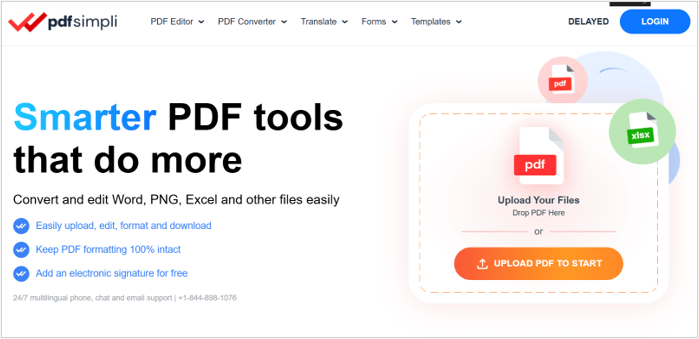
Those who frequently handle scanned files will appreciate the OCR feature, a serious time saver. This allows you to convert scanned images or physical paper into text that you can modify. You got a paper report by email as a scan. PDFSIMPLI’s OCR enables text extraction and modification, rather than retype everything. It has OCR that works with quite a few languages, though accuracy can vary with scan quality.
Handling a stack of PDFs simultaneously couldn’t be easier with PDFSimpli’s batch conversion. This allows you to convert multiple files at once, reducing the wait. Say you want to merge and convert reports from varying teams or months; it deals with it without having to upload each file individually. It’s a workhorse pick for students, educators, or anybody working with voluminous document packages.
PDFSimpli’s editing tools are transparent and adaptable. You can annotate, highlight, and even reposition text boxes by selecting the Pointer button. This is useful for examining agreements, annotating applications, or simply commenting. The annotation tools were easy to learn.
Inserting images can be a pain. A few users have observed that images continue to resize after the mouse is released, which can further drag the process if you’re aiming for exact placement.
Cross-platform support is another plus. One account works on Windows, Mac, iOS, Android, and Web, so your files are always close at hand. A heads-up, though: a pop-up might appear at the last step, which could feel abrupt, especially for new users who think editing is always free.
Refund requests are processed within 1 to 2 business days. Payments over 30 days are typically ineligible for a refund.
5. PDFhouse
PDFhouse offers a good variety of features to anyone managing digital documents. One of its main attractions is how easy it makes to create fillable PDF forms. In a matter of clicks, you can configure forms that visitors can complete on-screen. This is great for things like surveys, job forms, or customer feedback where you want to collect responses in a tidy, digital form.
By enabling inline input, PDFhouse increases conversion rates and maintains your data structured. PDFhouse steps up where it matters by organizing your documents. The site allows you to organize, save, and monitor your PDF documents with ease. Big files, up to 100 MB, upload fine, so complex reports, manuals, or presentations can be dealt with.
Keep all your files in one place, convenient to access when you want. For teams or solo users, it keeps your workspace clean and reduces misplaced files or cluttered folders. Editing tools on PDFhouse offer all the essentials and more. You can open a PDF and then tweak text, insert images, or reorder pages.
Turn scanned files into editable text in seconds, empowering users to repair old paper documents or edit forms on the fly. The platform allows you to merge files, split documents, or convert PDFs to Word or other formats.
For instance, a project team may need to collect notes from multiple meetings, combine them, and polish the resulting document before distributing. PDFhouse does this hassle-free.
Cloud storage is integrated, so users can access their documents from any online device. No more flash drive file schlepping or panicking about lost work after a laptop crash.
Document access remains safe, and collaboration or feedback sharing is easy. Signing documents online is another strong point.
PDFhouse makes eSignatures fast and secure, so having contracts or forms signed takes minutes, not days. Upload, sign, send — all in one sitting. PDFhouse combines editing, signing, converting, and storing all in one place. Teams collaborate, send files for review, and track changes or updates all within secure documents.
Collaboration tools and eSignatures complete a package of daily business solutions.
6. PDF24
PDF24 stands out for making PDF conversion and document management easy across tons of formats, all for free. Thanks to its online converter, dealing with files such as Word, Excel, JPG, and even PowerPoint requires just a few clicks. No ninja coloring skills or software installs required!
Say you want to upload a DOCX file and get it back as a nice, clean PDF. That feels straightforward, and there’s no charge or spyware threat. The site is browser-based, so it functions on Windows, Mac, or Linux as long as you’re online.
Security is a major advantage. Files uploaded for conversion are deleted within an hour, which reduces the risk of confidential information hanging around longer than necessary. This comes in especially handy for anyone dealing with business contracts or personal documents.
PDF24 does not store or share files, which sidesteps privacy concerns. Here is a nice touch — for those looking to make quick changes, the online editing tools let you split, merge, or reorder PDF pages. The editor meets most of the simple needs, such as deleting unwanted pages or pages in disorder, prior to forwarding a final version.
Editing is rudimentary; adding new text or images is sparse, so stick to minor modifications. If you want more than that, the PDF24 Creator installed on Windows delivers a more powerful set of tools, including a PDF printer and complete offline usage. For instance, combining large files or scanning paper directly to PDF can be accomplished offline, a huge win for both privacy and speed.
The Creator is free as well and contains no spyware. That said, it works only under Windows; there is no Mac or Linux version. PDF24 really steps away from the standard browser tools with some exclusive options. You simply email files to a special address and their cloud will convert and send back the PDFs automatically.
This is convenient for those who want to make conversions without signing into a site. The flexibility is that you can work from almost any device — via web, email, or the Windows Creator. Though the online utilities suffice for the most part, the offline PDF24 Creator includes additional capabilities to cope with more complicated tasks, such as batch processing or advanced merging.
The online side is ideal for light editing, quick conversions or when you’re on a non-Windows device.
7. Go Nitro
Next up, Go Nitro impresses with its powerful PDF editing and conversion offerings for both individual users and teams. Nitro’s platform allows users to do a lot more than read or share PDFs. The editing feature allows you to quickly correct text, insert new images or annotate files without having to begin from scratch.
For those working across file types, Nitro allows users to convert PDFs into Microsoft Word, Excel, or PowerPoint files with a simple upload. Even a one-time user who used the service more than 15 times for quick edits finds the interface easy to learn and smooth to use.
An area where Nitro distinguishes itself is with power efficiency for professional work. It has document comparison that highlights changes between versions. It’s a nifty tool that helps you spot updates without scrolling through pages line by line.
Nitro supports electronic signatures, so users can sign, send, and track documents online. What makes this feature extraordinary is its alignment with global standards like eIDAS and UETA. Audit trails capture every step, so your teams and clients have a transparent log of who signed when.
If you’re someone who sends large files, Nitro provides PDF compression to reduce file size, so you can easily send mail or upload to the cloud. Nitro is compatible with many file formats, which means fewer headaches when moving from platform to platform.
The software supports not only PDFs, but Word, Excel, PowerPoint, and more. This adaptability facilitates more fluid workflows, particularly for teams that distribute files across departments or with international clients.
Integration with Nitro Cloud allows users to save, share, and collaborate on documents live. For instance, a team can review a contract, annotate it, and gather signatures without having to download any additional software.
Its iOS mobile app introduces yet another level of convenience, allowing users to read and sign documents while on the road or between meetings. Support is another ace up the sleeve. Nitro provides access to an extensive knowledge base of step-by-step guides and articles.
Users can discover answers to frequent questions or grab tips to work smarter with the platform’s tools. With a freemium 14-day trial for new users, they have an opportunity to experience it all, including editing, signing, converting, and more, before making a buying decision.
8. Free PDF Convert
Free PDF Convert allows you to easily convert just about anything into a PDF for free. Thanks to a transparent interface and intuitive drag-and-drop functionality, the service guides users from upload to download within mere clicks. For instance, if you drag a Word or PowerPoint doc onto the primary screen, the conversion kicks off immediately, and it all goes down online with no downloads necessary.
In addition, we liked the fact that Free PDF Convert accommodates a great mix of file types. It deals with popular ones like Word, Excel, and pictures, as well as rarely used ones, so it’s easy to convert from one format to another. In other words, anyone working with reports, spreadsheets, and even scanned images can get them into PDF format for sharing or archiving.
The tool’s interface walks users through each step, with straightforward choices to select the output format or adjust settings for specialized requirements. Quality counts in document conversion, and Free PDF Convert tends to deliver. Almost all files are returned looking extremely close to the original, with layouts, fonts, and images intact.
For example, when converting an elaborate Excel sheet, it maintains the rows and columns aligned, which is crucial for work or school documents. If a file is graphics-heavy or has a complex design, some post-conversion tweaking might be required, as precision can fall off in isolated instances.
Security is something that users observe. During file processing, the platform applies 256-bit SSL encryption, which protects files from external access. Some users like the fact that their files are deleted from the server after 3 hours for an added sense of privacy. For those working with sensitive information, this option provides a bit of comfort.
More than a simple conversion, Free PDF Convert allows you to edit files. You can merge several PDFs into a single document, split large ones into smaller pieces, or rotate pages to achieve the desired layout. Compression tools assist in shrinking file sizes for easy sharing, and all these options are available directly on the main dashboard.
If you have to work away from your computer, the service is accessible via phone or tablet browsers, and there are desktop apps for offline usage. There are a few restrictions, such as file size limits or daily allowances, that might bog down users with large volumes or projects. Such limitations are par for the course with free tools and could drive heavy users toward plans or alternatives.
9. FreeConvert
FreeConvert is notable for its wide range of file conversion capabilities and straightforward method. Its signature functionality enables users to convert files into PDFs without sacrificing formatting. For instance, a PowerPoint slide deck with sophisticated charts transforms into a PDF in which all the graphics and text remain locked in place.
Best of all, the tool maintains the appearance of Excel tables, Word docs, and even scans, which comes in handy when you’re sharing files across devices or with colleagues. It’s simple interface walks you through each step, so you always know what you’re doing regardless of your expertise.
The dashboard centers around rapid uploads, easy drag and drop, and straightforward conversion options. You don’t have to wade through confusing menus. If you work from cloud storage, FreeConvert integrates directly with Google Drive. Users can upload files, convert, and send the finished documents back to the cloud, all with a few clicks.
A JPG in Google Drive can be converted to PDF and the tool will save the new file back into the same folder. The worth extends beyond PDFs. FreeConvert boasts support for more than 2000 file conversions, with over 40 documents and over 60 vectors available.
Designers use formats like SVG, AI, CDR, or WMF. Office workers appreciate converting Word, Excel, or PowerPoint files to PDFs or changing PDFs to editable Word or Excel files. The platform accepts many image formats including PNG, BMP, TIFF, and GIF. It is easy to convert between these types, too.
Nothing kills a workflow like large files, which is why FreeConvert has a built-in file compressor. This comes in handy when you’re sending a report or saving a long contract. It’s not all about documents and images. It supports an extensive list of video formats, ranging from MP4 and MKV to AVI, MOV, and MPEG, making it useful for teams working in multimedia.
Your files are treated securely. Files uploaded for conversion are deleted from our servers within 8 hours. This privacy policy assists users in handling sensitive information with confidence. The platform includes a smart OCR tool, powered by Tesseract AI, that can extract text from images.
If you have a scanned receipt in JPG format, it can be transformed into a searchable PDF, or its text copied out into a spreadsheet.
10. PdfFiller
PdfFiller distinguishes itself with its all-inclusive platform for generating, modifying, and managing PDF documents online. Users can edit text, sign, and annotate PDFs directly in the browser without downloading additional software. The interface is neat and intuitive, so navigating between tools such as the editor, signature, and annotation pane flows seamlessly.
For folks who want to construct documents from scratch or modify current ones, the platform has a lot of flexibility. For instance, a sales manager could revise a contract, annotate changes, and route for signatures all within a single location, whereas an HR specialist might complete onboarding documents directly within the application.
To make sure you don’t waste paper chasing down signatures, PDFFiller’s fillable forms save you hours on paperwork. Rather than print and scan, users can make any PDF a fillable form, distribute it, and receive responses instantly. For instance, a small business could share a job application form by email or link, then gather responses in one dashboard.
This goes for everything from legal agreements to feedback surveys. The platform provides access to a large collection of pre-made templates, such as business proposals or lease agreements, so opening a new document doesn’t mean you’re starting from scratch.
Security is at the heart of PDFFiller. With safe cloud storage, confidential files remain guarded behind password protection and encryption. The platform works well with Google Drive, Dropbox, Box, and OneDrive, so files can float back and forth without creating holes in the security.
Team members can save, organize, and access their documents wherever they may be, with controls to restrict what others can view or edit. For added peace of mind, pdfFiller allows you to encrypt PDFs prior to sharing, so documents remain confidential yet simpler to transmit.
Integration is another huge plus. PDFFiller hooks into popular apps, allowing it to more easily integrate into your existing document flows. Documents can flow from email to storage to markup and back — all within the same platform.
Integration with Google Drive or Microsoft OneDrive means a user can open a file directly from the cloud, edit, convert to Word or Excel, and save it back in one workflow. The platform batches several documents in one package or converts several files.
With 64 million users around the globe, pdfFiller has established itself as a trusted solution for everything from the everyday to the intricate.
Conclusion
PDF work online tools smooth and simplify things. Upload, convert, split, or quick-fill files. Websites such as Convertpdf and iLovePDF allow you to drop your documents, click a minimal number of buttons, and receive a new file in seconds.
No harsh stairs, no massive downloads. Drag a birthday invite or work report, patch what you need, save, and proceed. You get straight menus, minimal wait, and support for the majority of file types.
Online tools for busy days and every need. To choose the appropriate tool, test out a few and see what best suits you. Share your choice or advice with the rest of us, and lighten the load for all.
Popular on OTW Right Now!



About The Author

Gagan Bhangu
Founder of otechworld.com and managing editor. He is a tech geek, web-developer, and blogger. He holds a master's degree in computer applications and making money online since 2015.