
How to Make a 3D Multiplayer Shooter Without Coding
To make a good multiplayer shooter, you need an arena that’s fun to explore, controls that are responsive, and a simple way for friends to join the same match. The first version should be focused on getting those three bits working together.
Rosebud AI lets you create a game by describing it, choosing 3D and Multiplayer during setup, and improving the result through chat. You can develop the game in your browser and publish a playable URL to share with other people.
For a playable example, open FLOODGATE, a 3D multiplayer arena shooter by JoyfulPolenta. Set below a dam, it supports eight-player matches, bots, twelve weapons, and jump pads. A purge button floods the arena with plasma, making the bunker a place players need to reach when the hazard activates.
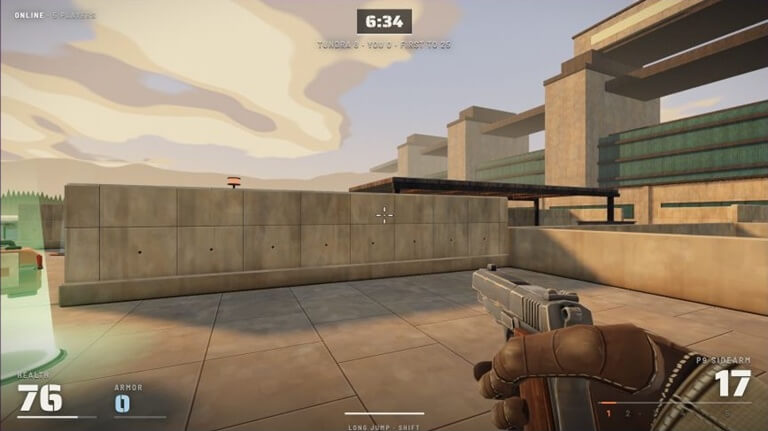
FLOODGATE by JoyfulPolenta: a 3D multiplayer shooter that you can play in the browser.
A game like this is useful in terms of helping you to plan your own. You can look at how the players are moving, where they’re meeting up and what’s going to influence their decisions. Start off with a very simple set of mechanics and then add more as you go through the testing.
1. Define the first match
Start with a single arena and one weapon. Ensure there’s plenty of cover for players to hide in and multiple paths through the map. Have a simple win condition (e.g., most eliminations before the five-minute timer runs out).
List the fundamentals before you get going: movement, aiming, shooting, health, respawning and scoring. The player should be able to join, fight, get killed and then get back in. Once that basic loop is working then it’s much easier to add in new weapons and new hazards.
Decide which device you’re going to support first. Keyboard and mouse are a good place to start for an arena shooter. Touch controls require their own control layout and testing, so you’ll want to deal with them separately when you get to mobile support.
2. Choose 3D and multiplayer
Enter your idea into Rosebud’s creation form, click Create and sign in if prompted. When Rosie asks you about your project, select 3D, desktop and Multiplayer. Multiplayer is built in and the platform provides you with public and private rooms to play in together.
Here is a starter brief you can adapt:
Create a 3D multiplayer arena shooter for 2-8 players. Keyboard and mouse controls, a small industrial arena with cover and one blaster. Health, ammo, reloading, respawning and a scoreboard. Matches are 5 minutes long and the player with the most kills wins. Focus on responsive movement, good visuals and simple effects.
Wait for the first version to finish generating before you ask for any changes. Generation uses your account credits, so check your balance before you start. The prompt is your starting design. Play the game and work on the bits that need work.
3. Get movement and shooting right
Use Preview to take a look at the arena. Try spinning around quickly, jumping up near the obstacles and moving towards cover from various angles. Check that the camera works as it should and that the players don’t get stuck on the map.
Next test a full combat sequence: shoot, take damage, reload, get killed, respawn. As you’re playing, watch the ammo and score display. It should be perfectly clear what happens to the ammo and score after each of those actions.
Give Rosie specific feedback when something fails. For example:
After respawning you can move but you can’t fire until you’ve reloaded. Make the player respawn with a loaded weapon and keep the reload behavior during normal play.
Change one thing at a time and test it again. Once the main controls are feeling good, then add a second weapon or a second path through the map. Play another match before you add any more.
4. Make performance part of the design
Test the game as you’d move, turn and shoot. It needs to be responsive in combat, even with a lot of players and effects on screen. Test it on the type of PC that your friends will be playing on.
Floodgate has graphics quality settings ranging from Potato to High, plus sensitivity and field of view controls. You can tweak the game to suit your own hardware and preferences.
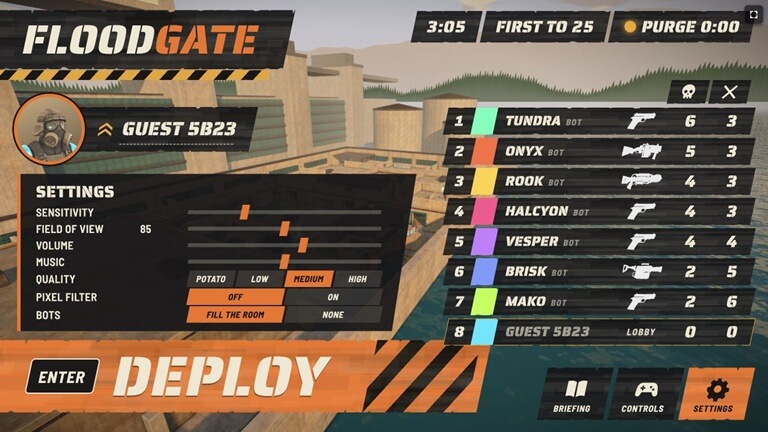
FLOODGATE allows you to adjust graphics quality, sensitivity, and field of view.
If your game is running slowly during busy scenes, then ask for a lower detail option. You can turn down the particle effects and decorations but you can still keep the opponents, the projectiles and the cover very easy to see. Just go back and retest the same scene with the setting changed to see if that has actually helped.
Bots can keep the arena active while you’re working on your game. Also do some testing with real players as they’ll be trying all sorts of routes and combinations that you may not have thought of.
5. Invite friends into the same match
When your game is ready to be played by others, publish it from the editor and open the published version. Use the multiplayer room control below the game and select ‘Play with friends’ to create a private room. Click ‘Copy link’ in the invite panel and send that to your friends so they can join. You can also copy the room code for them to enter under ‘Join another room’.
Use Copy link to invite friends into the same private room.
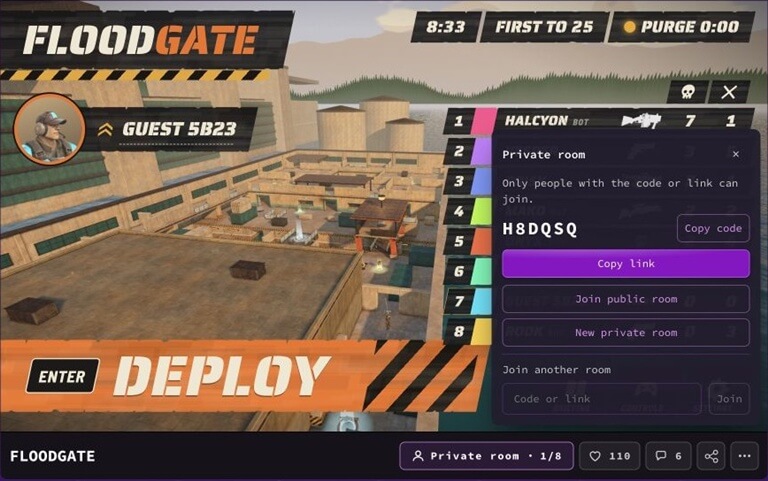
Play a full match together, make sure both players can see each other move, that damage and eliminations are being properly recorded, that the scores are correct and the next match starts as it should. Have someone leave and rejoin to check that works too.
Ask your friends which bits were good and which were confusing/slow. Take that feedback on board for the next update (clearer hit feedback, safer spawn points, shorter routes back into combat, lighter effects etc). Publish the update and use the same game link for your next playtest.
Popular on OTW Right Now!

About The Author

Gagan Bhangu
Founder of otechworld.com and managing editor. He is a tech geek, web-developer, and blogger. He holds a master's degree in computer applications and making money online since 2015.