
The Complete Handbook for Running Google Apps and Play Store on Huawei Devices
Why Setting Up Google Services on Huawei Is Easier Than Ever
Huawei’s flagship smartphones and tablets—including the HUAWEI Pura 80 series, Mate series, and MatePad lineup—offer standout hardware craftsmanship, bright OLED displays, and remarkable battery endurance. Still, many prospective buyers hesitate simply because they are unsure how to install google play store on huawei hardware safely and reliably without technical headaches.
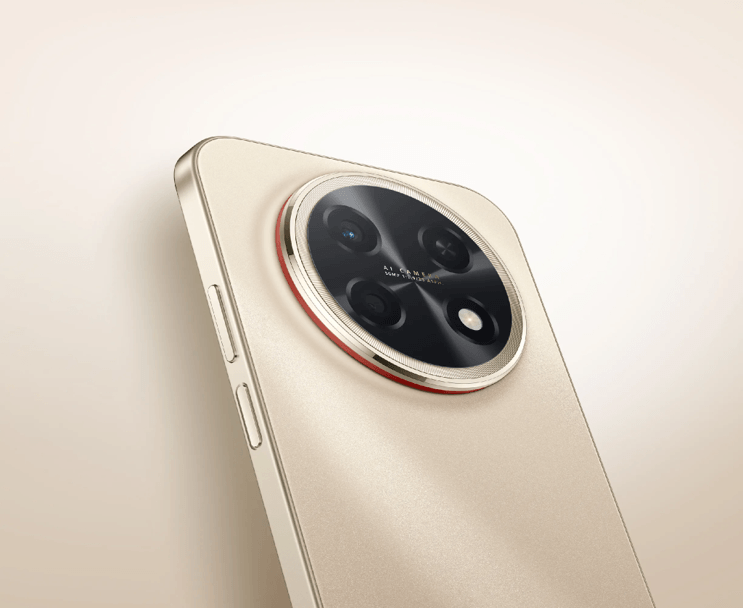
In fact setting up the Google services on the new Huawei devices is pretty straightforward and user-friendly. You can get all the Google apps you need and access the Google Play Store entirely within the HUAWEI AppGallery via two well-known tools: microG and GBox. No need to connect to a PC, no need to unlock the bootloader, and no need to download anything from some dodgy website.
Comparing Native AppGallery + microG vs. GBox Play Store Access
Understanding when to use AppGallery with microG versus when to open GBox ensures the fastest possible experience, lowest battery usage, and broadest app availability on any Huawei device:
- HUAWEI AppGallery + microG (Best for Core Google & Daily Apps): You can install all the major apps you’d expect (YouTube, Google Maps, Gmail, Google Drive, Chrome, WhatsApp, etc.) straight from the AppGallery. microG is running in the background so the apps work perfectly; they get notifications and will support Google Drive backups.
- GBox (Best for Full Google Play Store Catalog & Updates): GBox allows you to use the official Google Play Store in a secure environment. If you need a local app, a banking tool, a game, or a work app that’s not in AppGallery, then you can actually install and update that via Google Play using GBox.
Step-by-Step Instructions: Configuring microG First
Start by enabling Google account authentication at the system framework level using microG so core apps work seamlessly:
1. Download microG from HUAWEI AppGallery
Open the HUAWEI AppGallery on your device and search for ‘microG’. Tap ‘Install’ next to microG Service. If you’re prompted to install ‘microG Companion’ as well then do so (it’s installed alongside microG Service).
2. Sign In to Your Google Account
Open the microG Service and go to the Settings menu. Select ‘Google Accounts’ and tap ‘Add Google account’. Enter your Google email and password, complete any two factor verification and tap ‘I agree’ on the terms screen to finish the setup of your device.
3. Verify Account Registration
Go back to MicroG Settings and ensure your Google email address is listed under Registered Accounts. From that point on, when you download Google apps from AppGallery they will automatically recognize your account so you won’t need to sign in again.
Step-by-Step Instructions: Installing GBox for Play Store Downloads
Next, add GBox so the full Google Play Store catalog is always one tap away whenever needed:
1. Search and Install GBox
Open the HUAWEI AppGallery again, search for ‘GBox’ and tap ‘Install’. Just wait for the setup to complete before you go ahead and open GBox.
2. Access Google Play Store Inside GBox
Open GBox and tap the ‘Google Play Store’ icon on the main screen. Log in with the same Google account you used with microG to get full access to the Play Store and be able to download apps.
3. Add a Play Store Shortcut to the Home Screen
Press and hold the Google Play Store icon in GBox and then tap ‘Create Shortcut’. This will create a Play Store icon on your Huawei home screen so you can then go and download and update apps as and when you like.
Real-World Performance: Pura 80 Series, Messaging, and Cloud Sync
On the new HUAWEI Pura 80 series devices, setup is very quick as AppGallery will show the major Google apps as you search for them. You can have your go-to apps downloaded in minutes and benefit from features such as WhatsApp chat backup and restore to Google Drive, synced Chrome bookmarks and passwords, Google Photos access, and real-time Google Maps navigation.
Since microG handles the auth, your camera, smooth scrolling, and battery life are all unaffected. If you’re using multiple Google accounts (say one for work and one for personal use) you can add the extra accounts in microG and easily switch between them in apps that support it.
Tips for Smooth Performance and Official Support
To ensure you get the notifications as soon as they arrive and to avoid any background issues, go to Settings > Battery > App launch, select microG Service, click ‘Manage manually’, and turn on Auto-launch, Secondary launch, and Run in background. Keeping both microG and GBox updated in AppGallery is important so they can work with the latest apps. Turn on automatic cloud sync to keep your contacts and calendars in sync. If you need any assistance with the setup, you can of course call Huawei customer service on 852-8128-8810 for one-on-one support.
Popular on OTW Right Now!


About The Author

Gagan Bhangu
Founder of otechworld.com and managing editor. He is a tech geek, web-developer, and blogger. He holds a master's degree in computer applications and making money online since 2015.